Breaking News

ASUSTOR at Computex 2026 Exceed the Infinite with New ASRock X870E Taichi White Motherboard Fanatec unveils new products and performance upgrades at Spring Showcase LG Electronics Introduces First UltraGear evo Hyper Mini LED 5K Gaming Monitor CORSAIR Launches ThermalProtect PCIe 5.1 600W 12V-2x6 Cable to Help Protect GPUs from Overheating

logo

  • Share Us
    • Facebook
    • Twitter
  • Home
  • Home
  • News
  • Reviews
  • Essays
  • Forum
  • Legacy
  • About
    • Submit News

    • Contact Us
    • Privacy

    • Promotion
    • Advertise

    • RSS Feed
    • Site Map

Search form

Pioneer DVR-320-s DVD Recorder

Sep 29,2004 0

13. Recording Options


Review Pages

1. Introduction
2. Packaging & Interior Look
3. Control Menu
4. The Tuner menu
5. The Video In/Out Menu
6. The Audio Out menu
7. The Language menu
8. The Recording menu
9. The Playback menu
10. Reading Tests
11. Compressed Audio Performance
12. Making a recording
13. Recording Options
14. Advanced Features - Page 1
15. Advanced Features - Page 2
16. Editing and Finalizing a DVD-Video Disc
17. Writing Quality Tests
18. Error Correction Tests
19. Conclusion


Pioneer DVR-320-S DVD Recorder

Recording Options

Recording video on the DVR-320-S is as easy as the press of a button on the remote. You can record as much video as the disc can fit, or preselect recording durations in 30 minute increments. Of course, you can also program recordings using the Timer Recording menu .

The recording time that a blank DVD-R/-RW can accommodate depends on the desired quality of the video. As you can see from the screenshots below, the user can select between 32 different quality settings. The lowest setting corresponds to 1.73Mbps encoding bitrate, giving approximately 6 hours of recording time. The highest setting corresponds to 10Mbps encoding bitrate, giving approximately 1 hour of recording time and naturally, at the highest possible quality. So, according to the duration of the video you want to record, you can adjust the recording quality to make sure the disc will be able to fit the entire duration.
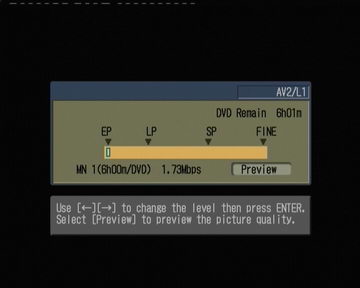
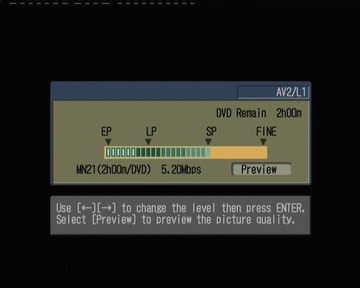
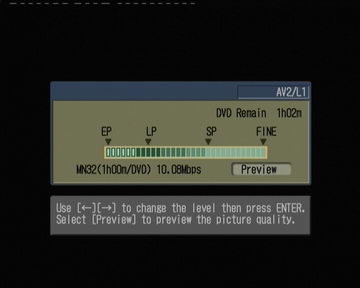

The DVR-320-S also has a feature that can be enabled through the Initial Setup menu, named Optimized Recording. If this is enabled, then the quality setting is chosen automatically according to the desired amount of time that needs to be recorded on the disc. On the same disc you can use different quality settings for each recording, and the remaining time shown is always calculated according to the disc's free space.
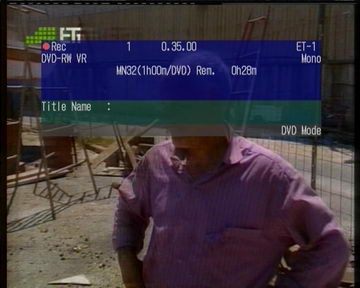


As you can see, at the highest quality setting (MN32/FINE) we managed to record 1 hour of video.


Review Pages

1. Introduction
2. Packaging & Interior Look
3. Control Menu
4. The Tuner menu
5. The Video In/Out Menu
6. The Audio Out menu
7. The Language menu
8. The Recording menu
9. The Playback menu
10. Reading Tests
11. Compressed Audio Performance
12. Making a recording
13. Recording Options
14. Advanced Features - Page 1
15. Advanced Features - Page 2
16. Editing and Finalizing a DVD-Video Disc
17. Writing Quality Tests
18. Error Correction Tests
19. Conclusion


Pages

  • « first
  • ‹ previous
  • …
  • 9
  • 10
  • 11
  • 12
  • 13
  • 14
  • 15
  • 16
  • 17
  • …
  • next ›
  • last »

Pioneer

Tags: Pioneer
Previous Post
Doom 3
Next Post
Rocket Division Software Grab&Burn

Related Posts

  • Pioneer announces microSD for dashcam

  • Pioneer Japan announces BDR-WX01DM for US market

  • Pioneer Japan announces new optical storage drives for JIS X6257 archive format

  • Pioneer Japan updates its CD-DVD Software utility

  • Pioneer Japan announces new BDR-X13J-X external BD Writer and BDR-WX01DM for archiving

  • Pioneer Japan releases new firmware updates for external Blu-Ray Recorders

  • Pioneer BDR-XD08UMB-S External Blu-Ray Recorder

  • Pioneer Japan updates firmware for their X13 lineup (30-01-2023)

Latest Reviews

Why Low-Latency Infrastructure Matters More Than Raw Specs
Enterprise & IT

Why Low-Latency Infrastructure Matters More Than Raw Specs

In the Age of AI Phishing, the Best User Experience Might Be the One That Feels Safest
Enterprise & IT

In the Age of AI Phishing, the Best User Experience Might Be the One That Feels Safest

SoundPeats C30
Consumer Electronics

SoundPeats C30

Why Streaming Live Casino Games Demands Smarter Tech
Enterprise & IT

Why Streaming Live Casino Games Demands Smarter Tech

Kioxia Exceria Plus G3 512GB microSD
Cameras

Kioxia Exceria Plus G3 512GB microSD

Popular News

TEAMGROUP Launches EXPERT P34F Find My External SSD

TEAMGROUP Launches EXPERT P34F Find My External SSD

Samsung announces Galaxy Tab S11 and Galaxy S25 FE series

Samsung announces Galaxy Tab S11 and Galaxy S25 FE series

CORSAIR announces Vanguard Pro 96 and Vanguard 96 Gaming Keyboards

CORSAIR announces Vanguard Pro 96 and Vanguard 96 Gaming Keyboards

Viltrox Showcases Upcoming Lens Lineup and New TTL Flash at IBC 2025

Viltrox Showcases Upcoming Lens Lineup and New TTL Flash at IBC 2025

MSI Launches FORGE GK600 TKL WIRELESS Special Edition Compact Mechanical Keyboard

MSI Launches FORGE GK600 TKL WIRELESS Special Edition Compact Mechanical Keyboard

Panasonic Introduces the First Ultra-Telephoto Zoom Lens in the LUMIX S Series

Panasonic Introduces the First Ultra-Telephoto Zoom Lens in the LUMIX S Series

MSI Launches DATAMAG 40Gbps Magnetic Portable SSD

MSI Launches DATAMAG 40Gbps Magnetic Portable SSD

Viltrox Joins the L-Mount Alliance, Expanding Creative Possibilities

Viltrox Joins the L-Mount Alliance, Expanding Creative Possibilities

Main menu

  • Home
  • News
  • Reviews
  • Essays
  • Forum
  • Legacy
  • About
    • Submit News

    • Contact Us
    • Privacy

    • Promotion
    • Advertise

    • RSS Feed
    • Site Map
  • About
  • Privacy
  • Contact Us
  • Promotional Opportunities @ CdrInfo.com
  • Advertise on out site
  • Submit your News to our site
  • RSS Feed