ACRyan Veolo review
4. App support, file management
Review Pages
2. Opening the box
3. Main functions, settings
4. App support, file management
5. Benchmarks, Video/audio/gaming performance
6. Final thoughts
Before starting using the the Veolo player, you need to "learn" some basic stuff related to the remote control. First you can drag the screen left/right by holding on to the 'SELECT' button and swiping in a left/right motion. You can also jump to screens by clicking on the bottom dots, or by pressing the 'HOME' button to display all 5 screens for selection. More tips are listed below:
- Press and hold the SELECT button on any empty spot of your home screen page to see a menu selection for
placing widgets, changing wallpaper, etc. - Press and hold any icons inside the My Apps menu to place them on any empty slot of the current home
screen page, drag the icon to the left/right margins of the page if you want to place it in a different home
screen page. - When you place a widget on your home screen, you can customize the number of rows and columns this
widget will take up, if the default value does not display the widget correctly. - Press and hold any icon inside the My Apps menu to place on any empty slot of the Apps dock. If the slot is
already occupied it will be replaced by the new icon. - Press and hold any icons on the Apps dock to remove them. Please take note that this removes the shortcut
and not the app itself.
At the menu area there are more icons of linked to the pre-installed apps. So here you'll have a browser, you can check email, Pulse, have a clock, photo gallery with dandy slide show options and so on. And of course you can install more apps of course. You have 4 GB of NAND flash storage to fill up and can add a memory card up-to 32GB.
With the latest firmware installed, the Veolo fully supports the Google Market:
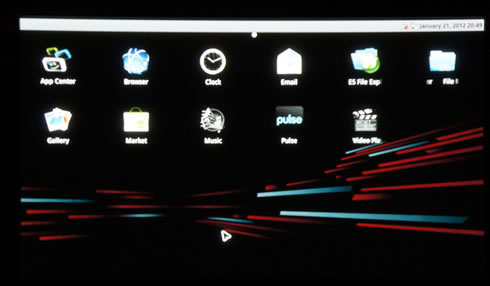
You are also having access to the App Center, which includes many apps, but not any free ones:.

As it happens with typical Android devices, by using the 'Select' button you can drag & drop an icon to bring it up at the main screen:

Access to the Android market requires a Google account:

Right after you log in, the the Android market screen appears on the screen:

Many free apps are provided here for your pleasure:

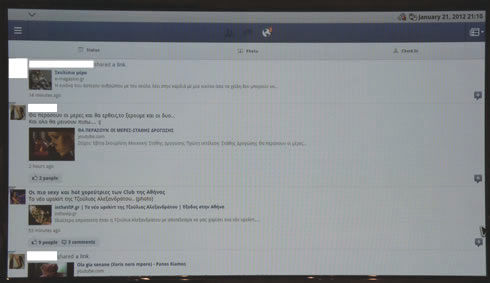
For example, you may install the popular Facebook app:

The Facebook client app is similar to what you may have seen in most Android tablets. The text is small and hard to read unless you move very close to your TV screen. Perhaps changing the text height under settings could help here:
The popular 'Angry birds' game can be also installed:

Other applications including 'Pulse' are already installed:

- File Management
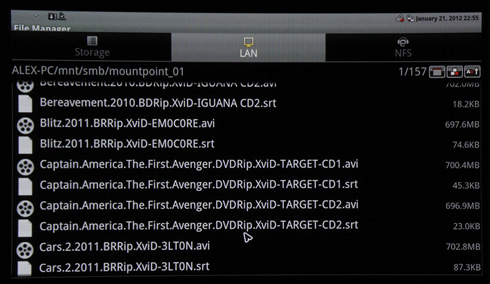
Movie files can be accessed through the 'File Manager' menu. There you will find files located in a USB flash device plugged into the player, the player's internal memory or your local network (LAN):

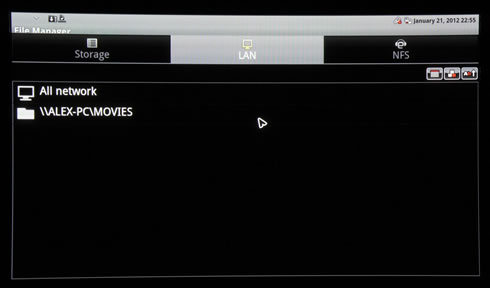
Selecting a movie file will automatically start playback:
Review Pages
2. Opening the box
3. Main functions, settings
4. App support, file management
5. Benchmarks, Video/audio/gaming performance
6. Final thoughts