Breaking News

ASUS ProArt RTX Spark Windows PCs Available for Immediate Pre-Order Kioxia Introduces E1.L QLC-based SSDs for Hyperscale Data Centers CORSAIR Launches the HS80 v2 MAX WIRELESS Gaming Headset Sony Announces the World's First Eclipsa Audio Certified Microphone1 for Smartphones Razer Unveils the Basilisk V4 Line

logo

  • Share Us
    • Facebook
    • Twitter
  • Home
  • Home
  • News
  • Reviews
  • Essays
  • About
    • Submit News

    • Contact Us
    • Privacy

    • Promotion
    • Advertise

    • RSS Feed

Search form

Maxtor OneTouch II

May 5,2005 0

2. STEP BY STEP Installation


Review Pages

1. Introduction
2. STEP BY STEP Installation
3. The program
4. Tests
5. Intel's IPEAK Read Tests
6. Conclusion
7. Detailed Specifications


-STEP BY STEP Installation

Let's take a step by step look at the installation procedure, as well as some "key" features of the Maxtor One Touch II.

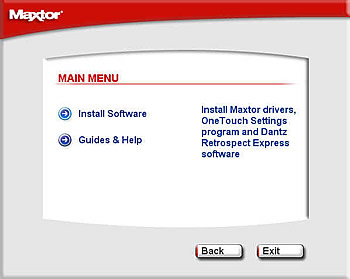
Without connecting the hard disk to the system, load the installation CD which should auto run. This will run the installation program and bring up the "Main Menu" screen (screen shot below), from which you choose to install the Maxtor drivers, One Touch Settings program and Retrospect Express.
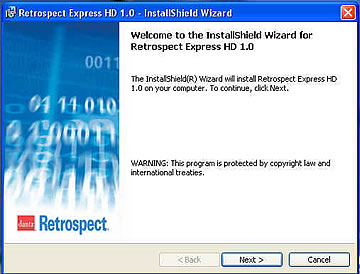
After the One Touch drivers are installed, it then automatically starts installation of the Retrospect Express HD 1.0 software.
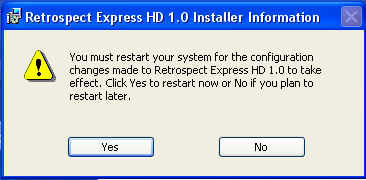
You are then prompted to restart your computer so that the Retrospect configuration changes can take effect.
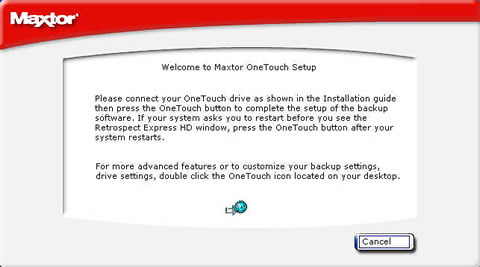
After restarting your computer, you are instructed to connect the hard drive to the system.

Note that you can have the hard disk connected to the system before the drivers and program installation process but with the power turned off.
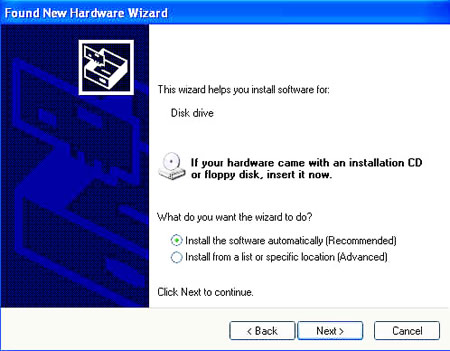
So, after connecting the disk and turning the power on, the system detects the drive and tries to find the most suitable drivers.

After selecting "install the software automatically", the hard disk is now ready for use.
 

Review Pages

1. Introduction
2. STEP BY STEP Installation
3. The program
4. Tests
5. Intel's IPEAK Read Tests
6. Conclusion
7. Detailed Specifications
 

Pages

  • « first
  • ‹ previous
  • 1
  • 2
  • 3
  • 4
  • 5
  • 6
  • 7
  • next ›
  • last »

Maxtor

Tags: Maxtor
Previous Post
Star Wars Knights of the Old Republic II
Next Post
LiteON SOHW-1673S

Related Posts

  • Maxtor Announces 1.5TB Storage Solution

  • Seagate Introduces New Maxtor Desktop and Notebook Hard Drives

  • Seagate Seen Buying Maxtor

  • New Maxtor OneTouch Solution Hits a Terabyte

  • Maxtor Intros 3Gb/S SATA II Hard Drives

  • Maxtor Bypasses PC with Home Network Drive

  • Maxtor Unveils 500GB Hard Disk

  • Maxtor won't think small after all

Latest Reviews

Fanxiang MP83 M.2 NVMe SSD Enclosure
Enterprise & IT

Fanxiang MP83 M.2 NVMe SSD Enclosure

Ugreen CM642 USB4.0 Enclosure
PC components

Ugreen CM642 USB4.0 Enclosure

be quiet! Dark Power 14 IO
PC components

be quiet! Dark Power 14 IO

SanDisk High Endurance 512GB microSDXC
Cameras

SanDisk High Endurance 512GB microSDXC

Samsung PRO Ultimate 512GB microSDXC
Cameras

Samsung PRO Ultimate 512GB microSDXC

Popular News

MSI’s Latest AMD X870E MAX & EVO Series Motherboards

MSI’s Latest AMD X870E MAX & EVO Series Motherboards

COLORFUL Launches iGame B850M ULTRA Series Micro-ATX Motherboards

COLORFUL Launches iGame B850M ULTRA Series Micro-ATX Motherboards

COLORFUL Presents Limited Edition Chitu MAG-60 Magnetic Keyboard Inspired by the Year of the Horse

COLORFUL Presents Limited Edition Chitu MAG-60 Magnetic Keyboard Inspired by the Year of the Horse

COLORFUL Launches iGame B850I MINI OC V14 Motherboard

COLORFUL Launches iGame B850I MINI OC V14 Motherboard

COLORFUL Presents iGame Z890 ULTRA-S W and iGame Z890M ULTRA Z Motherboards

COLORFUL Presents iGame Z890 ULTRA-S W and iGame Z890M ULTRA Z Motherboards

COLORFUL Launches the iGame X870E VULCAN W OC Motherboard

COLORFUL Launches the iGame X870E VULCAN W OC Motherboard

COLORFUL Expands B850 Motherboard Lineup with New CVN, Battle-Ax, and MEOW Models

COLORFUL Expands B850 Motherboard Lineup with New CVN, Battle-Ax, and MEOW Models

ASRock Adds Support for One Sub-Channel DRAM Module on Intel DDR5 Motherboards

ASRock Adds Support for One Sub-Channel DRAM Module on Intel DDR5 Motherboards

Main menu

  • Home
  • News
  • Reviews
  • Essays
  • About
    • Submit News

    • Contact Us
    • Privacy

    • Promotion
    • Advertise

    • RSS Feed
  • About
  • Privacy
  • Contact Us
  • Promotional Opportunities @ CdrInfo.com
  • Advertise on out site
  • Submit your News to our site
  • RSS Feed