Breaking News

SAMA Introduces the S32 WOOD, a Compact M-ATX Case Bundled with an 80 PLUS Gold PSU Thypoch Completes Simera-C Cine Prime Lineup with New 100mm T1.9 Lens CORSAIR Launches the RM1200e Power Supply with Built-in PinProtect GPU Overcurrent Protection and Platinum-certified Efficiency CORSAIR Changes the Game with PureVector, a Science-Based Personalized Aiming Technology, Launching Exclusively in the SABRE v3 PRO PureVector Mouse Series AMD FSR Upscaling 4.1 Boosts Frames and Image Quality on More Devices

logo

  • Share Us
    • Facebook
    • Twitter
  • Home
  • Home
  • News
  • Reviews
  • Essays
  • About
    • Submit News

    • Contact Us
    • Privacy

    • Promotion
    • Advertise

    • RSS Feed

Search form

Daemon Tools Image Drive

Dec 12,2007 0

2. How to Use and Conclusion


Review Pages

1. Introduction
2. How to Use and Conclusion


Right clicking on the DAEMON Tools icon in the task bar, brings up the following, main menu:

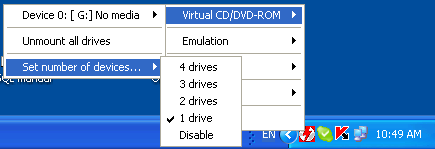
Initially, one image drive is ready and configured on your system. You can mount an image file directly onto this drive by selecting Virtual CD/DVD-ROM. This will produce a sub menu as follows:
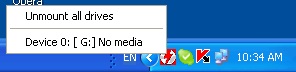
As we can see, at the moment, there's no image loaded on the image drive. To load one, select Device 0:[G:] No media to bring up the windows file selection dialog box. You then locate and select your CD or DVD image to load it. Below is the same menu when an image is already loaded. This time, notice that the path of the image file is shown and that there are four sub-choices.
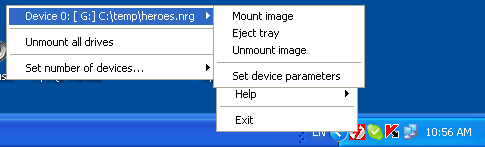
Selecting Mount image lets you load a different image file without having to unmount the existing image first. Unmount image simply unmounts the image so that the image drive is empty again. Selecting Eject tray is like pressing the eject button on a physical drive, and the option then becomes Load tray. This is handy if you want to test or perform an Autostart on the image.

The last selection, Set device parameters, opens up a configuration dialog box, as shown below:

Here, you can set the drive letter to be used and DVD Region.

Of course, you're not limited to just one image drive. You can configure DAEMON Tools to handle up to 4 image drives.
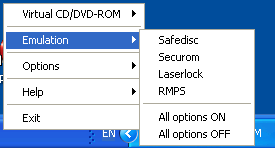
So far, this is quite a handy tool, but there's more. The software not only allows you to mount images, but it can also emulate disc protection schemes. The schemes available are shown below. To enable one of the protection schemes, simply left click on it. You can select none, one or more schemes for a disc image. When you select a scheme, the DAEMON Tools icon in the task bar turns green.
The Options selection allows you to set several options for the software, including Autostart, which we mentioned before, and Automount, which mounts whatever image was mounted on the drive when Windows shuts down (or reboots), the next time Windows starts again. The menu is shown below.

The Help option provides the usual help functions, like an About dialog which tells you the version number, a link to the Homepage on the internet, email support, and a manual. The manual is simply a link to the online help on the website. There's not a lot to this manual, but then, there doesn't have to be. Using DAEMON Tools is pretty straight forward. There's a final option, Donate. While this is free software, someone has put in a lot of time and effort and would probably appreciate your input to help maintain the package.

The final option, Exit, closes the application and removes it from the task bar.

So far, we've been right clicking on the task bar icon.You can also left click on it, which brings up the following menu:

This gives you quick selection to the two options you'd be using most of the time, mounting and unmounting an image. It's that simple.

This is a very useful little utility. It's saved me hours of work when producing presentation CDs and DVDs and is ideal for anyone working with disc media. Best of all, it's free. So head over to the DAEMON Tools website and get your copy.

 

Review Pages

1. Introduction
2. How to Use and Conclusion


Pages

  • « first
  • ‹ previous
  • 1
  • 2

image drive

virtual drive

Daemon Tools

CD

DVD

Tags: image drive virtual drive Daemon Tools CD DVD
Previous Post
Pioneer DJS Software
Next Post
Cardo S-800

Related Posts

  • DVDs Still Find an Audience

  • New Data Storage Method Could Boost Capacity Of Optical Storage Media

  • CDs Remain Popular In Japan

  • U.K. Physical Media Market To Keep Falling In Q3 2015

  • Optical Disc Sales Down

  • DVD And Blu-ray Discs Remain Popular in Britain

  • CD-R And CD-RW Discs Represent $368 Million in 2013 - CD writers and CD Combo Disappearing

  • DVD Writer and Media Market Keeps Shrinking

Latest Reviews

Why Intelligent Firmware Matters More Than Peak Throughput in NAS Systems
Enterprise & IT

Why Intelligent Firmware Matters More Than Peak Throughput in NAS Systems

Fanxiang MP83 M.2 NVMe SSD Enclosure
Enterprise & IT

Fanxiang MP83 M.2 NVMe SSD Enclosure

Ugreen CM642 USB4.0 Enclosure
PC components

Ugreen CM642 USB4.0 Enclosure

be quiet! Dark Power 14 IO
PC components

be quiet! Dark Power 14 IO

SanDisk High Endurance 512GB microSDXC
Cameras

SanDisk High Endurance 512GB microSDXC

Popular News

MSI’s Latest AMD X870E MAX & EVO Series Motherboards

MSI’s Latest AMD X870E MAX & EVO Series Motherboards

COLORFUL Launches iGame B850M ULTRA Series Micro-ATX Motherboards

COLORFUL Launches iGame B850M ULTRA Series Micro-ATX Motherboards

COLORFUL Presents Limited Edition Chitu MAG-60 Magnetic Keyboard Inspired by the Year of the Horse

COLORFUL Presents Limited Edition Chitu MAG-60 Magnetic Keyboard Inspired by the Year of the Horse

COLORFUL Launches iGame B850I MINI OC V14 Motherboard

COLORFUL Launches iGame B850I MINI OC V14 Motherboard

COLORFUL Launches the iGame X870E VULCAN W OC Motherboard

COLORFUL Launches the iGame X870E VULCAN W OC Motherboard

COLORFUL Presents iGame Z890 ULTRA-S W and iGame Z890M ULTRA Z Motherboards

COLORFUL Presents iGame Z890 ULTRA-S W and iGame Z890M ULTRA Z Motherboards

COLORFUL Expands B850 Motherboard Lineup with New CVN, Battle-Ax, and MEOW Models

COLORFUL Expands B850 Motherboard Lineup with New CVN, Battle-Ax, and MEOW Models

ASRock Adds Support for One Sub-Channel DRAM Module on Intel DDR5 Motherboards

ASRock Adds Support for One Sub-Channel DRAM Module on Intel DDR5 Motherboards

Main menu

  • Home
  • News
  • Reviews
  • Essays
  • About
    • Submit News

    • Contact Us
    • Privacy

    • Promotion
    • Advertise

    • RSS Feed
  • About
  • Privacy
  • Contact Us
  • Promotional Opportunities @ CdrInfo.com
  • Advertise on out site
  • Submit your News to our site
  • RSS Feed