Breaking News

Noctua at Computex 2026 GIGABYTE announces AORUS GeForce RTX 50 Series AI BOX Sony Expands Professional Display Lineup with Crystal LED UNIFY PlayStation Plus Game Catalog for June 2026 Introducing the Razer Seiren V3 Pro

logo

  • Share Us
    • Facebook
    • Twitter
  • Home
  • Home
  • News
  • Reviews
  • Essays
  • Forum
  • Legacy
  • About
    • Submit News

    • Contact Us
    • Privacy

    • Promotion
    • Advertise

    • RSS Feed
    • Site Map

Search form

Epomaker Click

Mar 19,2025 0

2. Retail Package


Review Pages

1. Introduction
2. Retail Package
3. Software
4. Conclusion


The retail box is simply black with the Click name at the top along with other interesting features, like the 42.000 dpi and the 8000Hz polling rate, clearly aimed at gamers and competitive users. The product can be found on the official online website to buy for $59.49.
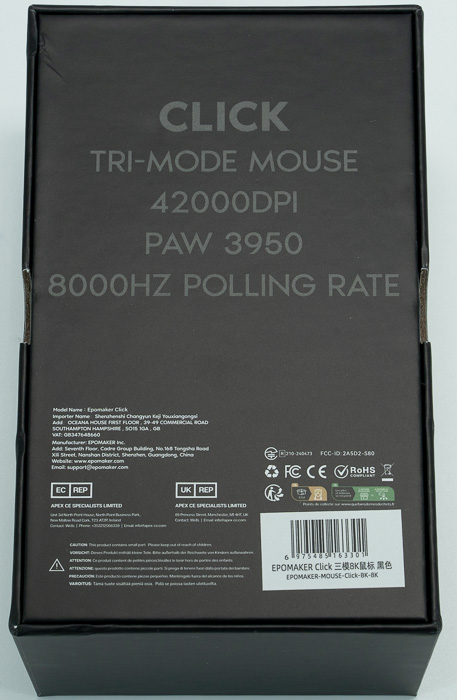

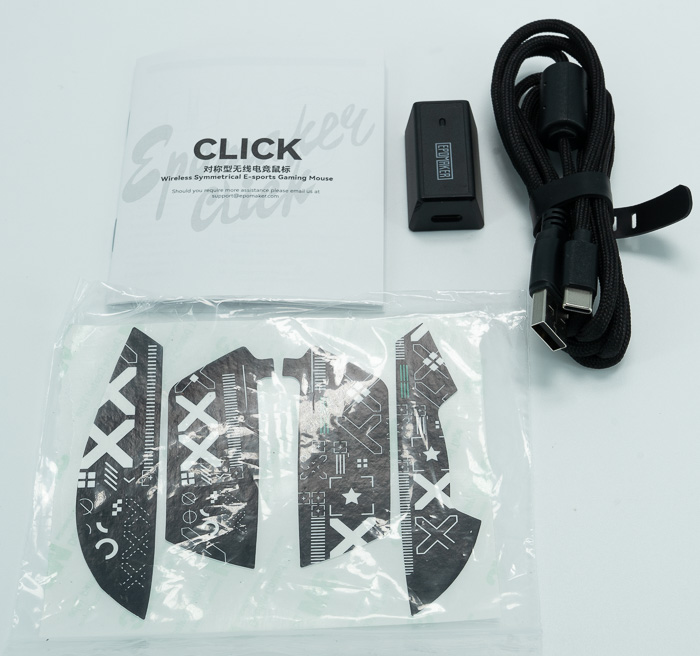
Inside the Box, users will find the Epomaker Click Mouse, a 2.4G Dongle, a long USB A to C Cable, and a printed User Manual.
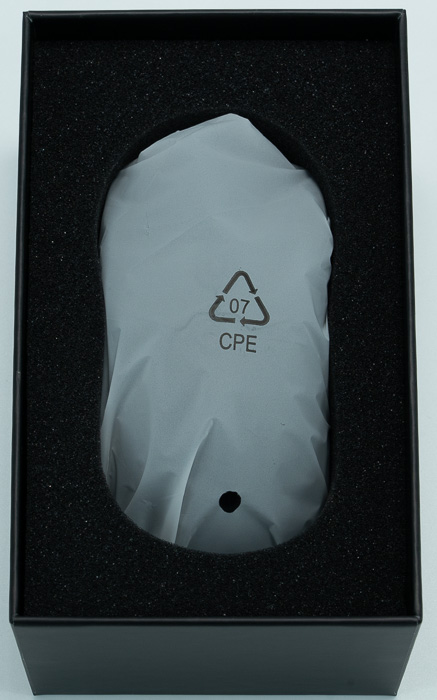
Everything is well packaged and secured, the mouse itself is inside a plastic protective bag for transportation and dust issues.
The mouse has a typical shape, dimensions 12.1*6.36*3.87cm, and low weight (about 58g) and can be ordered either in total black or white color.


On the right side, there are no buttons.
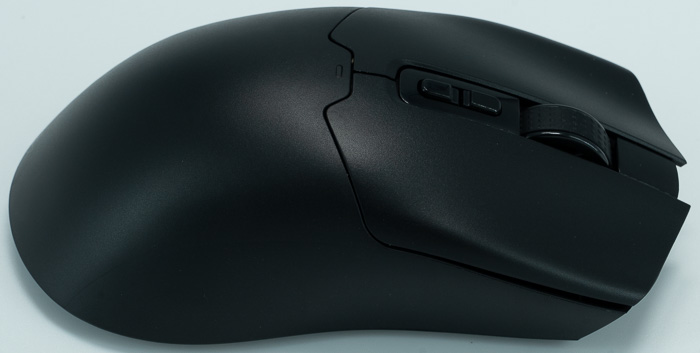
At the front users will find typical two buttons, one rotating knob, and two more buttons for DPI settings.

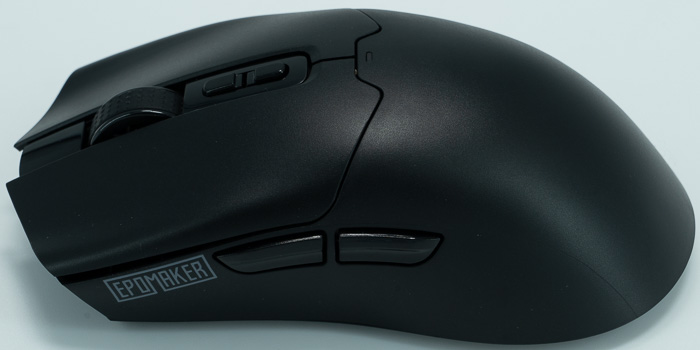
Two more buttons can be found on the left side with the EPOMAKER logo as well.
At the bottom of the mouse, users will find most controls and should remove protective stickers before use.
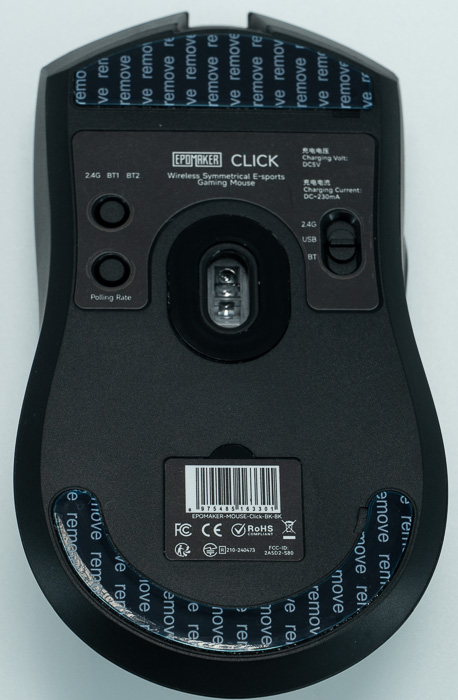
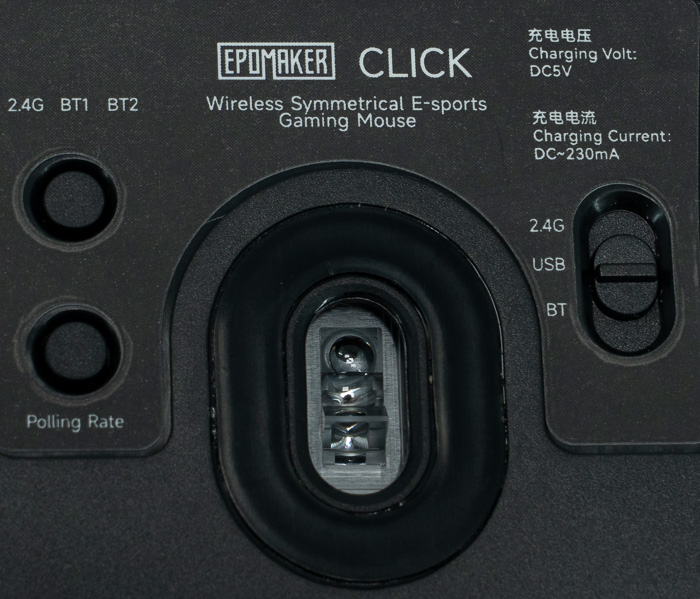
There is one switch for selecting the current mode (2.4G, USB-wire, BT), modes 2.4G, BT, and polling rate as well. The mouse uses a Pixart PAW 3950 sensor that was announced back in 2024. The PixArt PAW3950 is an upgrade to the famous PAW3395. The PixArt PAW3950 sensor is capable of a maximum sensitivity of up to 30000DPI, a tracking speed of 750IPS, and an acceleration of 50G.
The printed manual gives more information about each button's functionality and use
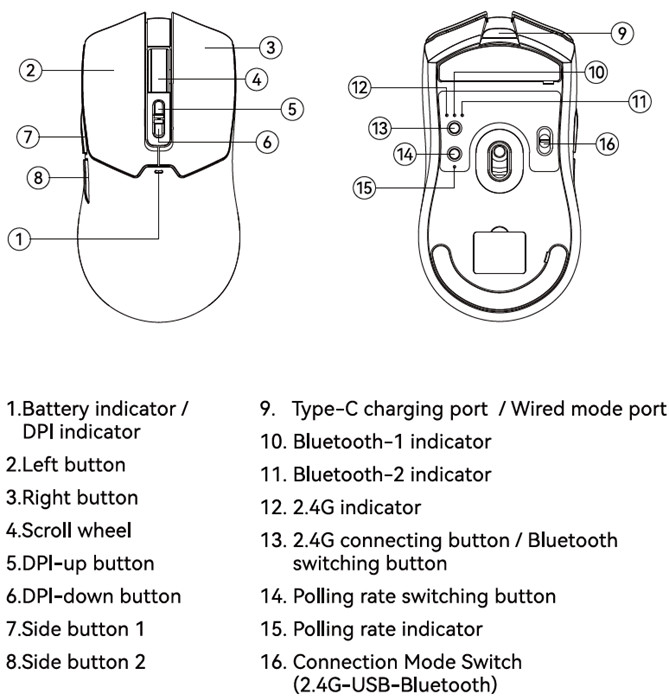
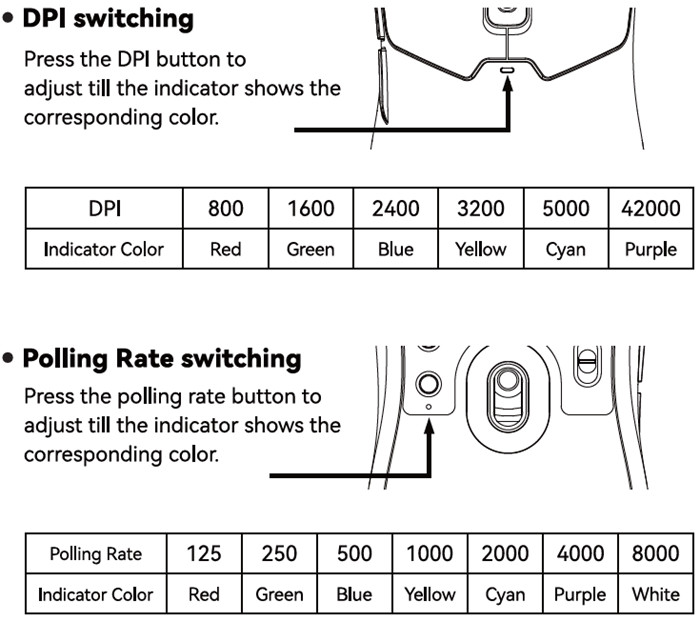
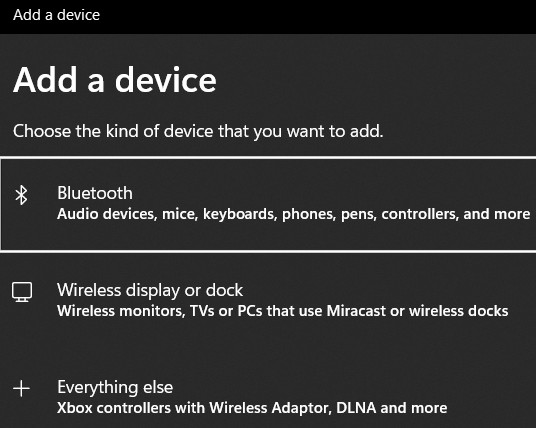
Users can use the EPOMAKER Click mouse with three supported modes:

  • Wired Mode: Toggle the switch to the wired (USB) mode, connect the mouse by using the Type-C cable to the computer. The mouse charged when connected with the cable.
  • 2.4G Mode
    • Connect the 2.4G receiver to the Type-C cable;
    • Toggle the switch in the back of the mouse to the top (2.4G) mode, the 2.4G indicator blinks green;
    • Press and hold the 2.4G connecting button till the indicator blinks fast, connect the 2.4G receiver with the cable to the computer. When the indicator stops flashing, the connection is completed.
  • Bluetooth Mode
    • Toggle the switch in the back of the mouse to the bottom (Bluetooth) mode, the middle (Bluetooth-1) / right (Bluetooth-2) indicator blinks;
    • Find ‘Epomaker Click-1 ’ in the computer and connect. When the indicator stops flashing, the connection is completed.
    • Note: Press the Bluetooth switch button to toggle to Bluetooth 2,repeat the steps above(and find ‘Epomaker Click-2’ to connect) to complete connection.
 

Review Pages

1. Introduction
2. Retail Package
3. Software
4. Conclusion


Pages

  • « first
  • ‹ previous
  • 1
  • 2
  • 3
  • 4
  • next ›
  • last »

EPOMAKER

Tags: EPOMAKER
Previous Post
Epomaker HE 68
Next Post
be quiet! Pure Base 501 DX LX

Related Posts

  • Epomaker Magcore 87

  • Epomaker Carbon 60

  • Epomaker HE 68

  • Epomaker Alice 66

  • Epomaker Split 65

  • EPOMAKER RT100

  • Epomaker HE 75 Mag

  • Epomaker P75

Latest Reviews

Swit NP-FZ100 Battery
Cameras

Swit NP-FZ100 Battery

The Technology Stack Behind Modern Digital Gaming Platforms
Consumer Electronics

The Technology Stack Behind Modern Digital Gaming Platforms

be quiet! Dark Rock Pro 6
Cooling Systems

be quiet! Dark Rock Pro 6

How Online Casinos Use Encryption, Verification, and Risk Controls to Build User Trust
Enterprise & IT

How Online Casinos Use Encryption, Verification, and Risk Controls to Build User Trust

Why Low-Latency Infrastructure Matters More Than Raw Specs
Enterprise & IT

Why Low-Latency Infrastructure Matters More Than Raw Specs

Popular News

CORSAIR announces Vanguard Pro 96 and Vanguard 96 Gaming Keyboards

CORSAIR announces Vanguard Pro 96 and Vanguard 96 Gaming Keyboards

TEAMGROUP Launches EXPERT P34F Find My External SSD

TEAMGROUP Launches EXPERT P34F Find My External SSD

MSI Launches FORGE GK600 TKL WIRELESS Special Edition Compact Mechanical Keyboard

MSI Launches FORGE GK600 TKL WIRELESS Special Edition Compact Mechanical Keyboard

Samsung announces Galaxy Tab S11 and Galaxy S25 FE series

Samsung announces Galaxy Tab S11 and Galaxy S25 FE series

Viltrox Showcases Upcoming Lens Lineup and New TTL Flash at IBC 2025

Viltrox Showcases Upcoming Lens Lineup and New TTL Flash at IBC 2025

Panasonic Introduces the First Ultra-Telephoto Zoom Lens in the LUMIX S Series

Panasonic Introduces the First Ultra-Telephoto Zoom Lens in the LUMIX S Series

MSI Launches DATAMAG 40Gbps Magnetic Portable SSD

MSI Launches DATAMAG 40Gbps Magnetic Portable SSD

Viltrox Joins the L-Mount Alliance, Expanding Creative Possibilities

Viltrox Joins the L-Mount Alliance, Expanding Creative Possibilities

Main menu

  • Home
  • News
  • Reviews
  • Essays
  • Forum
  • Legacy
  • About
    • Submit News

    • Contact Us
    • Privacy

    • Promotion
    • Advertise

    • RSS Feed
    • Site Map
  • About
  • Privacy
  • Contact Us
  • Promotional Opportunities @ CdrInfo.com
  • Advertise on out site
  • Submit your News to our site
  • RSS Feed