Breaking News

SAMA Introduces the S32 WOOD, a Compact M-ATX Case Bundled with an 80 PLUS Gold PSU Thypoch Completes Simera-C Cine Prime Lineup with New 100mm T1.9 Lens CORSAIR Launches the RM1200e Power Supply with Built-in PinProtect GPU Overcurrent Protection and Platinum-certified Efficiency CORSAIR Changes the Game with PureVector, a Science-Based Personalized Aiming Technology, Launching Exclusively in the SABRE v3 PRO PureVector Mouse Series AMD FSR Upscaling 4.1 Boosts Frames and Image Quality on More Devices

logo

  • Share Us
    • Facebook
    • Twitter
  • Home
  • Home
  • News
  • Reviews
  • Essays
  • About
    • Submit News

    • Contact Us
    • Privacy

    • Promotion
    • Advertise

    • RSS Feed

Search form

Thermaltake Max4

Oct 21,2005 0

2. Closer Look - Installation


Review Pages

1. Introduction
2. Closer Look - Installation
3. Performance
4. Conclusion


In this page we will take a closer look at Max4 5.25 enclosure while we will describe a little the installation procedure. The Max4 enclosure's dimensions are 270x175x55mm and weighs 1258g, making it easy to use. On top of that, the standing foot provided with the Max4 enclosure, rendering the placement of the external case to either horizontal or vertical pose.

The Max4 retail package contains a standing foot for vertical or horizontal orientation.

The front panel comes with a reflect enabled Black Mirror Coating, which comes off when a DVD-ROM is installed to allow the tray to open and close freely.

Notice the retail package reflected on the front panel coating...

In the back of the case, we clearly note the power switch, the power input and USB cable input.

the air holes help in heat dissipation..

In order to install any device on to the Max4 we have to firstly remove the back panel. There are two screws that have to be removed.

we used an electrical screw driver to get the work done...

Having un-screwed the case, we found the main chipset used by the Max4 mechanism. The PCBA Chip is the Cypress AT2+ model, the same chipset used in the Muse enclosure series and the Max4 2.5 & 3.5 cases.

the Cypress AT+2 chipset...

The interface used by the Max4 5.25 enclosure is an IDE to USB2.0, which means that the enclosure is connected via the USB2.0 port in the PC while it uses an 80pin IDE cable to connect the installed device, which can be a CD/DVD drive or even an 3.5" Hard Disk.

the IDE cable that hooks on the installed device...

After unscrewing the back panel, we remove the enclosure cover in order to install the desired device.

The installation procedure does not differ at any point from the normal IDE device installation..

As the Max4 can host both a DVD-ROM device (DVD-RW, CD-ROM etc.) and a HDD drive alike, we put both devices inside for installation procedure and testing purposes. Note that the screwing of the devices in the case, is mandatory in order to secure the stability of the inserted device. For our tests we used a DVD burner from LG, the GSA-4163B model, and a Hard disk drive by Western Digital.

We removed the front mirror coating panel to free the tray...

Make sure you properly installed the IDE and the power cables onto the device, the drive or the HD, as below.

Same procedure as with the drive...

Normally every DVD drive has screw holes at its bottom. In order to place the drive onto the Max4 there are four screws we have to take care of. The green marks in the following screenshots indicate where the DVD drive should be placed on.

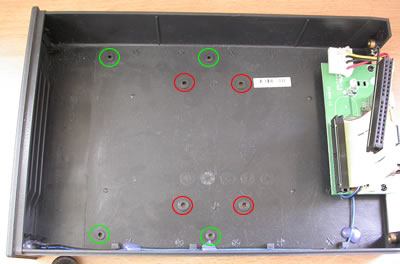
Red marks indicate the mounting points of the HDD drive while the green marks indicate the mounting points for the DVD-RW drive.

Much like the DVD drive, the HDD device is screwed on the bottom panel. The red marks indicates the screw points...

Last step was to screw the device on the bottom plate and put the cover back on the enclosure and the procedure was completed.

The Max4 5.25'' enclosure was ready to be put to testing. For testing the potentials of the Tt enclosure we used two benchmarks; the SiSoftware Sandra and the Passmark Performance Test.

Now lets move to the next page of this review and to the testing of the Max4 with both an HDD and DVD-RW devices.


 

Review Pages

1. Introduction
2. Closer Look - Installation
3. Performance
4. Conclusion


Pages

  • « first
  • ‹ previous
  • 1
  • 2
  • 3
  • 4
  • next ›
  • last »

Thermaltake

Tags: Thermaltake
Previous Post
Thermaltake Blue Orb II
Next Post
VoIP Essentials

Related Posts

  • Thermaltake Launches AW360/420 AIO Liquid Cooler and WAir CPU Cooler for Workstations

  • Begin the Racing Journey with the Thermaltake GR300 Racing Simulator Cockpit

  • Thermaltake Unveils the Massive EXTREME with Cross-flow Fan

  • Thermaltake Releases the Toughpower TF3 1300W with Support for RTX50 Series GPUs

  • Thermaltake Unveils G6 Direct Drive Racing Wheel Bundle and GM5 3DOF Motion System

  • Thermaltake Launches the TT150 LED Bag in Different Sizes and New Colors

  • Thermaltake New TH V2 Ultra EX ARGB Sync AIO – Snow Edition is Now Available Worldwide

  • Thermaltake Coolers Support New-Gen Intel and AMD CPUs

Latest Reviews

be quiet! Light Wings Pro IO fan
Cooling Systems

be quiet! Light Wings Pro IO fan

Why Intelligent Firmware Matters More Than Peak Throughput in NAS Systems
Enterprise & IT

Why Intelligent Firmware Matters More Than Peak Throughput in NAS Systems

Fanxiang MP83 M.2 NVMe SSD Enclosure
Enterprise & IT

Fanxiang MP83 M.2 NVMe SSD Enclosure

Ugreen CM642 USB4.0 Enclosure
PC components

Ugreen CM642 USB4.0 Enclosure

be quiet! Dark Power 14 IO
PC components

be quiet! Dark Power 14 IO

Popular News

MSI’s Latest AMD X870E MAX & EVO Series Motherboards

MSI’s Latest AMD X870E MAX & EVO Series Motherboards

COLORFUL Launches iGame B850M ULTRA Series Micro-ATX Motherboards

COLORFUL Launches iGame B850M ULTRA Series Micro-ATX Motherboards

COLORFUL Presents Limited Edition Chitu MAG-60 Magnetic Keyboard Inspired by the Year of the Horse

COLORFUL Presents Limited Edition Chitu MAG-60 Magnetic Keyboard Inspired by the Year of the Horse

COLORFUL Launches iGame B850I MINI OC V14 Motherboard

COLORFUL Launches iGame B850I MINI OC V14 Motherboard

COLORFUL Launches the iGame X870E VULCAN W OC Motherboard

COLORFUL Launches the iGame X870E VULCAN W OC Motherboard

COLORFUL Presents iGame Z890 ULTRA-S W and iGame Z890M ULTRA Z Motherboards

COLORFUL Presents iGame Z890 ULTRA-S W and iGame Z890M ULTRA Z Motherboards

COLORFUL Expands B850 Motherboard Lineup with New CVN, Battle-Ax, and MEOW Models

COLORFUL Expands B850 Motherboard Lineup with New CVN, Battle-Ax, and MEOW Models

ASRock Adds Support for One Sub-Channel DRAM Module on Intel DDR5 Motherboards

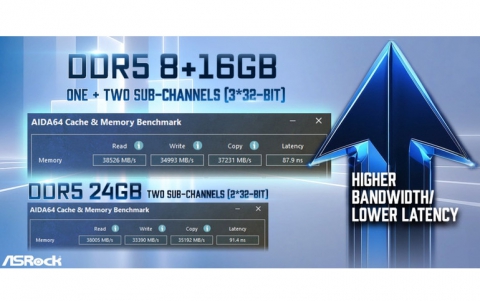
ASRock Adds Support for One Sub-Channel DRAM Module on Intel DDR5 Motherboards

Main menu

  • Home
  • News
  • Reviews
  • Essays
  • About
    • Submit News

    • Contact Us
    • Privacy

    • Promotion
    • Advertise

    • RSS Feed
  • About
  • Privacy
  • Contact Us
  • Promotional Opportunities @ CdrInfo.com
  • Advertise on out site
  • Submit your News to our site
  • RSS Feed