Breaking News

Akasa Launches Newton N16, Compact Fanless Case for ASUS NUC 16 Pro TEAMGROUP Unveils the ACE 8K MicroSDXC Memory Card ASUS Announces Ascent QN10 Mini PC CORSAIR Launches Second Generation Nautilus II AIO CPU Coolers CORSAIR Launches VOXARA USB Gaming Condenser Microphone

logo

  • Share Us
    • Facebook
    • Twitter
  • Home
  • Home
  • News
  • Reviews
  • Essays
  • About
    • Submit News

    • Contact Us
    • Privacy

    • Promotion
    • Advertise

    • RSS Feed

Search form

Rapoo MT550 Multi-Mode Wireless Mouse

Jul 24,2019 0

3. Installation, features


Review Pages

1. About the MT550 Multi-Mode Wireless Mouse
2. Design
3. Installation, features
4. Comments


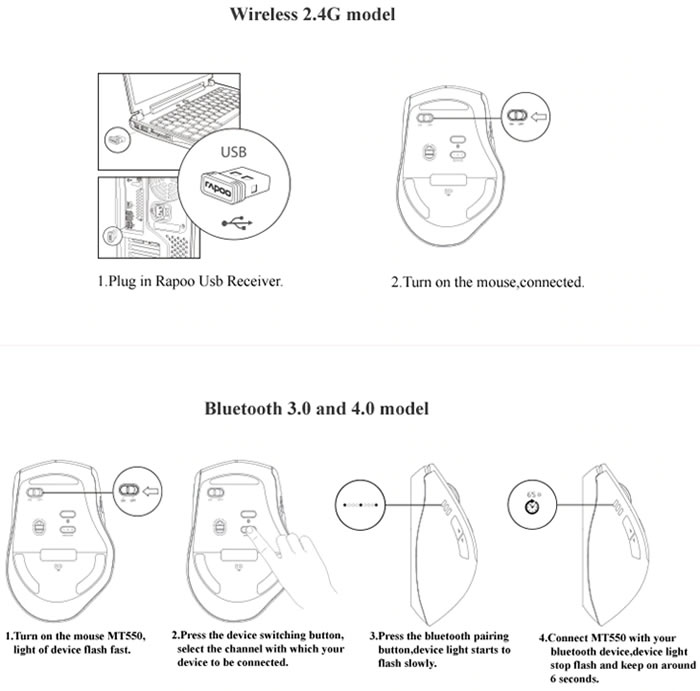
In order to get things going you first need to pull the battery protection and power up the device. You have three connection options: use the included 2.4GHz wireless dongle, or the BT 3.0 / 4.0.

The 2.4GHz method is simple:

1.Plug in the Rapoo USB Receiver.
2.Turn on the MT550.
3.You are connected.

If you choose to the BT connection method you need to un-plug the USB receiver, power off the device and power it back on. Then:

1.Turn on MT550. The device's light starts to flash.
2.Press the device switching button, select the channel in which your device will be connected to.
3.Press the Bluetooth pairing button. The light starts to flash slowly.
4.Connect the MT550 to your Bluetooth device. The device light stops flashing and keep on for 6 seconds.
5.Connected.
In order to change the DPI setting you need to press the DPI switching indicator. The green LED blinks once when you switch to the first DPI settings; it blinks twice for the second DPI option; three times for the third DPI option and finally four times for the fourth option.
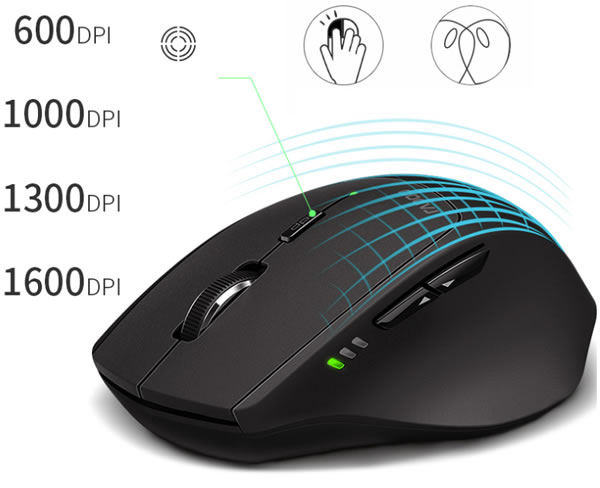
 

This mouse can also be connected to up to four devices. Press the device switching button to switch among the 4 devices; 2.4G (x1) and Bluetooth (x3). When the MT550 connects with the receiver, press the device switching button to switch to the most recently paired Bluetooth device. The three device lights stand for the three different Bluetooth devices. There is no device light for the 2.4G device.

1. When MT550 connects with a 2.4G device, 3 device, lights are off.
2. When MT550 is trying to connect back with a device, the device light starts to blink rapidly.
3. When MT550 is pairing with a Bluetooth device, the device light starts to blink slowly.
4. When MT550 connects with a Bluetooth device, the device light stops blinking and remains steady for 6 seconds.

Status LED

  • 2.4G indicator: Green LED blinks once.
  • Bluetooth mode: The status of the blue LED remains the same.
  • DPI switching indicator: Green LED blinks. It blinks once when you switch to the first DPI, blinks twice for the second DPI, blinks three times for the third DPI and blinks four times for the fourth DPI.
  • Low power indicator: Green LED blinks twice rapidly every two seconds when the MT550 is working.

Installation in Windows 10

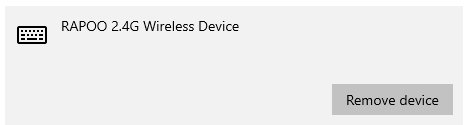
Using the 2.4Ghz Mode, everything should run smoothly and the mouse will be instantly recognized by Windows 10:
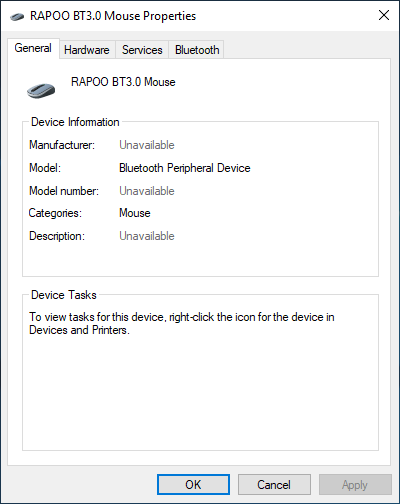
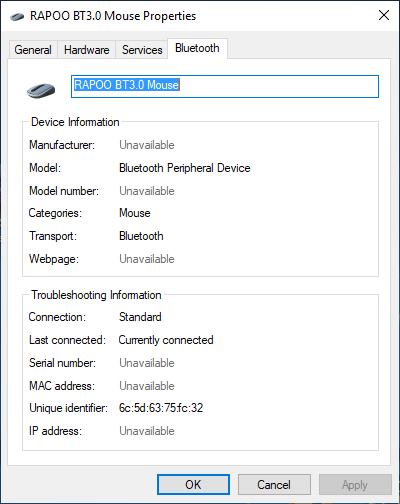
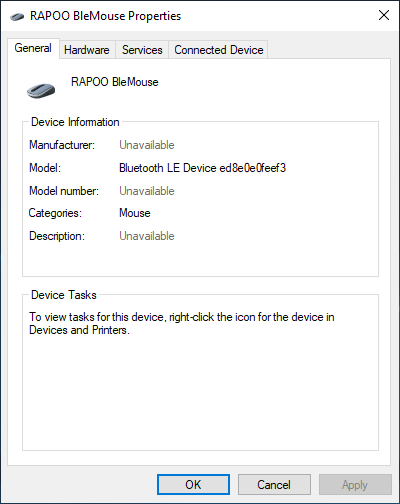
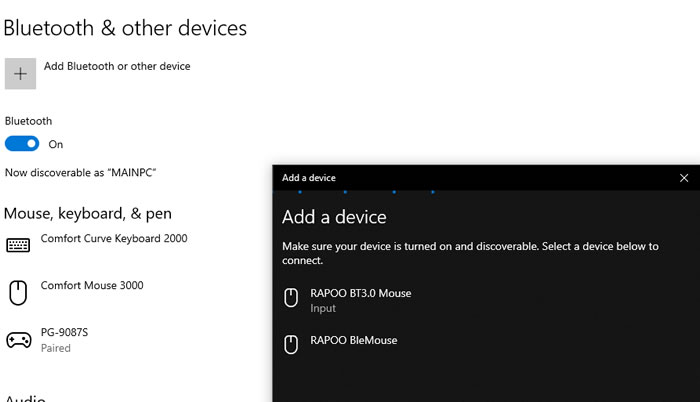
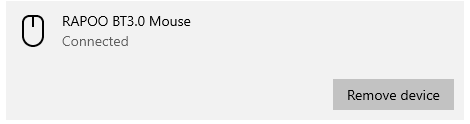
In the BT3.0/4.0 Mode, you will need to put the device inthe pairing mode and select the Rapoo BT3.0 or Rapoo BleMouse modes:
 

Review Pages

1. About the MT550 Multi-Mode Wireless Mouse
2. Design
3. Installation, features
4. Comments


Pages

  • « first
  • ‹ previous
  • 1
  • 2
  • 3
  • 4
  • next ›
  • last »

Mouse

Rapoo

Tags: Mouse Rapoo
Previous Post
Shuttle DH310S mini PC review
Next Post
WD My Passport 4TB PS4 HDD

Related Posts

  • Rapoo XC140-145 Wireless Charger

  • CORSAIR Launches New DARK CORE RGB PRO Wireless Gaming Mouse

  • CORSAIR Releases SCIMITAR RGB ELITE MOBA/MMO Gaming Mouse and MM500 3XL Mouse Pad

  • Razer Announces the DeathAdder V2 and Basilisk V2 Gaming Mice

  • Thermaltake Introduces Gaming Ecosystem at CES 2020

  • Razer Releases New line-up of Wireless Basilisk Mice

  • Razer Created the Razer Viper Wireless Mouse For esports

  • Logitech Introduces New Keyboard and Mouse Made for Google

Latest Reviews

Fanxiang MP83 M.2 NVMe SSD Enclosure
Enterprise & IT

Fanxiang MP83 M.2 NVMe SSD Enclosure

Ugreen CM642 USB4.0 Enclosure
PC components

Ugreen CM642 USB4.0 Enclosure

be quiet! Dark Power 14 IO
PC components

be quiet! Dark Power 14 IO

SanDisk High Endurance 512GB microSDXC
Cameras

SanDisk High Endurance 512GB microSDXC

Samsung PRO Ultimate 512GB microSDXC
Cameras

Samsung PRO Ultimate 512GB microSDXC

Popular News

CORSAIR announces Vanguard Pro 96 and Vanguard 96 Gaming Keyboards

CORSAIR announces Vanguard Pro 96 and Vanguard 96 Gaming Keyboards

MSI’s Latest AMD X870E MAX & EVO Series Motherboards

MSI’s Latest AMD X870E MAX & EVO Series Motherboards

Panasonic Introduces the First Ultra-Telephoto Zoom Lens in the LUMIX S Series

Panasonic Introduces the First Ultra-Telephoto Zoom Lens in the LUMIX S Series

COLORFUL Launches iGame B850M ULTRA Series Micro-ATX Motherboards

COLORFUL Launches iGame B850M ULTRA Series Micro-ATX Motherboards

COLORFUL Presents Limited Edition Chitu MAG-60 Magnetic Keyboard Inspired by the Year of the Horse

COLORFUL Presents Limited Edition Chitu MAG-60 Magnetic Keyboard Inspired by the Year of the Horse

COLORFUL Presents iGame Z890 ULTRA-S W and iGame Z890M ULTRA Z Motherboards

COLORFUL Presents iGame Z890 ULTRA-S W and iGame Z890M ULTRA Z Motherboards

COLORFUL Launches iGame B850I MINI OC V14 Motherboard

COLORFUL Launches iGame B850I MINI OC V14 Motherboard

COLORFUL Expands B850 Motherboard Lineup with New CVN, Battle-Ax, and MEOW Models

COLORFUL Expands B850 Motherboard Lineup with New CVN, Battle-Ax, and MEOW Models

Main menu

  • Home
  • News
  • Reviews
  • Essays
  • About
    • Submit News

    • Contact Us
    • Privacy

    • Promotion
    • Advertise

    • RSS Feed
  • About
  • Privacy
  • Contact Us
  • Promotional Opportunities @ CdrInfo.com
  • Advertise on out site
  • Submit your News to our site
  • RSS Feed