Breaking News

ASUS Announces WiFi 8 Router DJI Launches Osmo 360 II Razer introduces Clio X Wireless Speaker Head Cushion That Delivers THX Spatial Audio LiberNovo Showcases Ergonomic Innovation at IFA 2026 with Maxis Series for Big And Tall Users TIMEKETTLE UNVEILS NEW W4 PLUS AI INTERPRETER EARBUDS EXPANDING REAL-TIME TRANSLATION ACROSS CALLS, MEETINGS AND MULTIMEDIA CONTENT

logo

  • Share Us
    • Facebook
    • Twitter
  • Home
  • Home
  • News
  • Reviews
  • Essays
  • About
    • Submit News

    • Contact Us
    • Privacy

    • Promotion
    • Advertise

    • RSS Feed

Search form

ONES - Simple AudioCD guide

Oct 18,2004 0

2. Recording Using the Wizard


Review Pages

1. The Software
2. Recording Using the Wizard
3. Audio Compilation
4. Erase RW Disc
5. Comments


ONES_AudioCD - Simple AudioCD guide - Page 2

Recording Using the Wizard

This method is recommended for the first time or novice user.
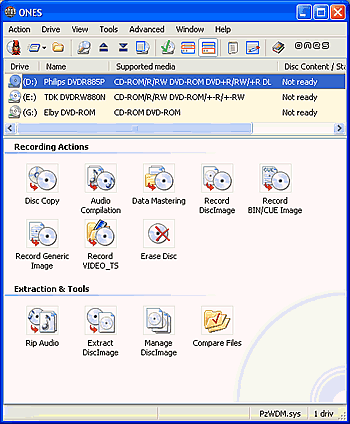
The screenshot above is what you'll see when you initially run the software.
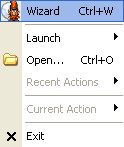
The simplest way to record a disc is through the use of the software wizard. From the main menu bar, choose the Action option, (the first option from the left), and select the Wizard icon from the drop down menu.

Alternatively, select the icon located exactly below the the Action menu option, or press the keyboard shortcut Ctrl+W.


After selecting the wizard, the following screen appears:
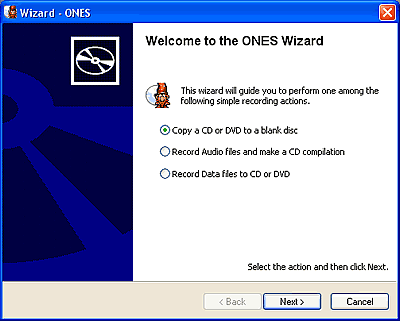
Here, you have to define exactly what you would like to burn. In our example, we selected the second option to create an AudioCD compilation. We then pressed the Next button which brings up the next screen, shown below:

Select the the add audio icon located on the bottom left, (see mouse pointer above), to add the music files you want to burn. Selecting the icon brings up the following screen in which you have to locate your files.
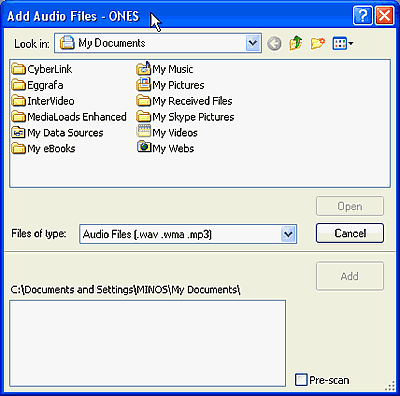
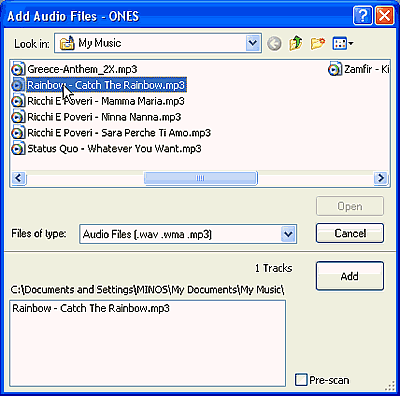
As soon as you locate the appropriate folder that contains your music files, you'll have to choose which files you want to burn. After completing this task, press on the Add button.
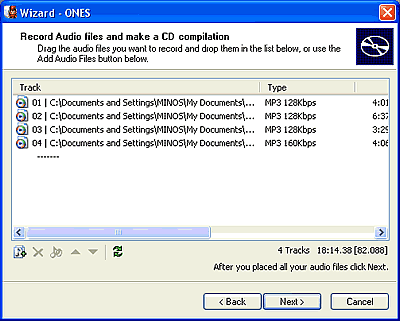
Your music complilation is now ready. Notice that all of your tracks will be converted to .wav files. If you wanted to burn a media with only compressed audio files such as MP3, then you should burn the MP3 files as data.

Now simply press the Next button.
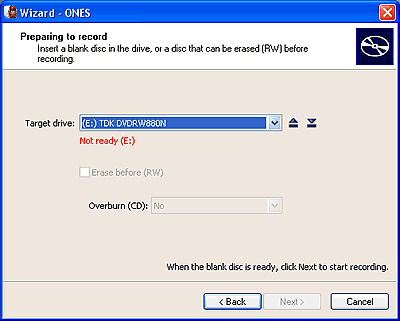
If you haven't already inserted a disc in the drive, you'll see the above "Not Ready" message (in red), located just under the target drive's name. Once a disc is inserted, you should see something like the following. If the indication message changes, as below, but is still red, then your disc is full.

If for any reason you would like to change the drive you are about to use, then open the "target drive" drop down selection and choose the correct drive.

Before pressing the Next button, you can also choose whether to overburn your CD or not, knowing of course that your burner is capable of such an action. Otherwise ignore this and use the default setting ( No).
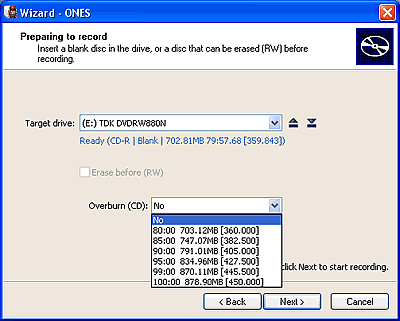
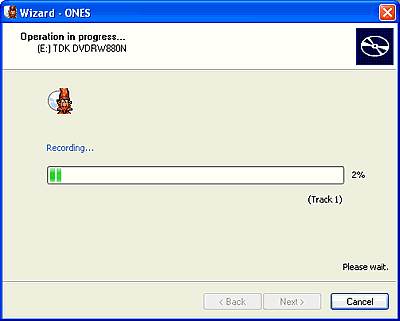
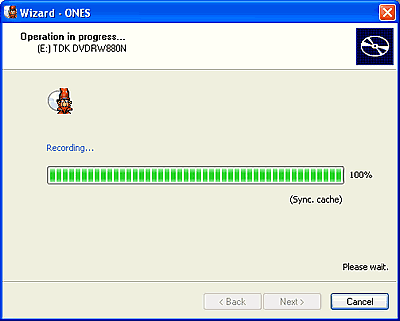
Make sure that you have configured all the appropriate settings, since after pressing the Next button and once the writing process begins, there's no way to go back...
 

Review Pages

1. The Software
2. Recording Using the Wizard
3. Audio Compilation
4. Erase RW Disc
5. Comments


Pages

  • « first
  • ‹ previous
  • 1
  • 2
  • 3
  • 4
  • 5
  • next ›
  • last »

Prassi

Tags: Prassi
Previous Post
ONES - Simple DVD-Video guide
Next Post
ONES Software

Related Posts

  • ONES recording software review

  • ONES - Simple DVD-Video guide

  • ONES Software

  • January, 2003 - Prassi is back!

  • Prassi keeps "CD Rep" after the lawsuit settlement

  • Roxio settles Prassi lawsuit

  • VERITAS Software acquires Prassi Europe!

  • Hot news: Prassi USA has been acquired by ...?

Latest Reviews

be quiet! Dark Power 14 IO
PC components

be quiet! Dark Power 14 IO

SanDisk High Endurance 512GB microSDXC
Cameras

SanDisk High Endurance 512GB microSDXC

Samsung PRO Ultimate 512GB microSDXC
Cameras

Samsung PRO Ultimate 512GB microSDXC

be quiet! Light Mount TKL
Consumer Electronics

be quiet! Light Mount TKL

be quiet! Light Loop IO LCD
Cooling Systems

be quiet! Light Loop IO LCD

Popular News

CORSAIR announces Vanguard Pro 96 and Vanguard 96 Gaming Keyboards

CORSAIR announces Vanguard Pro 96 and Vanguard 96 Gaming Keyboards

MSI Launches FORGE GK600 TKL WIRELESS Special Edition Compact Mechanical Keyboard

MSI Launches FORGE GK600 TKL WIRELESS Special Edition Compact Mechanical Keyboard

Viltrox Showcases Upcoming Lens Lineup and New TTL Flash at IBC 2025

Viltrox Showcases Upcoming Lens Lineup and New TTL Flash at IBC 2025

Panasonic Introduces the First Ultra-Telephoto Zoom Lens in the LUMIX S Series

Panasonic Introduces the First Ultra-Telephoto Zoom Lens in the LUMIX S Series

MSI Launches DATAMAG 40Gbps Magnetic Portable SSD

MSI Launches DATAMAG 40Gbps Magnetic Portable SSD

MSI’s Latest AMD X870E MAX & EVO Series Motherboards

MSI’s Latest AMD X870E MAX & EVO Series Motherboards

COLORFUL Launches iGame B850M ULTRA Series Micro-ATX Motherboards

COLORFUL Launches iGame B850M ULTRA Series Micro-ATX Motherboards

COLORFUL Presents Limited Edition Chitu MAG-60 Magnetic Keyboard Inspired by the Year of the Horse

COLORFUL Presents Limited Edition Chitu MAG-60 Magnetic Keyboard Inspired by the Year of the Horse

Main menu

  • Home
  • News
  • Reviews
  • Essays
  • About
    • Submit News

    • Contact Us
    • Privacy

    • Promotion
    • Advertise

    • RSS Feed
  • About
  • Privacy
  • Contact Us
  • Promotional Opportunities @ CdrInfo.com
  • Advertise on out site
  • Submit your News to our site
  • RSS Feed