Breaking News

PROGRADE DIGITAL ANNOUNCES TWO NEW HIGH-SPEED, USB 4.0 CFEXPRESS & SDXC UHS-II DUAL-SLOT READERS Intel Launches Intel Core Series 3 Processors Sony at NAB Show 2026 ADATA Launches URBAN TAPSAFE External SSD Sony Expands Gaming Gear Range with INZONE H6 Air and INZONE M10S II

logo

  • Share Us
    • Facebook
    • Twitter
  • Home
  • Home
  • News
  • Reviews
  • Essays
  • Forum
  • Legacy
  • About
    • Submit News

    • Contact Us
    • Privacy

    • Promotion
    • Advertise

    • RSS Feed
    • Site Map

Search form

Installation of SCSI HD

Jan 26,2002 0

5. Partition/Format


Review Pages

1. Introduction
2. Power Tips
3. Cables
4. Setting SCSI Adapter
5. Partition/Format


Installing a SCSI HD - Page 5

Source: Maxtor

- Partition and Format

The final step to preparing a drive for use is to partition and format it. Partitioning the drive defines the storage area and prepares the drive to accept data. Formatting sets up the File Allocation Table (FAT).

At this point you will need to decide what Operating System you will be installing. For Win9x Operating Systems you will use fdisk.exe to partition the drive and format.com to format. If you will be installing Win NT, partitioning and formatting is part of the Operating System installation process. If you use fdisk.exe from Win95 second edition, Win98, or Win2000 the "Large Drive" screen will be the first page displayed.
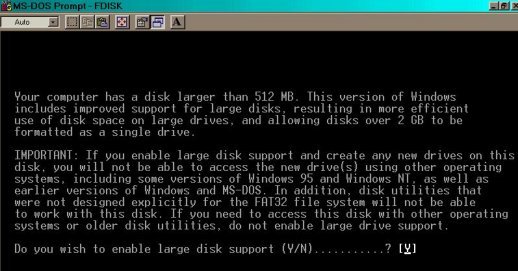
Large Drive Screen

Answering Yes will create a 32bit FAT (File Allocation Table). FAT 32 will support partitions sizes up to two terra bytes. If you answer No, a 16bit FAT will be created which allows for only two GB partition sizes. Once you answer Y or N the next screen displayed is the fdisk main menu.
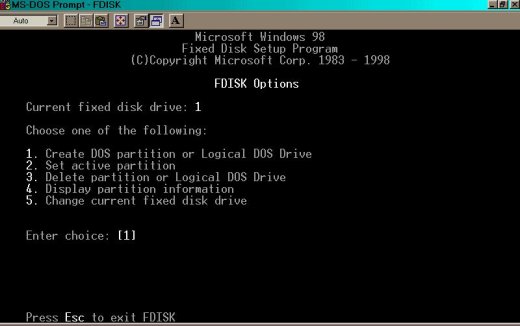
Fdisk Main Menu Option Screen

  1. Menu Item #1 is used to create Pri DOS, Logical, and Extended partitions.
  2. Menu Item #2. is used to set a Pri DOS partition Active. A partition must be set Active in order to make it bootable.
  3. Menu Item #3. is used to delete Pri DOS, Logical, Extended, and Non-DOS partitions.
  4. Menu Item #4. is used to display partition information.
  5. Menu Item #5. is viewable only if you have two or more SCSI drives installed in the system. It is used to toggle between the drives.

After you have created your partition it will need to be formatted. If the drive you are installing is the C: drive you will need to boot from a floppy that has a copy of fdisk.exe, so you can create the partition, and a copy of format.com that you will use to format the partition. At the A: prompt you would enter;
format C:/s (the /s copies the system files to the hard drive).

If you are installing a second, third, or forth drive you would, at the C: prompt type format and the drive letter of the partition(s) you just created followed by a colon.

For example if you just installed a second hard drive and made two partitions on it you would type

format D: at the C: prompt.

When that partition is done formatting you would then type;

format E: (for the second partition)
 

Review Pages

1. Introduction
2. Power Tips
3. Cables
4. Setting SCSI Adapter
5. Partition/Format


Pages

  • « first
  • ‹ previous
  • 1
  • 2
  • 3
  • 4
  • 5

Tags:
Previous Post
Test Methodlogy
Next Post
40GB Roundup Vol.1

Related Posts

Latest Reviews

In the Age of AI Phishing, the Best User Experience Might Be the One That Feels Safest
Enterprise & IT

In the Age of AI Phishing, the Best User Experience Might Be the One That Feels Safest

SoundPeats C30
Consumer Electronics

SoundPeats C30

Why Streaming Live Casino Games Demands Smarter Tech
Enterprise & IT

Why Streaming Live Casino Games Demands Smarter Tech

Kioxia Exceria Plus G3 512GB microSD
Cameras

Kioxia Exceria Plus G3 512GB microSD

SoundPeats Cove Pro
Consumer Electronics

SoundPeats Cove Pro

Popular News

TEAMGROUP Launches EXPERT P34F Find My External SSD

TEAMGROUP Launches EXPERT P34F Find My External SSD

Samsung announces Galaxy Tab S11 and Galaxy S25 FE series

Samsung announces Galaxy Tab S11 and Galaxy S25 FE series

Viltrox Showcases Upcoming Lens Lineup and New TTL Flash at IBC 2025

Viltrox Showcases Upcoming Lens Lineup and New TTL Flash at IBC 2025

CORSAIR announces Vanguard Pro 96 and Vanguard 96 Gaming Keyboards

CORSAIR announces Vanguard Pro 96 and Vanguard 96 Gaming Keyboards

Panasonic Introduces the First Ultra-Telephoto Zoom Lens in the LUMIX S Series

Panasonic Introduces the First Ultra-Telephoto Zoom Lens in the LUMIX S Series

MSI Launches DATAMAG 40Gbps Magnetic Portable SSD

MSI Launches DATAMAG 40Gbps Magnetic Portable SSD

MSI Launches FORGE GK600 TKL WIRELESS Special Edition Compact Mechanical Keyboard

MSI Launches FORGE GK600 TKL WIRELESS Special Edition Compact Mechanical Keyboard

Viltrox Joins the L-Mount Alliance, Expanding Creative Possibilities

Viltrox Joins the L-Mount Alliance, Expanding Creative Possibilities

Main menu

  • Home
  • News
  • Reviews
  • Essays
  • Forum
  • Legacy
  • About
    • Submit News

    • Contact Us
    • Privacy

    • Promotion
    • Advertise

    • RSS Feed
    • Site Map
  • About
  • Privacy
  • Contact Us
  • Promotional Opportunities @ CdrInfo.com
  • Advertise on out site
  • Submit your News to our site
  • RSS Feed