Spire DigiPanel II
1. Introduction
 Spire, the well known computer solutions manufacturer, with a product list ranging from Cooling Solutions to HDD enclosures, has recently released a Multi-Functional Control Panel as it is described by the manufacturer, the SP-206, aka DigiPanel II from the DigiPanel line series. Throughout these pages, we will be taking a closer look at the latest release, the Spire DigiPanel II, it's installation and features.
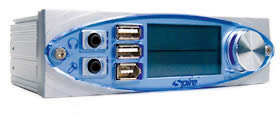
- Technical Specs
| SP-206 DigiPanel II | |
| Dimensions | 148.4 x 42.4 x 69.2 mm |
| Weight | 171 g |
| Material | Aluminum Alloy |
| Rated Voltage | 12V |
| Thermal Control | 3 sets |
| Fan Speed Control | 3 sets |
| Temperature Control Range | 30 ~ 90 °C |
| Fan Speed Adjustment Range | 60 ~ 100 % |
| LCD Monitor Dimensions | 49 x 26.5 mm |
| LCD Light | Blue |
| Application | Any free 5.25 inch the PC case. |
As seen from the above specs, the DigiPanel II is of a standard size and will fit right into any free 5.25 expansion bay on any PC case. Unfortunately, it does not come in any color other than Blue-Aluminum.
 |
 |
- Features
Here is a list of all the available features the Spire DigiPanel II offers to the end user...
- Multi-Functional Digital Command Control which allows users to play with the available fan speed of any three fans they desire to monitor. Also, the appropriate threshold can be adjusted to inform the user of any anomalies with a distinctive sounding alarm that the Panel has.
- 3 Sets of Fan Speed & Thermal Control allowing the user to monitor three different fan speeds and temperatures, switchable with a push of a button.
- The Fan Speed & Overheating Alarm is a useful feature which notifies the user of any overheating or fan failures with an alarm.
- USB, 1394 FireWire, Earphone & Microphone Ports are the available I/O ports the DigiPanel II offers as passthrough connections from the motherboard.
- The Blue Indiglow LCD Monitor is quite impressive and will give a cool look to your PC case.
Now that we have covered the basics, let us move on to the DigiPanel II itself.
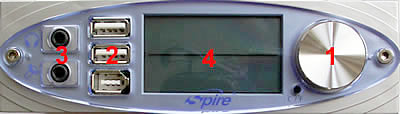
1.Control Button. With the use of this button, we can control all the functions available on the DigiPanel II. By pushing this button, we can navigate among the three available pairs of Heat Sensors & Fan Speeds. Once the appropriate option has been selected, by turning the button, we can adjust the fan speed (only by 60 ~ 100 % as the specs indicate).
2.USB, 1394 FireWire. With these ports, we can use any USB 2.0 device as well as any firewire device.
3.Earphone & Microphone Ports. The available earphone and mic ports for instant access.
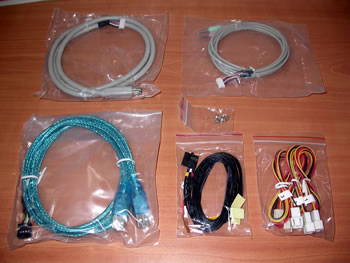
The retail package contains several cable adaptors. As seen in the above picture, the package includes (from top left to bottom right) : A 1394 FireWire cable, an earphone-mic cable, a USB cable (resulting in two jacks), the three sensor cables with each sensor labeled as one-two-three and the fan monitor cables used to connect any available CPU-Case-GPU fan to the DigiPanel. The package also contains 4 screws, 3 thermal resistant tape tips, the guarantee and a detailed user manual.
Note here, that the USB, FireWire and Earphones-Mic ports are not expansion ports. The DigiPanel uses those available on the motherboard simply offering easier access. As we will see in the installation procedure further on, the cables are hooked onto the Panel's rear pins and come out of the back end of the box where they are plugged into the appropriate ports.
Now that we've seen all of the components and the Digipanel functionality, it's time to put the panel in the case. This might be considered an easy task by many, as the manual clearly states all the steps required in order to successfully complete the installation of the DigiPanel II.