Ugreen CM642 USB4.0 Enclosure
3. Tests - Firmware Update
Review Pages
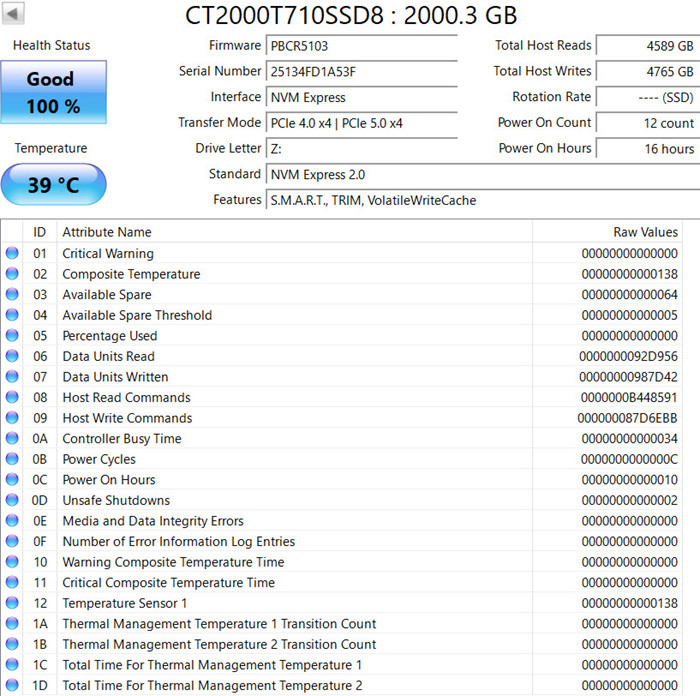
We used a Crucial CT2000T710SSD8 2TB PCIe Gen5 NVMe SSD — a drive well beyond what USB4's bandwidth can fully exploit, making it a good stress test for the enclosure itself.
Test environment
- Host USB4 controller: Intel JHL8540
- Motherboard: ASUS ProArt X670E
- CPU: AMD Ryzen 9 7950X
- OS: Windows 11, fully updated
- BIOS: version 3902
Worth noting up front: the JHL8540 is an Intel-made discrete Thunderbolt/USB4 controller (common on X670E boards, which lack native USB4 from the AMD chipset itself) rather than a USB4 link built into the CPU or chipset directly. This is a well-established, mature controller for Thunderbolt/USB4 peripherals, and is a different pairing than the Apple Silicon or AMD-native USB4 controllers.
Using CrystalDiskInfo showed Good Health / 100%, running at 38–39°C at idle. Interestingly, the link mode reported as "PCIe 4.0 x4 | PCIe 5.0 x4" — the ASM2464PD bridge negotiates a PCIe 4.0 x4 internal link to the SSD, since USB4 can't carry native Gen5 bandwidth anyway, while the drive itself remains Gen5-capable for future use elsewhere.
CrystalDiskMark 9 results
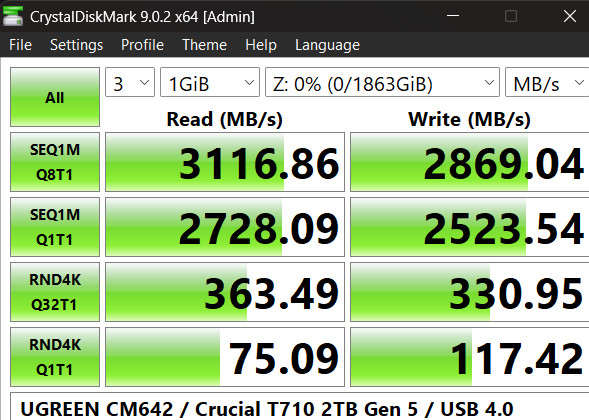
| Test | Read | Write |
|---|---|---|
| SEQ1M Q8T1 | 3,116.86 MB/s | 2,869.04 MB/s |
| SEQ1M Q1T1 | 2,728.09 MB/s | 2,523.54 MB/s |
| RND4K Q32T1 | 363.49 MB/s | 330.95 MB/s |
| RND4K Q1T1 | 75.09 MB/s | 117.42 MB/s |
These land comfortably within USB4's realistic sustained ceiling (protocol overhead means true sustained throughput tops out around 3.6–4.2 GB/s, not the full 5GB/s theoretical maximum).
ATTO Disk Benchmark
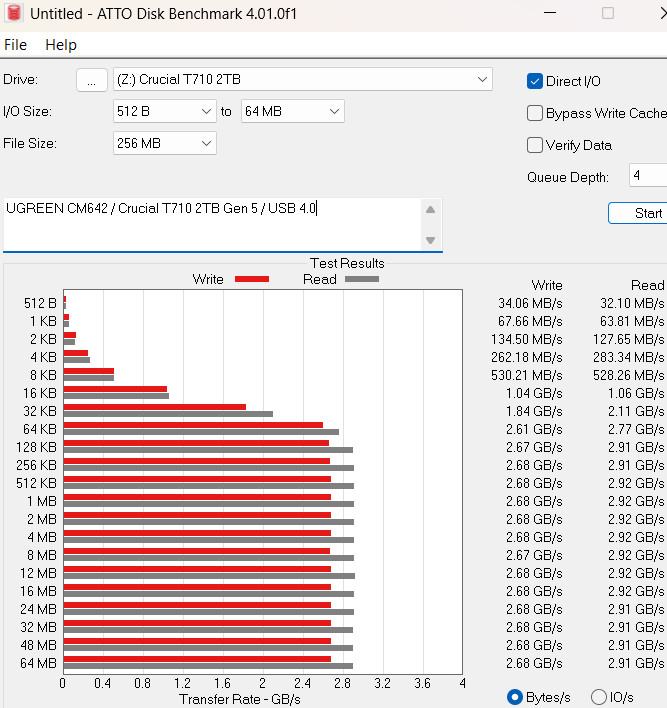
Testing across 512B–64MB transfer sizes showed a smooth ramp-up, plateauing at roughly 2.68 GB/s sustained write and 2.91–2.92 GB/s sustained read from 512KB onward — with zero dropoff even at 64MB transfers, indicating no thermal throttling or cache exhaustion during the run.
Thermals under sustained load
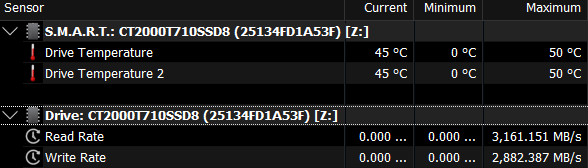
Sensor logging during benchmarking showed drive temperature climbing to 45°C (recorded max: 50°C) under load — a meaningful jump from the 38°C idle reading, but still a safe NVMe operating range, and good evidence the fan and thermal pad are doing real work rather than being decorative. Peak logged transfer rates hit 3,161 MB/s read / 2,882 MB/s write, matching the CrystalDiskMark figures closely.
Windows caching policy: quantified impact
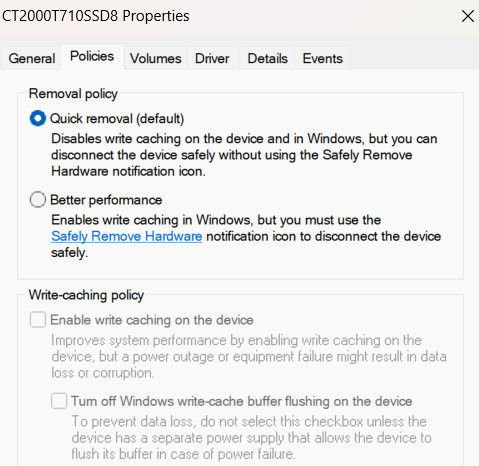
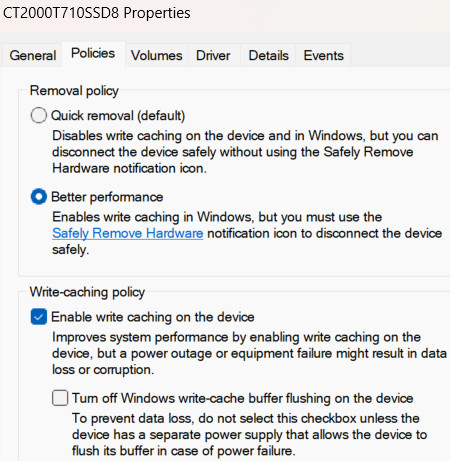
Both Windows removal-policy configurations were tested back-to-back with CrystalDiskMark, and the difference is much larger than a minor tweak — particularly for write performance at low queue depths:
| Test | Write Cache ON ("Better Performance") | Write Cache OFF ("Quick Removal") | Difference |
|---|---|---|---|
| SEQ1M Q8T1 Write | 2,869.04 MB/s | 2,338.04 MB/s | −18% |
| SEQ1M Q1T1 Write | 2,523.54 MB/s | 1,375.07 MB/s | −46% |
| RND4K Q32T1 Write | 330.95 MB/s | 176.73 MB/s | −47% |
| RND4K Q1T1 Write | 117.42 MB/s | 21.38 MB/s | −82% |
Read speeds were essentially unaffected either way (within normal run-to-run variance). But write performance — especially single-queue-depth random writes, the pattern most everyday file operations (copying documents, saving projects, extracting archives) actually generate — drops by nearly half to over 80% with write caching disabled.
This matters more than the earlier general note suggested: "Quick Removal" is Windows' default policy for external drives, meaning out of the box, most users are leaving significant write performance on the table without realizing it. If you don't need to yank the cable without ejecting first (a genuine risk with caching enabled — a power loss or surprise removal mid-write can corrupt data), switching to "Better Performance" in the drive's device properties is a meaningful, free performance gain on this enclosure — not just a theoretical one.
Bottom line: with a genuinely fast Gen5 drive installed and write caching enabled, the CM642 delivers real, sustained ~2.9 GB/s read / ~2.7 GB/s write without thermal throttling. But the write-cache setting is worth actively checking rather than leaving on Windows' cautious default.
Firmware: Two Different Paths, Two Different Outcomes
UGREEN's own Download Center does host a firmware update tool for the CM642 — it just isn't visible from a generic browse; you need to search the page directly using the product number 15976. UGREEN's own listing includes an older firmware build, AS_USB4_240417_85_00_00.bin, along with an English-language update manual.
Separately, the enclosure's controller — the ASMedia ASM2464PD — also receives firmware updates directly from ASMedia via the long-running enthusiast archive Station-Drivers.com, which mirrors vendor-released files (credited on-page as "Source: Asmedia").
- UGREEN's official (if hard-to-find) firmware: eu.ugreen.com/pages/download → search "15976" → AS_USB4_240417_85_00_00.bin + English manual
- Full ASM2464 firmware index (Station-Drivers): station-drivers.com's Asmedia ASM-2464 NVMe/USB 4.x Controller (40Gbps) repository
- Version tested in this review: 250717_85_00_00, sourced from Station-Drivers
⚠️ Critical difference between the two sources: device identity is reset
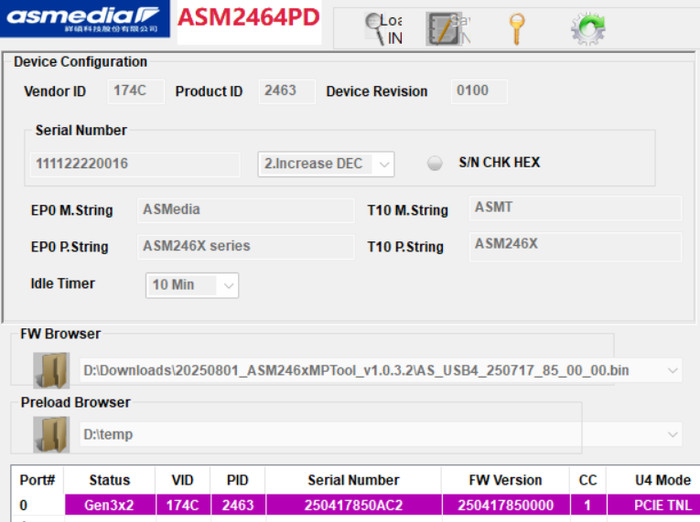
This is the most important practical finding in this whole firmware investigation. Flashing the generic ASMedia firmware/tool obtained from Station-Drivers overwrites the enclosure's UGREEN-specific identity strings and serial number.
Before any third-party update, the device correctly identified itself with UGREEN's own branding:
- EP0 Manufacturer String: Ugreen
- EP0 Product String: Ugreen Storage Device
- Serial Number: 250417850AC2 (matching the firmware build date pattern UGREEN uses)
After flashing with the community/generic ASMedia firmware and MPTool from Station-Drivers, these fields reset to ASMedia's own generic defaults:
- EP0 Manufacturer String: ASMedia
- EP0 Product String: ASM246X series
- Serial Number: changed to a generic incrementing value (111122220016), matching the MPTool's own default serial number pattern rather than anything UGREEN-specific
In other words: the drive still works identically — but the device stops identifying itself as a UGREEN product at the USB descriptor level. This could plausibly affect: UGREEN's own official Download Center or support tools recognizing the device in the future, any software that checks vendor/product strings for driver matching, and potentially warranty/support conversations if UGREEN support staff check device identifiers.
For our tests we did updated the firmware of the device using the latest 250717 version (250417 was installed).
Official changelog for the tested update
- Fixed an issue that could cause decreased device performance under certain temperature conditions on some devices
- Fixed an issue where the USB Type-C port on some computers did not recognize the device
Update procedure used (ASMedia ASM246xMPTool)
- Download the firmware .bin and the official ASMedia MPTool from Station-Drivers or USBDev.ru
- Connect the enclosure (SSD safely removed first) to a Windows PC — macOS/Linux are not supported by this tool
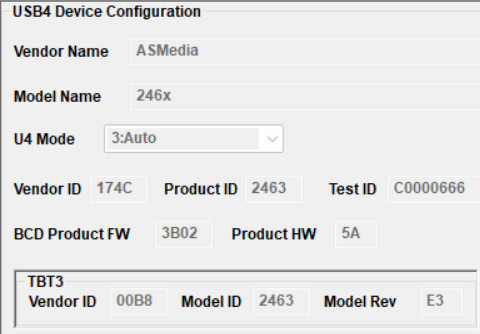
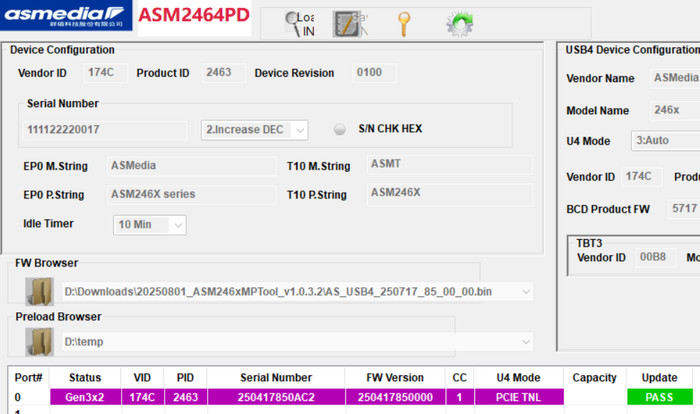
- Launch the MPTool; it auto-detects the controller (Vendor ID 174C, Product ID 2463, Model ASM246x)
- Browse to and select the firmware .bin file
- Click the update/play button and wait for the progress bar
- A green PASS result confirms success; Fail means simply retry
After the update procedure we did re-run the CrystalDiskMark 9.0.2 test:
| Test | Before (250417) | After (250717) |
|---|---|---|
| SEQ1M Q8T1 Read | 3,116.86 MB/s | 3,115.94 MB/s |
| SEQ1M Q8T1 Write | 2,869.04 MB/s | 2,868.69 MB/s |
| SEQ1M Q1T1 Read | 2,728.09 MB/s | 2,708.14 MB/s |
| SEQ1M Q1T1 Write | 2,523.54 MB/s | 2,504.13 MB/s |
| RND4K Q32T1 Read | 363.49 MB/s | 358.91 MB/s |
| RND4K Q32T1 Write | 330.95 MB/s | 329.37 MB/s |
| RND4K Q1T1 Read | 75.09 MB/s | 75.49 MB/s |
| RND4K Q1T1 Write | 117.42 MB/s | 119.22 MB/s |
No meaningful performance difference (all changes under 1%, within normal run-to-run variance) — confirming the changelog's own description: this update is a stability/compatibility fix, not a speed upgrade.
⚠️ Known risk: BSOD on Windows 11
ASMedia's official MPTool documentation includes a dedicated troubleshooting page for a Blue Screen of Death (BSOD) that some users hit specifically after running the tool: "Your device ran into a problem and needs to restart", with a stop code referencing UNSUPPORTED_PROCESSOR. ASMedia's own explanation: this happens when a third-party driver conflicts with Windows' default security settings — specifically Windows 11's virtualization-based security features.
ASMedia's documented fix, in two parts:
-
Turn off Memory Integrity and the Microsoft Vulnerable Driver Blocklist:
- Press Start, type "Core Isolation," open it from Windows Security
- On the Core Isolation page, toggle off both "Memory integrity" and "Microsoft Vulnerable Driver Blocklist"
-
Turn off Hyper-V and Virtual Machine Platform:
- Press Start, type "Windows features," open "Turn Windows features on or off"
- Uncheck both Hyper-V and Virtual Machine Platform, then click OK and restart
Why this matters for readers: this is a real, manufacturer-acknowledged compatibility issue between the ASM246xMPTool and Windows 11's default security posture — not a one-off fluke. If you're planning to update this enclosure's firmware on Windows 11, it's worth knowing this fix exists before you hit a crash, since disabling Memory Integrity (Core Isolation) and Hyper-V has its own security trade-offs (weaker protection against driver-level exploits, and Hyper-V/VMP being off will break WSL2, Docker Desktop, and Windows Sandbox if you use those). Re-enable these features once the firmware update is complete if you don't need them off permanently.
Bonus: disabling auto-sleep (with an important limitation)
UGREEN/ASMedia's own tutorial documentation covers using the MPTool to disable the controller's auto-sleep timer — but with a critical caveat stated directly in their instructions: because USB4/Thunderbolt 3/4 tunnel data over PCIe, once that protocol handshake succeeds, auto-sleep cannot be disabled. The setting only works when the enclosure falls back to plain USB transfer — meaning in its native 40Gbps USB4 mode, the CM642's auto-sleep behavior is effectively fixed, and this tool can't change that without sacrificing the enclosure's main selling point.
Safety notes from the official procedure: disconnect all other USB storage devices first, safely eject the SSD before connecting to the tool, Windows-only, uninstall the tool after use, close antivirus before installing, and run the extracted tool from a specific desktop path (C:\Users\<You>\Desktop\ASM2464PD) or the update may fail. The manufacturer disclaims responsibility for any issues — including data loss — from not following the steps exactly.
Review Pages