Breaking News

CORSAIR Launches ThermalProtect PCIe 5.1 600W 12V-2x6 Cable to Help Protect GPUs from Overheating Logitech announces G512 X Gaming Keyboard ASUS Announces TUF Gaming Platinum Power Supply Series TerraMaster announces D1 SSD Rugged Enclosure COLORFUL Introduces New BATTLE-AX B860M and B760M Motherboards with Wi-Fi 7 and Next-Gen CPU Support

logo

  • Share Us
    • Facebook
    • Twitter
  • Home
  • Home
  • News
  • Reviews
  • Essays
  • Forum
  • Legacy
  • About
    • Submit News

    • Contact Us
    • Privacy

    • Promotion
    • Advertise

    • RSS Feed
    • Site Map

Search form

Akaso 360 Action camera

Jul 7,2025 0

4. GUI


Review Pages

1. Introduction
2. Retail Package
3. Charging-Firmware Update
4. GUI
5. Using the Camera


At the main screen of the Akaso 360 App in the top area, you will get a quick settings area, while at the bottom the working mode (Video/Photo)
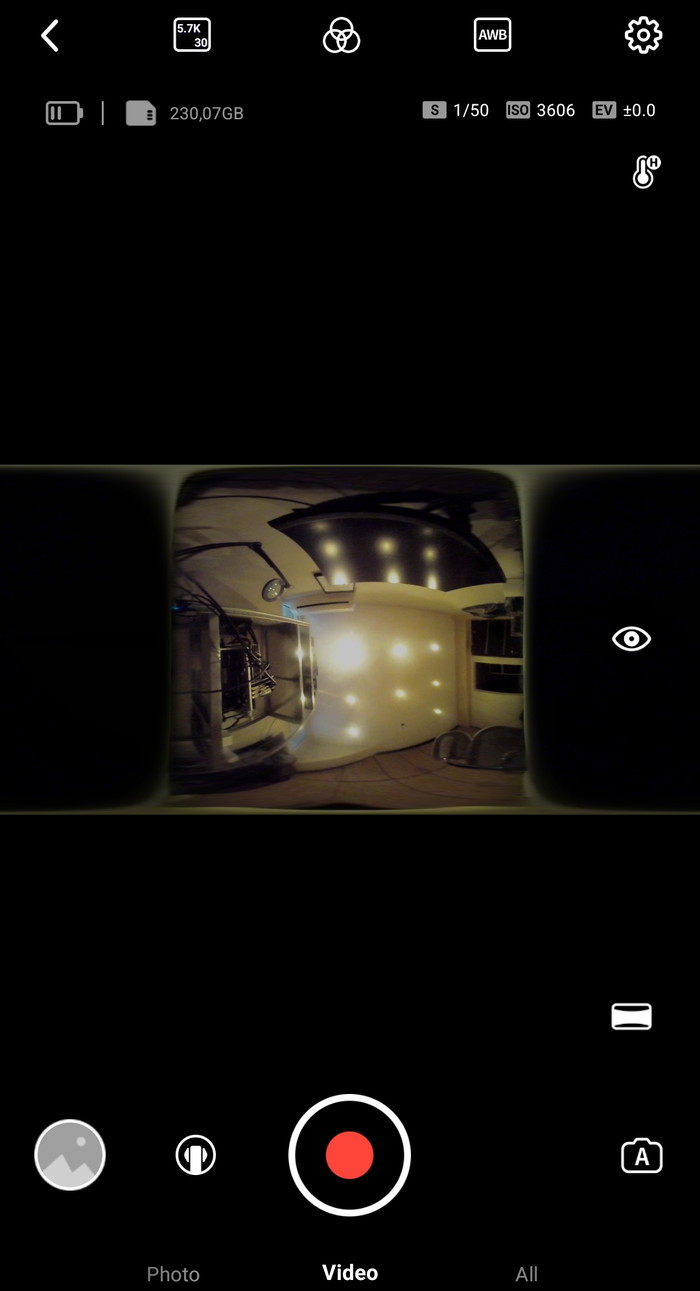
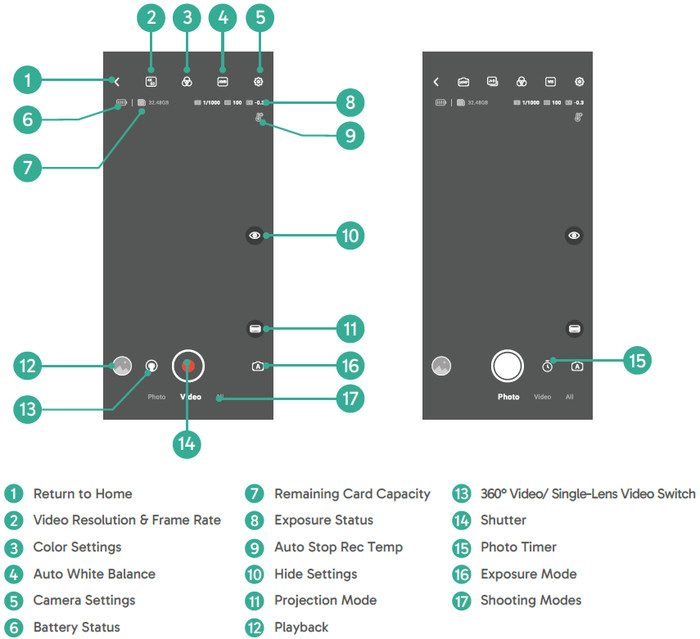
Under the settings, many features can be set.
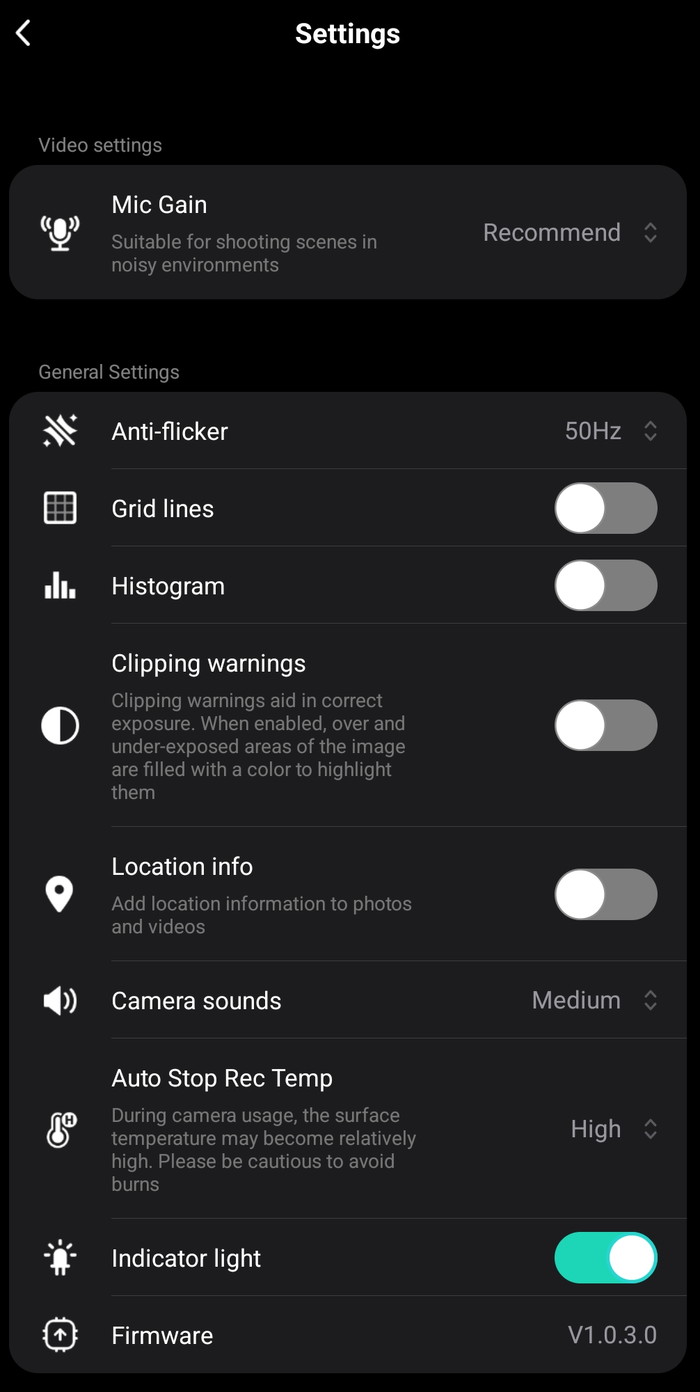
At the top, you can set Video Resolution and Frame rate, either for 5.7K or 4K.
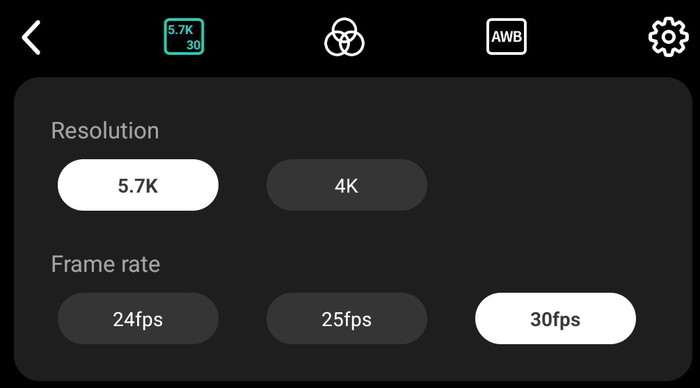
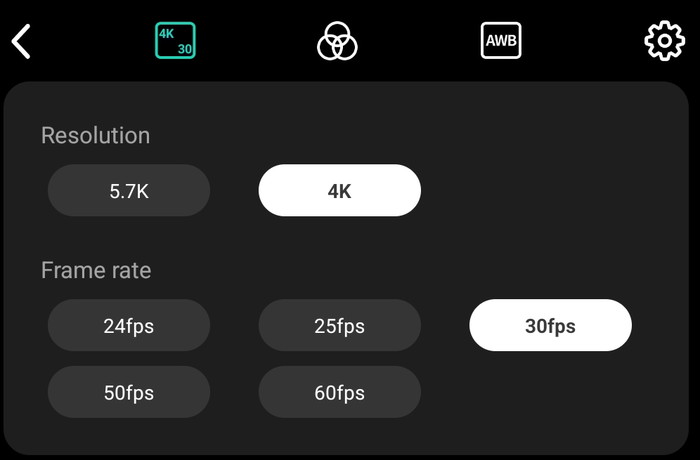
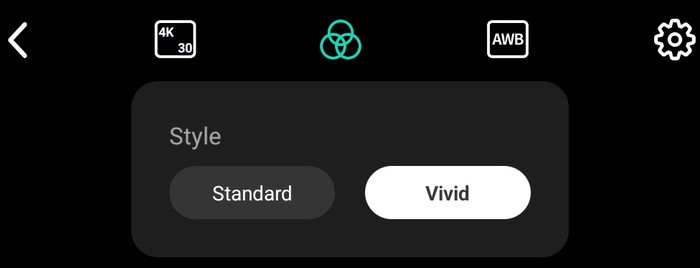
Colour styles are present (Standard/Vivid)
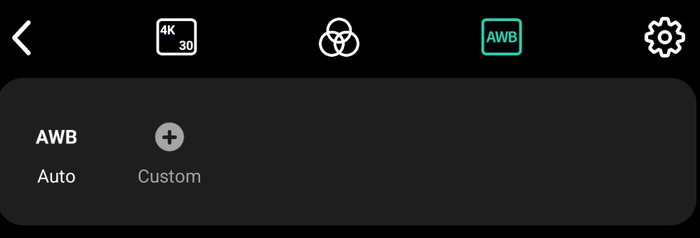
White Balance is at Auto or Custom
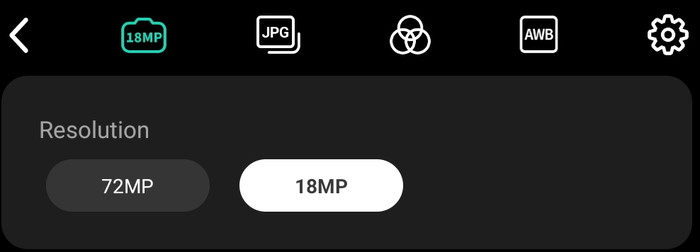
Passing to the Photo area, you can have either 72MP or 18MP pics.
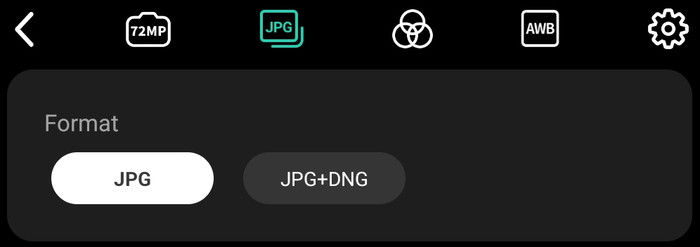
With JPG or JPG+DNG file format.
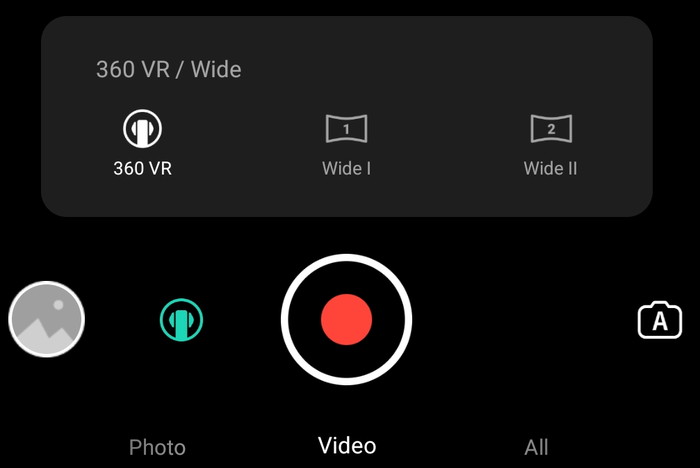
Video can be 360 VR/Wide or front or back camera.
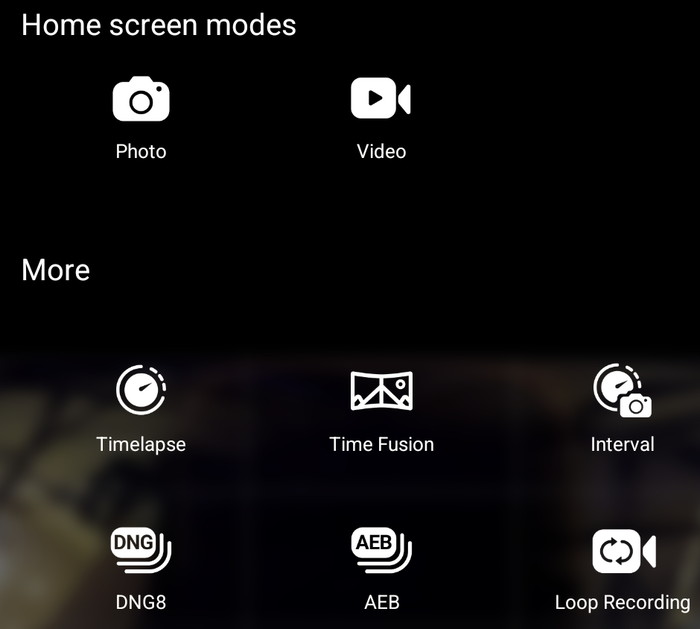
While ready presets are ready for timelapse, the time function allows for more creative ways to get content.
To power on the camera press the Power/Mode button once to turn it on. While the camera is on, press and hold the Power/Mode button for two seconds to turn it off. There are two ways to quickly switch modes. Method 1: While on the preview screen, press the Power/Mode button to toggle swiftly between the most recently used Photo and Video modes. Method 2: Tap the mode icon in the lower-left corner of the preview screen to access the mode menu. Then, swipe left or right to select your desired mode. When in Photo or Video mode, press the Shutter button to capture photos or start video recording. To stop recording in Video Mode, press the Shutter button again. When the camera is off, press the Shutter button to power it on and start recording video automatically. To stop recording, press the Shutter Button again. The camera will then power off automatically if no further action is taken.

The Akaso 360 menu (the body not the Android App) screen gives us much information and can be controlled via touch gestures.
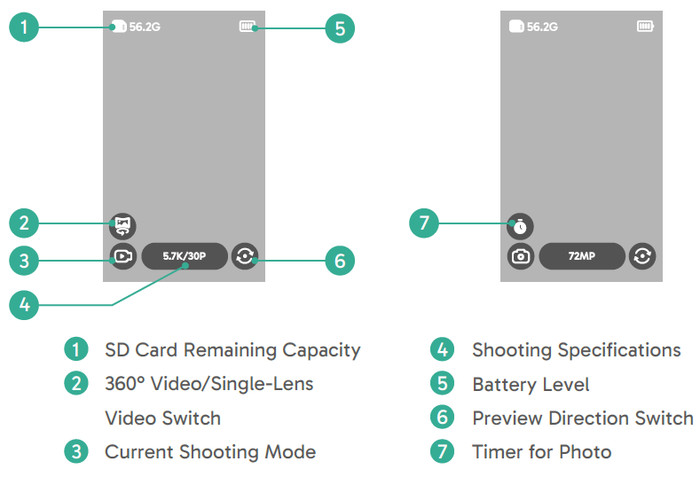
While users can perform swipes for different actions.
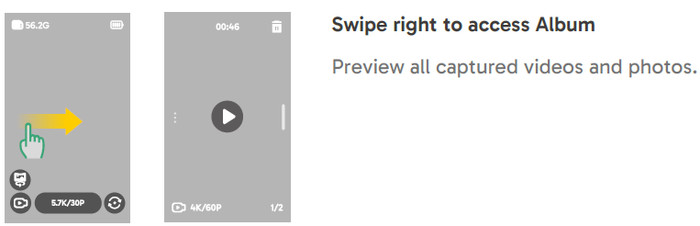
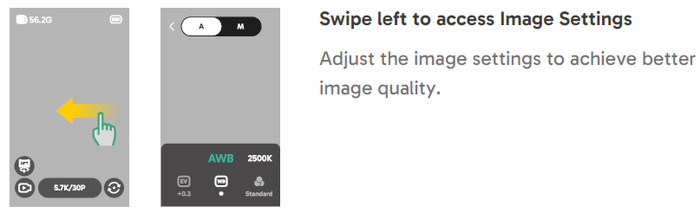
You can view the camera’s photo and video settings directly. To open the image settings, swipe left on the preview screen. In the photo settings, swipe left or right at the bottom to browse through the available options. To exit the image settings, tap the back icon in the upper left corner.

➀ Auto Exposure Mode: The camera will automatically adjust the shutter speed and ISO value.
➁ Exposure Value Settings: You may manually adjust the exposure value to achieve overexposure or underexposure.
➂ Manual Exposure Mode: You may precisely control the shutter speed and ISO value of the camera.
➃ White Balance Settings: AWB (Auto White Balance) enables the camera to capture images with accurate
color tones automatically. Alternatively, you may manually adjust the white balance level: higher values produce warmer tones, lower values produce cooler tones.
➄ Color Settings: You can choose the color tone for videos or photos from options like Standard or Vivid.
➅ Format Settings: For shooting modes Photo, Interval, AEB, and TimeFusion, you may select the photo
format (e.g., JPG, JPG+DNG).


Review Pages

1. Introduction
2. Retail Package
3. Charging-Firmware Update
4. GUI
5. Using the Camera


Pages

  • « first
  • ‹ previous
  • 1
  • 2
  • 3
  • 4
  • 5
  • next ›
  • last »

Akaso

Tags: Akaso
Previous Post
Noctua NF-A12x25 G2 fans
Next Post
Crucial T710 2TB NVME SSD

Related Posts

  • Akaso Brave 8 Lite

  • AKASO 360 Black Friday Pricing

  • AKASO releases new Brave 8 Lite Action Camera With Special $20 Coupon for 72 hours!

  • Akaso 60-in-1 accessories

  • Akaso Brave 7 Action Camera

Latest Reviews

Why Low-Latency Infrastructure Matters More Than Raw Specs
Enterprise & IT

Why Low-Latency Infrastructure Matters More Than Raw Specs

In the Age of AI Phishing, the Best User Experience Might Be the One That Feels Safest
Enterprise & IT

In the Age of AI Phishing, the Best User Experience Might Be the One That Feels Safest

SoundPeats C30
Consumer Electronics

SoundPeats C30

Why Streaming Live Casino Games Demands Smarter Tech
Enterprise & IT

Why Streaming Live Casino Games Demands Smarter Tech

Kioxia Exceria Plus G3 512GB microSD
Cameras

Kioxia Exceria Plus G3 512GB microSD

Popular News

TEAMGROUP Launches EXPERT P34F Find My External SSD

TEAMGROUP Launches EXPERT P34F Find My External SSD

Samsung announces Galaxy Tab S11 and Galaxy S25 FE series

Samsung announces Galaxy Tab S11 and Galaxy S25 FE series

CORSAIR announces Vanguard Pro 96 and Vanguard 96 Gaming Keyboards

CORSAIR announces Vanguard Pro 96 and Vanguard 96 Gaming Keyboards

Viltrox Showcases Upcoming Lens Lineup and New TTL Flash at IBC 2025

Viltrox Showcases Upcoming Lens Lineup and New TTL Flash at IBC 2025

MSI Launches FORGE GK600 TKL WIRELESS Special Edition Compact Mechanical Keyboard

MSI Launches FORGE GK600 TKL WIRELESS Special Edition Compact Mechanical Keyboard

Panasonic Introduces the First Ultra-Telephoto Zoom Lens in the LUMIX S Series

Panasonic Introduces the First Ultra-Telephoto Zoom Lens in the LUMIX S Series

MSI Launches DATAMAG 40Gbps Magnetic Portable SSD

MSI Launches DATAMAG 40Gbps Magnetic Portable SSD

Viltrox Joins the L-Mount Alliance, Expanding Creative Possibilities

Viltrox Joins the L-Mount Alliance, Expanding Creative Possibilities

Main menu

  • Home
  • News
  • Reviews
  • Essays
  • Forum
  • Legacy
  • About
    • Submit News

    • Contact Us
    • Privacy

    • Promotion
    • Advertise

    • RSS Feed
    • Site Map
  • About
  • Privacy
  • Contact Us
  • Promotional Opportunities @ CdrInfo.com
  • Advertise on out site
  • Submit your News to our site
  • RSS Feed