be quiet! Light Loop IO LCD
5. IO Center
The be quiet! Light Loop IO LCD is fully supported via IO Center, a local/web solution to control your compatible be quiet! devices like the Dark Perk mouse, Dark Mount, and Light Mount keyboards, and up to four IO Controllers can be daisy-chained together to cut down on motherboard headers.
While many users might think it's just another RGB app, here are some facts worth considering:
- Two ways in. A full Windows desktop app (IO Center) and a browser-based version (IO Center | Web) that runs on Windows, Mac, or Linux via Chromium browsers, without installing anything and largely without admin rights. The web version is deliberately scaled back, though — no Hardware Monitor, no temperature-reactive lighting, no Screen Sync, no Cooling Studio, and it can only drive the cooling curve off liquid temperature rather than picking a specific sensor.
- Onboard memory is the headline practical feature. Lighting effects, display backgrounds, and the active cooling curve are stored directly on the AIO, so your settings persist even with IO Center closed or uninstalled. That directly addresses the usual AIO-display complaint of needing a vendor app running in the background at all times.
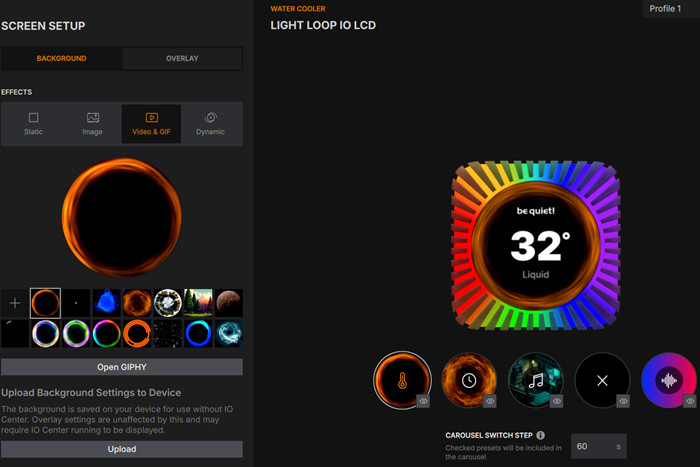
- Screen customization is genuinely deep. Static images, GIFs, video, Giphy content, an audio visualizer that reacts to system sound, plus overlays for sensor data, clocks, and media info. There's also a "Dynamic" background mode described as live-rendered content — be quiet! flags that this only runs while IO Center is active and adds a bit of GPU load, which is a fair trade-off to know about going in.
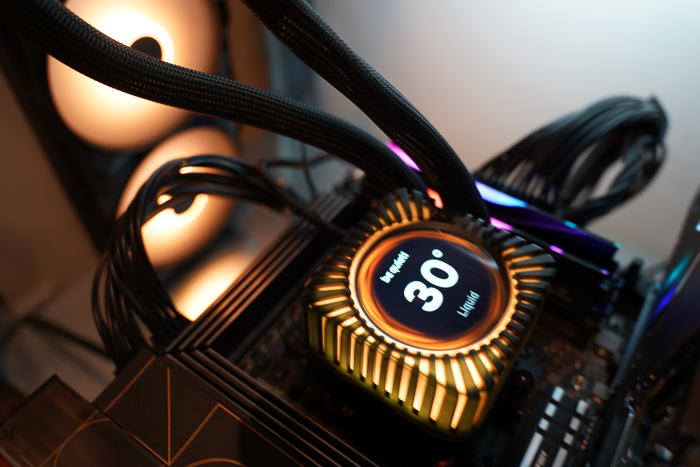
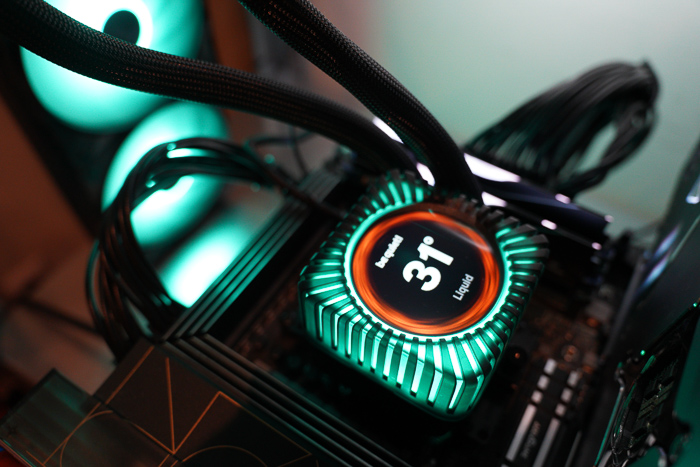
- Screen Sync ties the pump-head RGB ring to whatever's showing on the display, which is a nice touch if you're using the temperature-reactive or dynamic backgrounds.
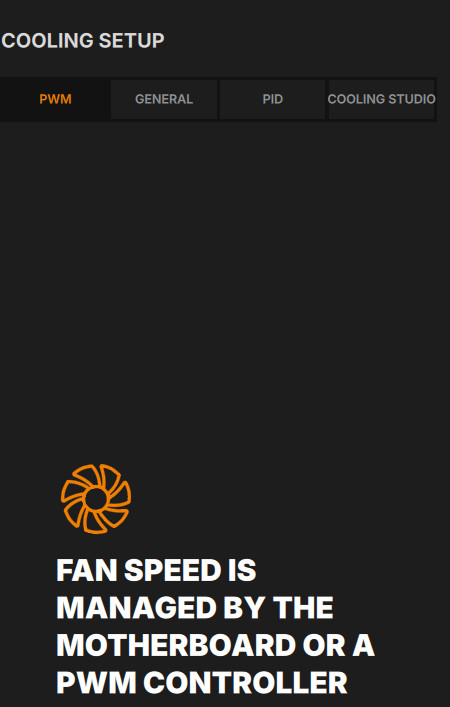
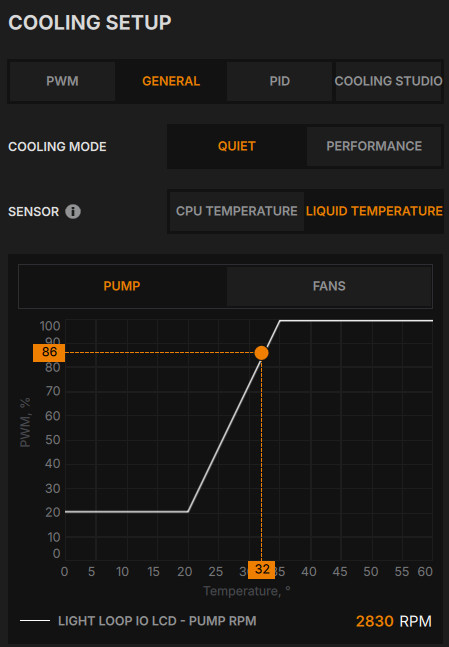
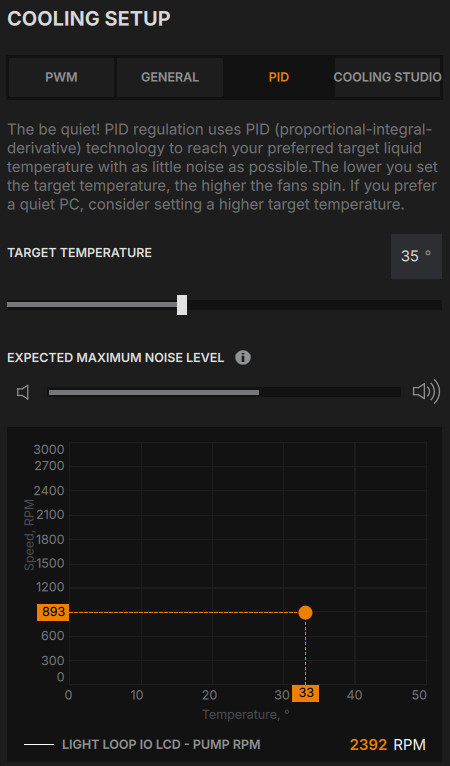
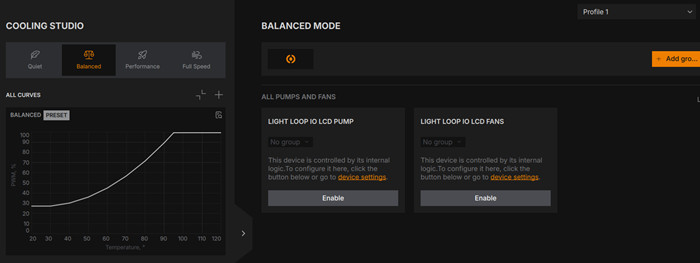
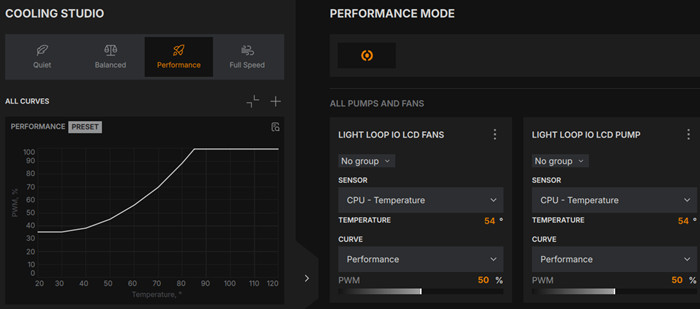
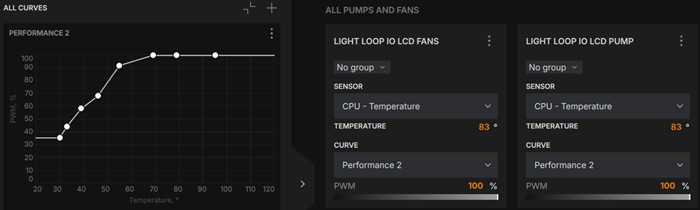
- Cooling Setup offers three tiers of control: pass-through PWM (motherboard controls the fans directly), General mode (canned Quiet/Performance curves), and a PID mode where you set a target liquid temperature and the cooler self-regulates — useful if you'd rather not hand-tune a curve. Cooling Studio, the deeper version, lets you build custom per-sensor curves and group fans into named zones (e.g., "case fans front" vs. "water cooling fans").
Below are the official be quiet! YouTube videos to get familiar with the app and its functions:
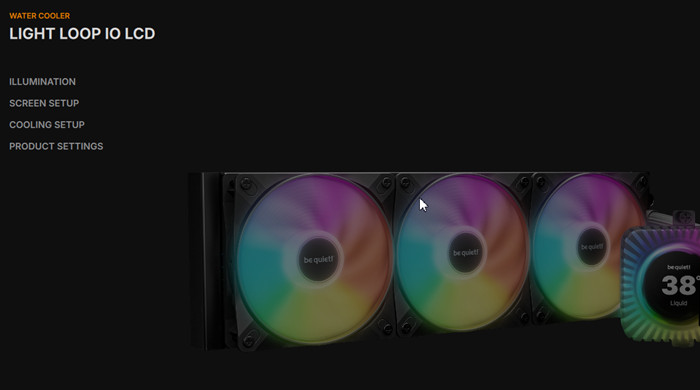
The software can be used to control the lighting, setup the included screen, adjust the cooling setup and of course update the included firmware of the device
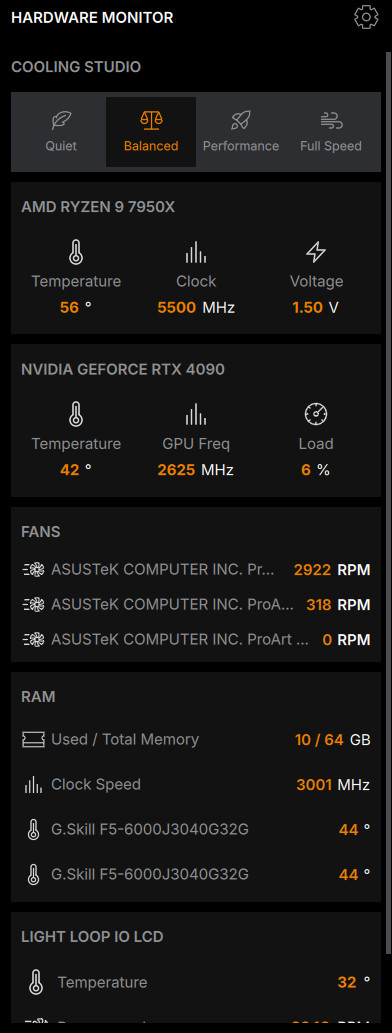
hardware monitor is also present along with quick "Cooling Studio" settings:
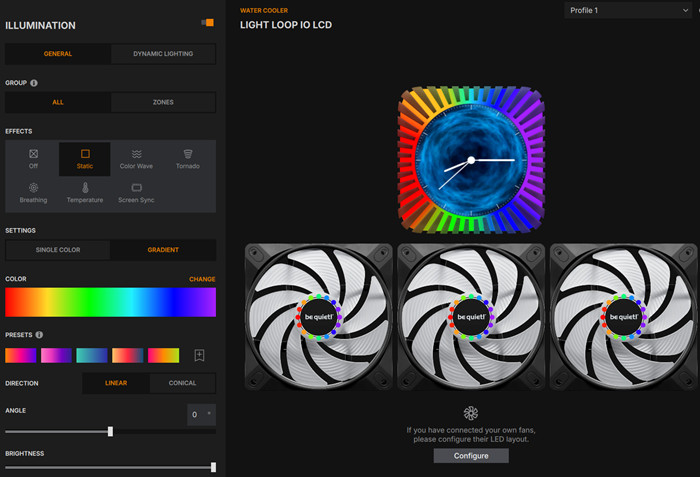
Many different effects are present for the included fans / pump
The cooling setup has various differnt functions, PWM mode,
General with build-in fan/pump curves
PID mode:
while over Cooling Studio mode, users can adjust either the fan or the pump with totally different curves, really handy for power users.
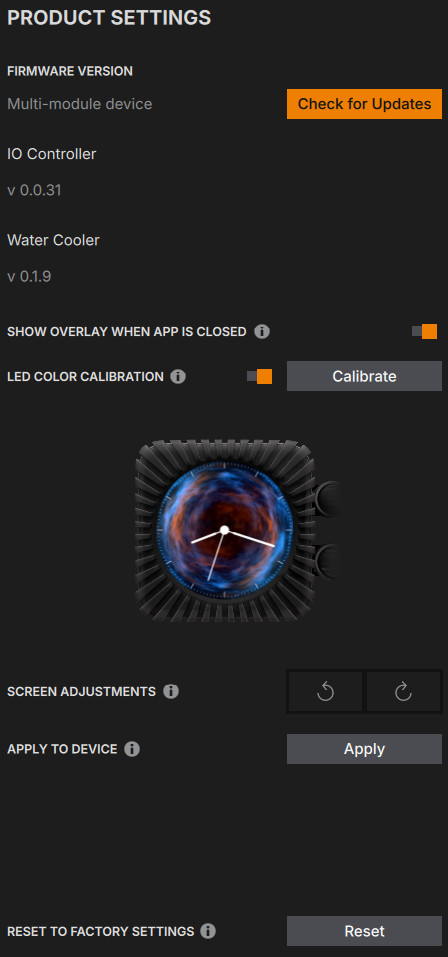
Over the product settings, firmware update can be updated:
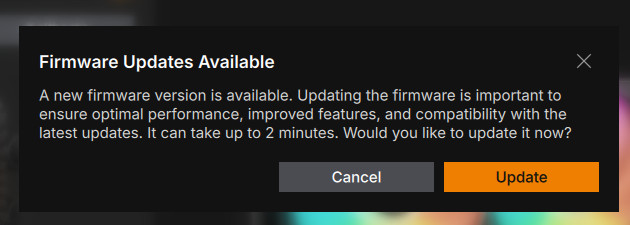

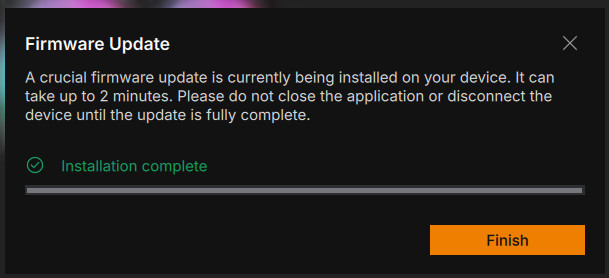
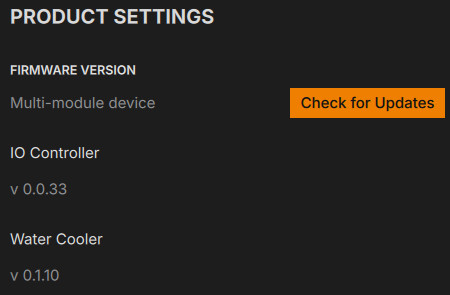
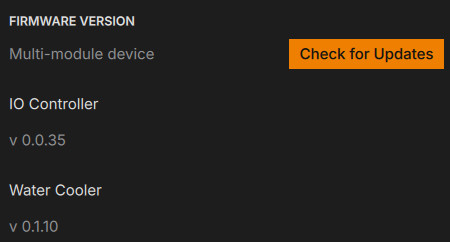
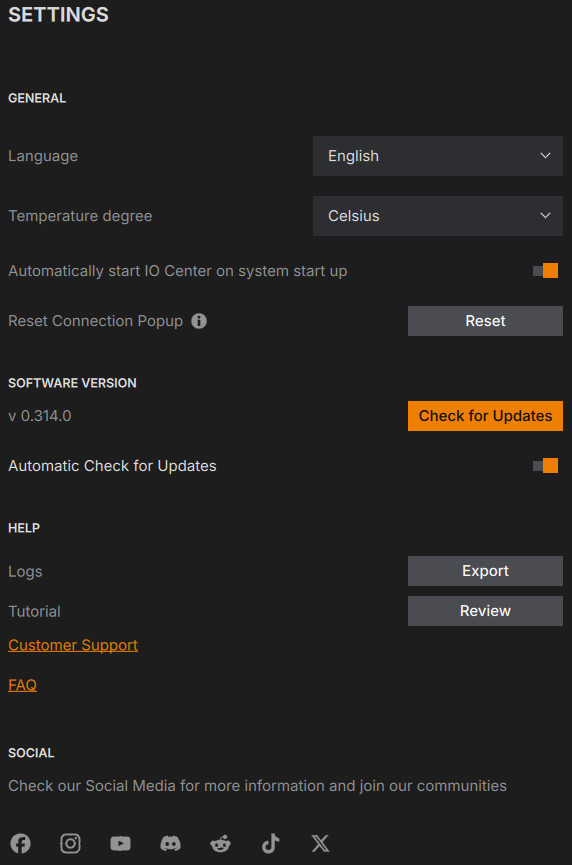
Lastly, over the settings are, users can update the software as well.