
Breaking News

ASUS Republic of Gamers Announces ROG XG Station 3 Razer Unveils the Raiju V3 Pro Signature Edition ASUS Hardware Showcase: AI Accelerators, Collector GPUs, and Esport Monitors Apple Unveils Major Hardware and Creative Suite Ecosystem Updates XPG Launches Third-Generation CORE REACTOR III for Next-Gen Power Safety

logo

  • Share Us
    • Facebook
    • Twitter
  • Home
  • Home
  • News
  • Reviews
  • Essays
  • About
    • Submit News

    • Contact Us
    • Privacy

    • Promotion
    • Advertise

    • RSS Feed

Search form

Chrome OS Now Supports  Virtual Desks, Simpler Printing

Chrome OS Now Supports Virtual Desks, Simpler Printing

Enterprise & IT Nov 5,2019 0

The latest version of Chrome OS includes tools to help you organize your workspace, make phone calls more easily, and print and share feedback more quickly.

With Virtual Desks on Chromebook, you can now organize your workspace and multitask more easily. Think of Virtual Desks as separate workspaces within your Chromebook. If you’re working on multiple projects, you can dedicate a desk to each one. Or if you like to take a break during the workday, you could create a desk for web browsing or gaming.

Once the latest Chrome OS update arrives on your device, open Overview and tap New Desk in the top right-hand corner of your screen to try out Virtual Desks. Try dragging windows between desks.
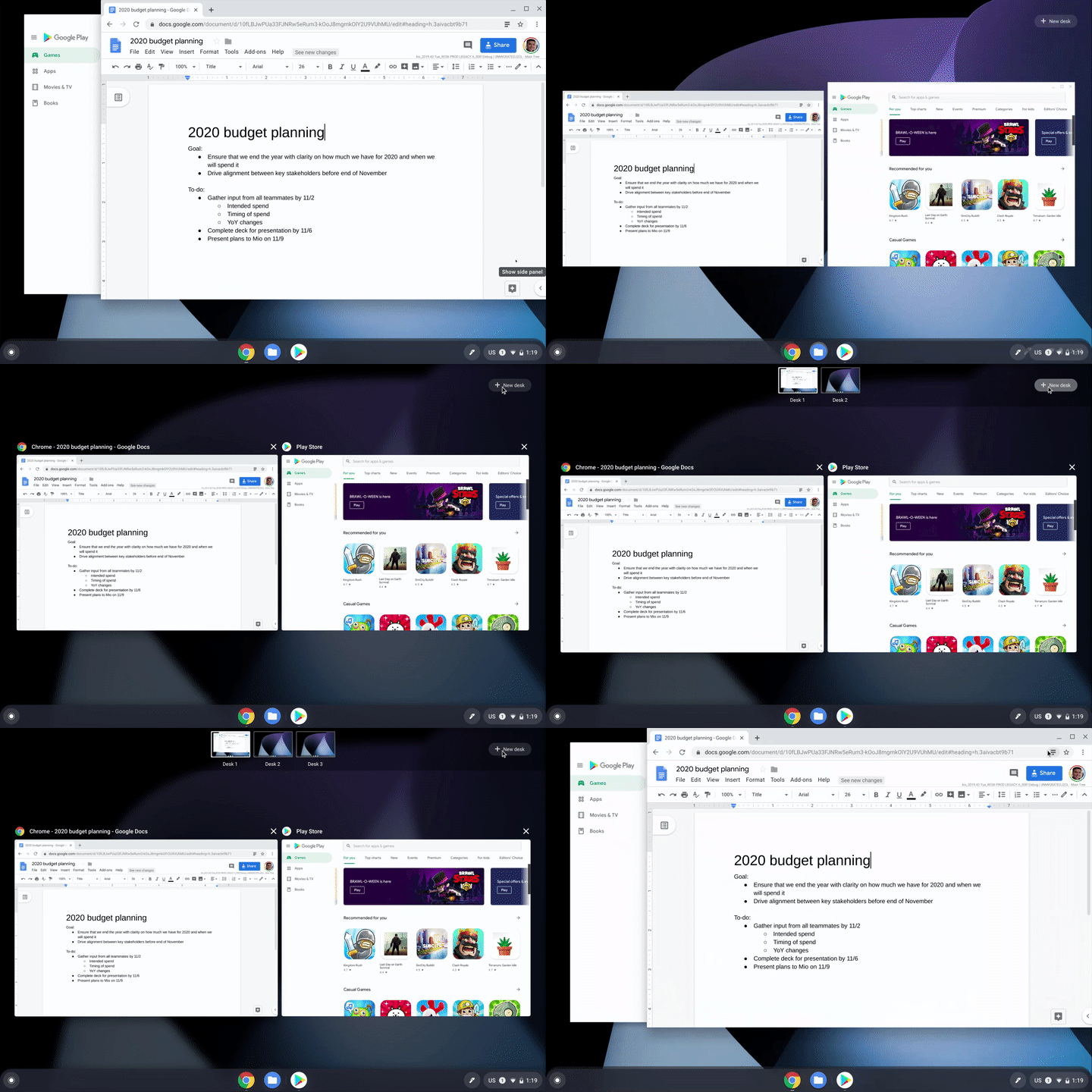
You can also try out the following keyboard shortcuts to take full advantage of Virtual Desks:

Create a new Desk with “Shift” + “Search ” + “=”

Switch between Desks with “Search ” + “]”

Move windows between Desks with “Shift” + “Search ” + “]”

Click-to-call

Chromebooks just got even better for people who use an Android phone. Now, you can right-click a phone number when browsing the web on your Chromebook and send the number to your mobile phone.

To set-up this feature, sign into your Google account on your Chromebook and phone and ensure that you’ve turned on syncing for Chrome browser.

Print without hassle

Now, compatible printers will automatically show up in your printer list—no setup needed. Press Ctrl + P on your keyboard, choose your printer, and you’re done.

Google has also reduced the number of steps needed to save printers to your profile. If there’s a specific printer you use frequently, you can now save it as default. Just visit your Settings and head to the Printers section.

Share feedback more easily

Google has also made it easier for you to share feedback about the OS. Just press and hold your power button for a second, and alongside the “Lock” and “Power off” buttons, you will now see a dedicated button for feedback.
Tags: chrome OS
Previous Post
U.S. Postal Service to Improve Delivery Service Using Nvidia's AI Technology
Next Post
Tesla Settles with Walmart Over Solar Panel Fires

Related Posts

  • Celebrating update 100 with new Chromebook features

  • New Chrome OS Brings Easy Navigation in Chromebook Tablet Mode

  • Google to Resume Chrome and Chrome OS Release Updates

  • Google is Phasing Out Support for Chrome Apps

  • Chrome OS Now Offers More Control For Music and Podcasts

  • Acer Chromebook Tab 10 Tablet Runs on Chrome OS

  • Google Says Chrome OS is Here to Stay

  • Google To Merge Chrome OS With Android

Latest News

ASUS Republic of Gamers Announces ROG XG Station 3
GPUs

ASUS Republic of Gamers Announces ROG XG Station 3

Razer Unveils the Raiju V3 Pro Signature Edition
Gaming

Razer Unveils the Raiju V3 Pro Signature Edition

ASUS Hardware Showcase: AI Accelerators, Collector GPUs, and Esport Monitors
Enterprise & IT

ASUS Hardware Showcase: AI Accelerators, Collector GPUs, and Esport Monitors

Apple Unveils Major Hardware and Creative Suite Ecosystem Updates
Consumer Electronics

Apple Unveils Major Hardware and Creative Suite Ecosystem Updates

XPG Launches Third-Generation CORE REACTOR III for Next-Gen Power Safety
PC components

XPG Launches Third-Generation CORE REACTOR III for Next-Gen Power Safety

Popular Reviews

Endorfy Thock V2 Wireless Keyboard

Endorfy Thock V2 Wireless Keyboard

SoundPeats Cove Pro

SoundPeats Cove Pro

The Quiet Technology Behind the Spin

The Quiet Technology Behind the Spin

Akaso Brave 8 Lite

Akaso Brave 8 Lite

SoundPeats C30

SoundPeats C30

Kioxia Exceria Plus G3 512GB microSD

Kioxia Exceria Plus G3 512GB microSD

be quiet! Dark Perk Mice

be quiet! Dark Perk Mice

XbotGo Chamaleon

XbotGo Chamaleon

Main menu

  • Home
  • News
  • Reviews
  • Essays
  • About
    • Submit News

    • Contact Us
    • Privacy

    • Promotion
    • Advertise

    • RSS Feed
  • About
  • Privacy
  • Contact Us
  • Promotional Opportunities @ CdrInfo.com
  • Advertise on out site
  • Submit your News to our site
  • RSS Feed