Breaking News

Sony Announces the Launch of Xperia 1 VIII Kioxia Unveils High Performance KIOXIA XG10 Series SSDs for PC OEMs AMD Expands AMD Ryzen PRO 9000 Series Processor Lineup Thypoch enters autofocus market with Voyager 24-50mm f/2.8 for Sony E-mount PlayStation Plus Game Catalog for May 2026

logo

  • Share Us
    • Facebook
    • Twitter
  • Home
  • Home
  • News
  • Reviews
  • Essays
  • Forum
  • Legacy
  • About
    • Submit News

    • Contact Us
    • Privacy

    • Promotion
    • Advertise

    • RSS Feed
    • Site Map

Search form

Nero DVD-Rom Guide

Nov 11,2003 0

2. Step1


Review Pages

1. Introduction
2. Step1
3. Step2
4. Step3
5. Step4
6. Step5


“Nero Burning Rom DVD-ROM (ISO)”

Running Nero

Begin by putting your media into the DVD recorder drive (if you haven't already done so) and launch Nero (you should have a shortcut on your desktop, or select it by going Start>Programs>Nero>Nero Burning ROM). As soon as the application opens, a dialog box is briefly displayed with the program's version details, owner, etc. This is followed by the "New Compilation" dialog screen.

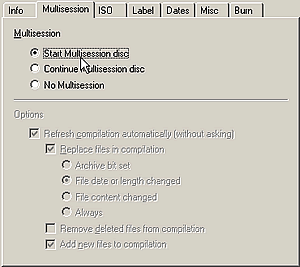
Select the option DVD from the drop-down menu located on the top left corner. Below the drop-down selection will appear a series of icons listing the various activities that can be performed on DVD media. For our purposes, select the DVD-ROM (ISO) icon. In the Multisession section (screen shot below), select one of the following:

  • Start Multisession disc if this is a new media that has never been written to. With this option selected, it is possible to burn more data on the media sometime in the future, hence the name multisession.
  • Continue Multisession disc if the media has been created at a previous session using the Start Multisession disc option. In this way it is possible to append or update data already written on the media.
  • No Multisession if this is going to be a one time burn and no more data is going to be written in the future. This restriction also applies to rewriteable media, which will require that you erase the rewriteable media first, before being able to write new data.

Since we are starting with a new, unwritten to media, choose Start Multisession disc

.
 

Next, select the Label tab as shown below, and enter a volume label for your media. By default, Nero enters the label NEW, but you can enter any name you like, up to a maximum of 32 characters. Applications such as Windows Explorer show the volume label along with the drive letter which can help identify the media in the drive. If you forget or don't want to enter a volume name at this point, you can enter a volume label later on.


On the top right corner of the dialog screen, press the "New" button.


Only if under the Multisession section you chose Continue Multisession disc, you will now see a screen similar to the following:
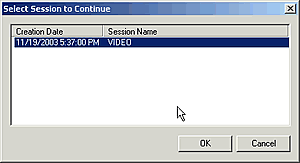
This lists any previous sessions written on the media. Choose the last session and press OK.

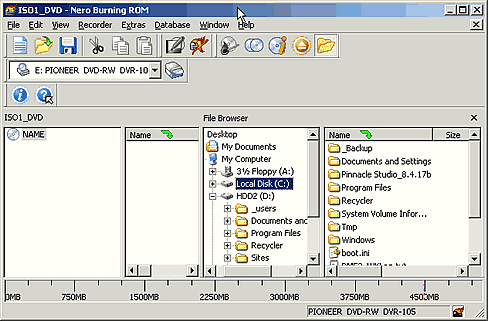
Regardless of the multisession options chosen, the following screen should now appear.


Review Pages

1. Introduction
2. Step1
3. Step2
4. Step3
5. Step4
6. Step5


Pages

  • « first
  • ‹ previous
  • 1
  • 2
  • 3
  • 4
  • 5
  • 6
  • next ›
  • last »

Tags:
Previous Post
Philips DVR824P
Next Post
How to backup a DVD movie

Related Posts

Latest Reviews

How Online Casinos Use Encryption, Verification, and Risk Controls to Build User Trust
Enterprise & IT

How Online Casinos Use Encryption, Verification, and Risk Controls to Build User Trust

Why Low-Latency Infrastructure Matters More Than Raw Specs
Enterprise & IT

Why Low-Latency Infrastructure Matters More Than Raw Specs

In the Age of AI Phishing, the Best User Experience Might Be the One That Feels Safest
Enterprise & IT

In the Age of AI Phishing, the Best User Experience Might Be the One That Feels Safest

SoundPeats C30
Consumer Electronics

SoundPeats C30

Why Streaming Live Casino Games Demands Smarter Tech
Enterprise & IT

Why Streaming Live Casino Games Demands Smarter Tech

Popular News

TEAMGROUP Launches EXPERT P34F Find My External SSD

TEAMGROUP Launches EXPERT P34F Find My External SSD

CORSAIR announces Vanguard Pro 96 and Vanguard 96 Gaming Keyboards

CORSAIR announces Vanguard Pro 96 and Vanguard 96 Gaming Keyboards

Samsung announces Galaxy Tab S11 and Galaxy S25 FE series

Samsung announces Galaxy Tab S11 and Galaxy S25 FE series

Viltrox Showcases Upcoming Lens Lineup and New TTL Flash at IBC 2025

Viltrox Showcases Upcoming Lens Lineup and New TTL Flash at IBC 2025

MSI Launches FORGE GK600 TKL WIRELESS Special Edition Compact Mechanical Keyboard

MSI Launches FORGE GK600 TKL WIRELESS Special Edition Compact Mechanical Keyboard

Panasonic Introduces the First Ultra-Telephoto Zoom Lens in the LUMIX S Series

Panasonic Introduces the First Ultra-Telephoto Zoom Lens in the LUMIX S Series

MSI Launches DATAMAG 40Gbps Magnetic Portable SSD

MSI Launches DATAMAG 40Gbps Magnetic Portable SSD

Viltrox Joins the L-Mount Alliance, Expanding Creative Possibilities

Viltrox Joins the L-Mount Alliance, Expanding Creative Possibilities

Main menu

  • Home
  • News
  • Reviews
  • Essays
  • Forum
  • Legacy
  • About
    • Submit News

    • Contact Us
    • Privacy

    • Promotion
    • Advertise

    • RSS Feed
    • Site Map
  • About
  • Privacy
  • Contact Us
  • Promotional Opportunities @ CdrInfo.com
  • Advertise on out site
  • Submit your News to our site
  • RSS Feed