
Breaking News

ASUS Showcases ProArt GR1X, ProArt P16 & P14 Laptops, ProArt OLED Monitors, and AI-Powered Solutions for Creatives at Adobe MAX 2026 Akasa Launches Smart Black SC12 High-Airflow 120 mm PWM Fan for System Integrators and PC Builders AMD Showcases 6th Gen AMD EPYC Processors SSSTC Introduces PCIe Gen4 QLC SSDs for AI PCs and Industrial Applications Seagate Launches the FireCuda Forge

logo

  • Share Us
    • Facebook
    • Twitter
  • Home
  • Home
  • News
  • Reviews
  • Essays
  • About
    • Submit News

    • Contact Us
    • Privacy

    • Promotion
    • Advertise

    • RSS Feed

Search form

Windows 8 Task Manager Customized For Multi-core Systems

Windows 8 Task Manager Customized For Multi-core Systems

Enterprise & IT Oct 28,2011 0

Ryan Haveson, a group program manager on Microsoft's User Experience team, provided an update on new Task Manager of Windows 8, which includes tools for managing systems with a large number of logical processors, typically found in servers and data centers. The task manager of Windows 7 systems with many processors was not providing easy- -to-read, real-time comparisons. In 64+ logical processor range, the graphs were getting pretty small. In addition, if any anomalous graph was identified, there was no easy way to get the corresponding processor ID.

In the screen shots below, taken from a current build of Windows 8, it is now easy to see all the logical processors at a glance and know which are being utilized to high and low capacity.


New Task Manager showing 160 logical processors

In the new CPU graph, you can also get the logical processor ID that maps to each entry via a tooltip, by hovering over the entry with the mouse.


Tooltip showing the logical processor ID

A benefit of a heat map is that it scales really well to large data sets. The new Task Manager will show as many logical processors as the OS supports (up to 640). To make sure you always see the information at a meaningful size, when the data set gets too big for the window, the heat map scales to best fit, and a scroll bar appears as needed.
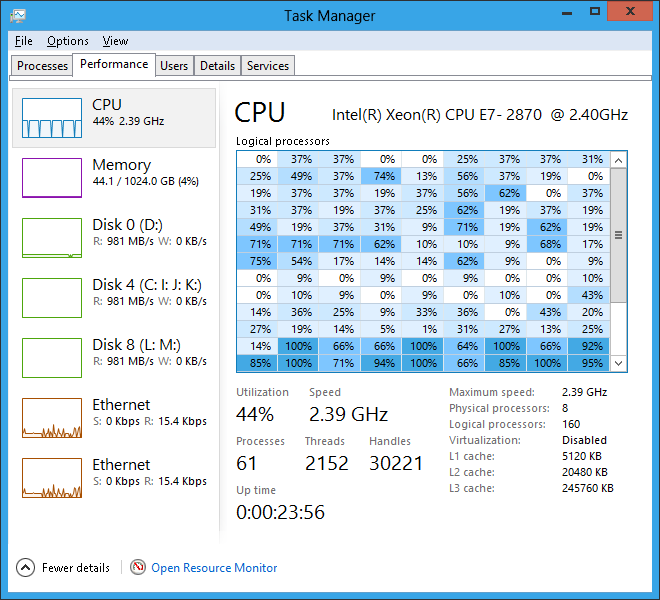

With 160 logical processors, the CPU graph scales using a scrollbar

For those of you who really like to (micro-) manage every last detail of your system, you can even set which logical processor(s) each of your processes can use. To do this, you first find the ID of the logical core by hovering over one of the cells in the heat map, then go to the Details tab, right-click the process you want, and click ?Set affinity.?
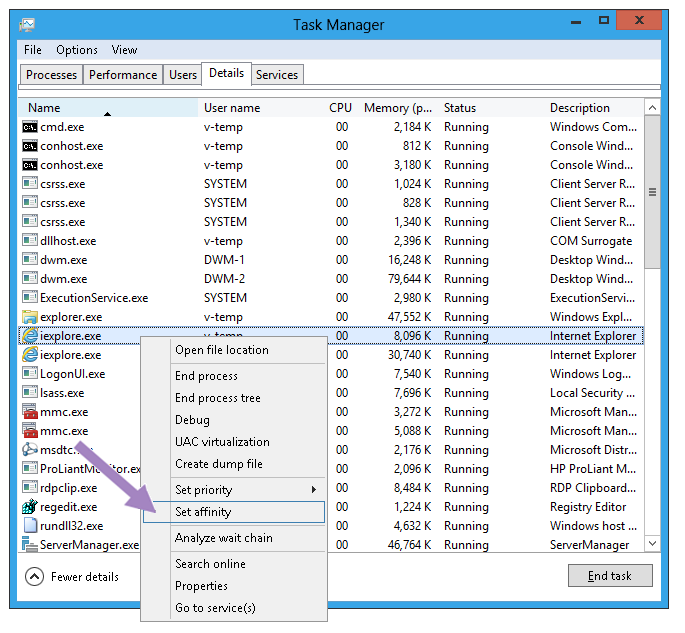


Set process affinity from the Details tab


Select the logical processors for the process

Of course, setting processor affinity is only for the super-technical user who has a need or desire for that level of control?you can severely affect your system?s power management and performance if you don?t know what you are doing?so Microsoft made sure the OS would do a great job taking care of this for you. It is hard to do better than the sophisticated algorithms that Windows uses to automatically manage which processes are allocated to each logical processor based on hardware capability and topology.

Tags: Windows 8
Previous Post
AMD Reaches Q3 Targets Despite 32-nm Low Yields
Next Post
Samsung Galaxy Note Hits European Market

Related Posts

  • Microsoft Brings Edge Preview Builds for Windows 7, Windows 8, and Windows 8.1

  • Windows 10 Creators Update now Available to Everyone

  • Windows 8.1 Overtakes XP in Terms of Internet Usage

  • Microsoft Seeks For More Revenue With Free Windows 8.1 With Bing for Tablets

  • Microsoft Pushes Back Windows 8.1 Update Deadline

  • Microsoft Showcases Windows Phone 8.1 and Windows 8.1 Update

  • Microsoft To Announce Windows 8 Updates At BUILD

  • Mozilla Kills Metro Firefox Development Plan

Latest News

ASUS Showcases ProArt GR1X, ProArt P16 & P14 Laptops, ProArt OLED Monitors, and AI-Powered Solutions for Creatives at Adobe MAX 2026
Enterprise & IT

ASUS Showcases ProArt GR1X, ProArt P16 & P14 Laptops, ProArt OLED Monitors, and AI-Powered Solutions for Creatives at Adobe MAX 2026

Akasa Launches Smart Black SC12 High-Airflow 120 mm PWM Fan for System Integrators and PC Builders
Cooling Systems

Akasa Launches Smart Black SC12 High-Airflow 120 mm PWM Fan for System Integrators and PC Builders

AMD Showcases 6th Gen AMD EPYC Processors
Enterprise & IT

AMD Showcases 6th Gen AMD EPYC Processors

SSSTC Introduces PCIe Gen4 QLC SSDs for AI PCs and Industrial Applications
Enterprise & IT

SSSTC Introduces PCIe Gen4 QLC SSDs for AI PCs and Industrial Applications

Seagate Launches the FireCuda Forge
Enterprise & IT

Seagate Launches the FireCuda Forge

Popular Reviews

Endorfy Thock V2 Wireless Keyboard

Endorfy Thock V2 Wireless Keyboard

SoundPeats Cove Pro

SoundPeats Cove Pro

The Quiet Technology Behind the Spin

The Quiet Technology Behind the Spin

Akaso Brave 8 Lite

Akaso Brave 8 Lite

SoundPeats C30

SoundPeats C30

Kioxia Exceria Plus G3 512GB microSD

Kioxia Exceria Plus G3 512GB microSD

be quiet! Dark Perk Mice

be quiet! Dark Perk Mice

XbotGo Chamaleon

XbotGo Chamaleon

Main menu

  • Home
  • News
  • Reviews
  • Essays
  • About
    • Submit News

    • Contact Us
    • Privacy

    • Promotion
    • Advertise

    • RSS Feed
  • About
  • Privacy
  • Contact Us
  • Promotional Opportunities @ CdrInfo.com
  • Advertise on out site
  • Submit your News to our site
  • RSS Feed