DVDXCopy
1. Page 1
DVDXCopy - Page 1
- Introduction
From the very first appearance of the DVD recorders, users are seeking for an easy way to "backup" DVD movies. So far DVD movies sized less than 4.38GB could be copied with a DVD±R/RW drive. However most of the movies are sized over 4.38GB making that task quite hard. It was expected that users and companies would try to benefit from this occasion and create any software solution that could perform that task.
However, the problems with copy protection and the DCMA is the major drawback for most companies to work in that area. 321 Studios is one of the first companies that attempted to create software that can easily backup DVD movies without breaking any copy protection, by using smart and sophisticated design. The high demand of our viewers made us decide to test the way "DVDXCopy" software from 321 Studios works!
- The package
 The
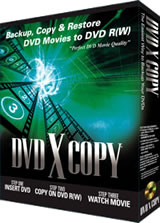
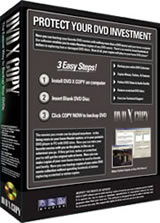
DVDXCopy software costs $99 and can be obtained directly from 321 Studios website.
No demo version is offered, at least for now. Although you can see a photo of
the retail package, user will be provided with a download link and of course
the necessary codes to activate the software. 321 Studios release many updates
according to the users feedback information improving this way the software.
DVDXCopy candidate user will find useful the forums where he can read solutions
for any possible problems. The software was originally designed for NTSC movies,
but latest version(s) will work fine with also PAL discs. We tested only with
PAL (Zone2) discs, since no NTSC movies are available here...
The
DVDXCopy software costs $99 and can be obtained directly from 321 Studios website.
No demo version is offered, at least for now. Although you can see a photo of
the retail package, user will be provided with a download link and of course
the necessary codes to activate the software. 321 Studios release many updates
according to the users feedback information improving this way the software.
DVDXCopy candidate user will find useful the forums where he can read solutions
for any possible problems. The software was originally designed for NTSC movies,
but latest version(s) will work fine with also PAL discs. We tested only with
PAL (Zone2) discs, since no NTSC movies are available here...
- Installation
We firstly installed the v1.2.1 version, one day after we used the v1.2.2 update and the next day the latest currently, version 1.3. Note that some users have reported some problems when they installed directly the 1.3 version, but we didn't notice any problems. We suggest installing not the latest ASPI v4.72 version but the older v4.60, which is proven to work without any problems. After installing the software, you have to install the drivers that will be used to access all DVD-ROM and the DVD writers (remember to reboot).
We are ready to run the software and see how it works. The first screen you will notice is about the Copyright agreement. Read it carefully before procced :-)
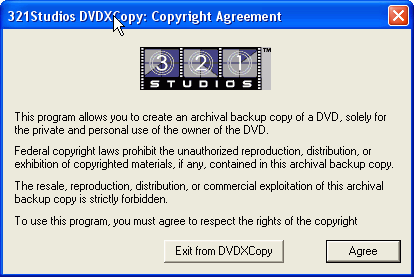
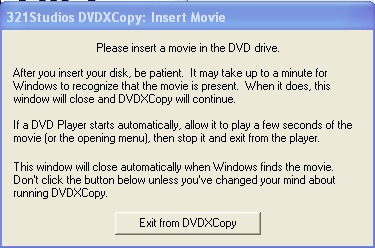
After pressing "Agree", the software prompts us to insert a DVD movie, in case we haven't already. For our proposes we used the "MATRIX" movie:
The software analyses the disc and proceeds to the main screen. The screen is divided in two main areas, the build-in tutorial (left) and the settings area (right):

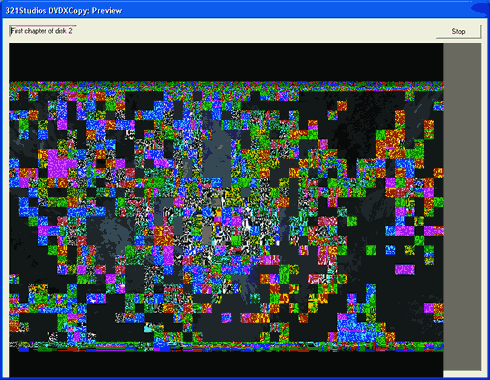
In the left area, users can view the build-in help that explains the most of the settings (right area). In the right area, we can see the movie title (MATRIX), the used drive, and the other settings. Usually, since most movies are above 4.38GB, the software automatically splits the movie in two discs, replacing all links of the start-up menu to point the second disc. User can decide the exact chapter to split the movie (up and down arrows) and of course preview it (Preview Split button). With the Matrix movie, the preview looks quite scrambled, but that's an issue that 321Studios is aware of and is expected to be fixed in a new version:
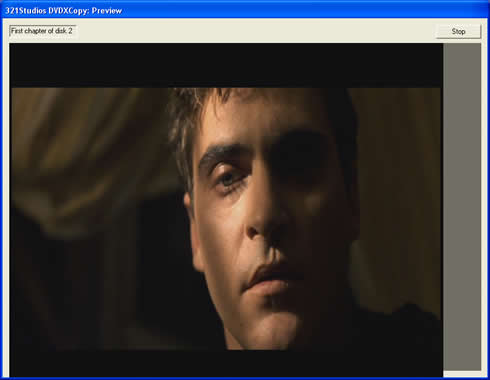
Inserting another title (Gladiator) the preview split looks just fine:
The next step is to select what kind of movie we want to make, with or without the start-up menu and/or the possible extra features. In our case we left the disc as it was with the default settings. The VideoManager is the start-up menu, while the TitleSet represents possible extra features. From the drop down menu we can select the way the disc starts and we will (or not) include the menu.
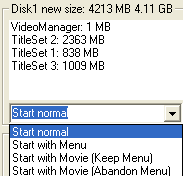
The same settings can be selected for the second disc, thus whether we want the movie to start automatically or keep the menu. We have the option not to include menu, but we noticed that the subtitles are not automatically selected when switching to the second disc, at least with the Matrix movie and the PowerDVD XP software. The last step is to set the hard disk space (you will need at least 5-6GB) and select the advanced options:
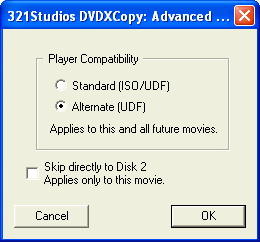
The two available options are the Standard (ISO/UDF) and the Alternate (UDF). 321 Studios propose to create a backup and if the DVD player does not recognize it, changing this setting may correct the problem. There is also the option to skip directly to Disk2.