Nero Express
1. Page 2
 Ahead
Nero is definitely one of the most powerful burning software available in the
market. The company has added enough features to fulfill any burning need of
the user and additionally continues the further development of the software
to eliminate any weakness that could lead to a problematic operation. However,
the more features are added, the most complicated the software becomes, and
the provided flexibility of the operations turns out to be a headache for the
beginner, as he faces the numerous settings applied before burning.
Ahead
Nero is definitely one of the most powerful burning software available in the
market. The company has added enough features to fulfill any burning need of
the user and additionally continues the further development of the software
to eliminate any weakness that could lead to a problematic operation. However,
the more features are added, the most complicated the software becomes, and
the provided flexibility of the operations turns out to be a headache for the
beginner, as he faces the numerous settings applied before burning.
This thought made Ahead engineers to work on Nero Express, the new "light" and user friendlier version of the well known Nero Burning ROM. The idea is to make sure that the user will easily select the right settings for each burning process, and proceed to recording within a few -step process. The interface of Nero Express is re-designed and differs from the original Nero, without however to lose any anything in terms of integrity and functionality. Nero Express is mainly focused for OEM bundling in which users need an easy to use and understand software.
STARTING UP
The following picture is the first window that comes up after firing Nero Express up. On the right you should select among the recorders available in your PC and to start a project, you should simply move your mouse pointer to the menu on the right, make your selection and click.
The menus (burning actions) are divided into five categories. You can choose between burning data, music, videos/pictures, copy entire disc, or burn a disc image or a saved project.
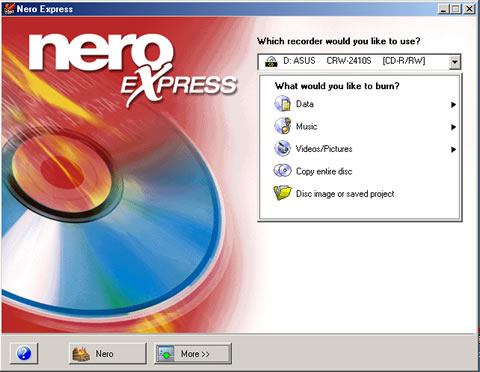

In the bottom of all the windows there are the "Nero" and the "More" buttons. The "Nero" button switches to the powerful user interface of Nero, which gives access to more features and options. Your current project you will be automatically transferred to Nero, and this option is available in all the Nero Express windows. However, the OEM version of Nero Express will not have the button to switch to the main Nero product. Probably this will take you to Nero web site, but not initially in the first version.
The "More" button is visible in all the Nero Express windows and contains the "Configure" button, the "Save tracks to HD" option, the "Erase Disc" and "Disc Info" options and the "Cover Designer" button.
The "Configure button" is nothing but the preferences tab you can find in Nero. So is the "Disc Info" and "Erase disc" buttons, applied to the media inserted to the drives. The "Cover Design" button links to the Nero Cover Design software.