Daemon Tools Image Drive
1. Introduction
In this review, we're going to be taking a look at image drives. An image drive is a driver that allows you to load a disc image, usually an ISO file or similar format, onto a virtual drive instead of burning it onto CD or DVD media.
There are quite a few reasons why you may need to use an image drive. You may be required to have the original CD or DVD disc in the drive in order to run a program, and this offers a way to do it without having to use the original disc, so as to protect it from damage. It's also much faster than a drive and disc, there's no spin ups to wait for and there are no scratches or fingerprints to cause skipping or missed tracks.
I found a need for image drives because of the work I do. I found it handy for testing the distribution of software that I've written. I also produce quite a few CD and DVD presentations for my clients throughout the year, and most of the effort in both cases, goes into creating the content and making sure it all works as it is meant to. Normally, the last task before going into production, is the testing phase, and this can be time consuming.
I used to do the testing phase using standard CD-R or DVD±R discs, but now I've found a better way, in image drives. No discs to burn and deliver to various beta testers, changes are quick to implement, and best of all, time is cut down to a minimum.
 Most of the popular CD and DVD copy programs include an image drive driver. In this article, we're going to have a look at DaemonTools, which like all good things, is free.
According to the website:
DAEMON Tools is an advanced application for Microsoft Windows which provides one of the best optical media emulation in the industry. DAEMON Tools enables you to use your CD/DVD images as if they were already burned to CD/DVD.
The following image formats are supported:
- b5t - BlindWrite images
- b6t - BlindWrite images
- bwt - BlindRead images
- ccd - CloneCD images
- cdi - DiscJuggler images
- cue - Cue sheets
- iso - Standard ISO images
- mds - Media Descriptor Files
- nrg - Nero images
- pdi - Instant CD/DVD images
- isz - Compressed ISO images
Start by downloading the latest version from here. There's both a 32 bit and 64 bit version available, so choose the appropriate one for your system. Next, run the downloaded executable file to begin the installation The image below shows the installation wizard:
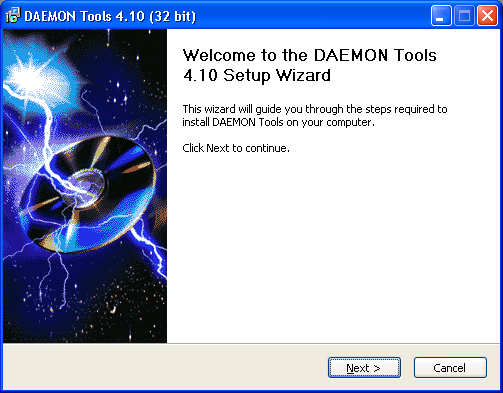
Follow the wizard instructions to install the program. Daemon Tools also installs SPTD, which stands for SCSI Pass Through Direct layer. This is the low level driver that provides direct access to storage devices. According to the DAEMON Tools site, "this driver has a lot more features that make this interface unique".
Because of the SPTD installation, it may be necessary to reboot your system. When your system starts up again after the reboot, DAEMON Tools completes its installation very quickly.
From then on, DAEMON Tools resides in your task bar, as shown below:

You can left and right click on the icon to bring up two different menus that allow you to configure among other things, the number of image drives on your system, and also load and eject an image to and from your image drive(s). We discuss these in the next page.