Breaking News

SAMA Introduces the S32 WOOD, a Compact M-ATX Case Bundled with an 80 PLUS Gold PSU Thypoch Completes Simera-C Cine Prime Lineup with New 100mm T1.9 Lens CORSAIR Launches the RM1200e Power Supply with Built-in PinProtect GPU Overcurrent Protection and Platinum-certified Efficiency CORSAIR Changes the Game with PureVector, a Science-Based Personalized Aiming Technology, Launching Exclusively in the SABRE v3 PRO PureVector Mouse Series AMD FSR Upscaling 4.1 Boosts Frames and Image Quality on More Devices

logo

  • Share Us
    • Facebook
    • Twitter
  • Home
  • Home
  • News
  • Reviews
  • Essays
  • About
    • Submit News

    • Contact Us
    • Privacy

    • Promotion
    • Advertise

    • RSS Feed

Search form

be quiet! Light Loop 360mm

Sep 13,2024 0

3. Installation


Review Pages

1. Introduction
2. Retail Package
3. Installation
4. Tests
5. Conclusion


Installing the CPU cooler requires several steps. be quiet! has an installation online video for both AMD/Intel or simply read the included manual some basic steps are mentioned below:

1. To permit mounting of the cooler please remove both the plastic retainers of the AMD retention module. The factory fitted backplate affixed to the rear side of the motherboard will be needed for subsequent installation of the cooler.

2. Place the 4x AMD spacer nuts onto the backplate bolts protruding through the front side and affix both short AMD mounting brackets with the AMD backplate screws.

3. Affix the fans to the radiator with the fan mounting screws. We recommend installation in a push configuration. With the fans facing towards the model name on the radiator, mount them on the hose side.

4. Affixing the radiator to the case. That step depending your case may vary. The main idea is to keep the radiator above the CPU level to keep air at the top.

5. Mount the ARGB-PWM-Hub with the Hub mounting screws or the double sided tissue tape on a suitable position in your PC case. We recommend either the rear of the mainboard tray or a 2.5” HDD slot. Next, connect the 5V ARGB pin and the PWM pin with the mainboard. Then connect the SATA connector with the PSU. Now connect the ARGB connector and the PWM connector of the fans with the ARGBPWM- Hub. The connector marked RPM carries the rpm signal of the connected device to the Mainboard fan header.

6. First remove the protective foil from the underside of the cooler. Spread the thermal paste on the surface of the CPU. The amount supplied is sufficient for one or two applications.

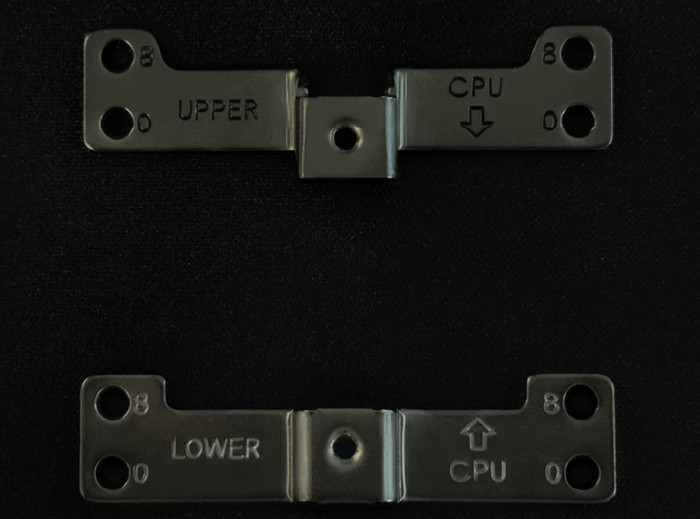
7. Place the CPU block centrally over the short AMD mounting brackets, such that these allow the CPU block to be screwed down. For this, you can use a normal crosshead screwdriver. Next, connect the pump and the ARGB illumination to the ARGB-PWM-Hub. The 0mm offset holes are intended for AM4 and Ryzen 8000 CPUs, where the hot spot is in the center, while the 8mm offset is recommended for Ryzen 7000 and Ryzen 9000 CPUs.Mounting with an 8mm offset improved the results significantly, according to be quiet! Up to 4.5°C better temperatures on some CPUs.
8. Light Loop enables you to synchronize the ARGB illumination of up to 6 ARGB devices with the motherboard by the ARGB-PWM-Hub. When the ARGB-PWM-Hub is mounted into the case, the ARGB illumination is controlled by the motherboard software. Warning: The ARGB connector may only be connected to a 5V ARGB header. The 4-pin connector for the pump should be installed at the main motherboard fan, while the 3-pin PWM hub at the CPU_OPT header or at a similar port of your motherboard.

9. Refilling the system: Top up the system after about two years of use. In order to do this, first detach the radiator from the case. The filling port is on the opposite end of the hoses. Open this as well as the bottle with cooling fluid. Rotate the bottle into the filling port. Hold the radiator so that the filling port is at the highest level with the bottle upended over it. Then lightly squeeze the bottle. Repeat this until no further air bubbles appear in the bottle.

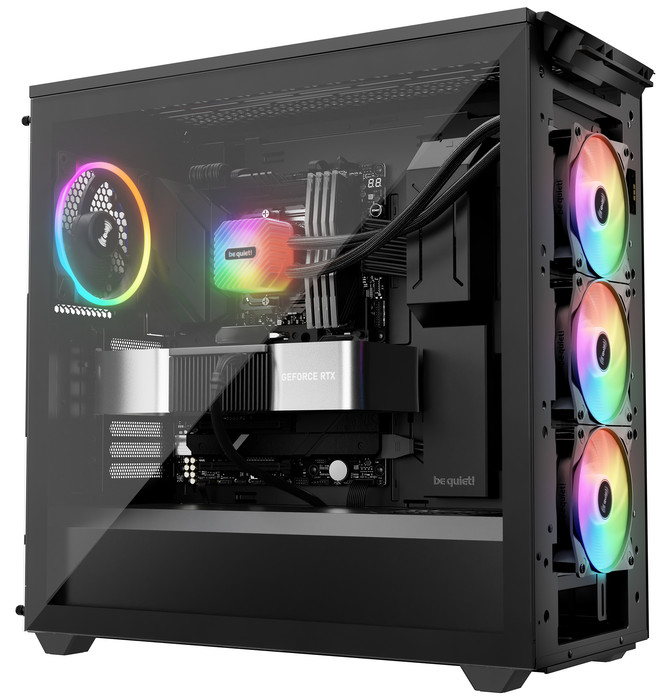
Here is how Light Loop would look alike in an installed system.
 

Review Pages

1. Introduction
2. Retail Package
3. Installation
4. Tests
5. Conclusion


Pages

  • « first
  • ‹ previous
  • 1
  • 2
  • 3
  • 4
  • 5
  • next ›
  • last »

be quiet!

Tags: be quiet!
Previous Post
GameMax GX-1050 Pro PSU
Next Post
What Is the Best Platform for Casino Games

Related Posts

  • be quiet! launches Light Wings Pro IO all in one frame fan series with advanced lighting and cooling options

  • be quiet! Dark Power 14 IO

  • be quiet! Light Mount TKL

  • be quiet! raises the bar with the new Dark Power Pro 14 IO power supply series

  • be quiet! expands its peripheral lineup with Light Mount TKL and Mousepad XL

  • be quiet! Light Loop IO LCD

  • be quiet! introduces Light Loop IO LCD

  • be quiet! unveils new power, cooling, and peripheral lineup

Latest Reviews

Why Intelligent Firmware Matters More Than Peak Throughput in NAS Systems
Enterprise & IT

Why Intelligent Firmware Matters More Than Peak Throughput in NAS Systems

Fanxiang MP83 M.2 NVMe SSD Enclosure
Enterprise & IT

Fanxiang MP83 M.2 NVMe SSD Enclosure

Ugreen CM642 USB4.0 Enclosure
PC components

Ugreen CM642 USB4.0 Enclosure

be quiet! Dark Power 14 IO
PC components

be quiet! Dark Power 14 IO

SanDisk High Endurance 512GB microSDXC
Cameras

SanDisk High Endurance 512GB microSDXC

Popular News

MSI’s Latest AMD X870E MAX & EVO Series Motherboards

MSI’s Latest AMD X870E MAX & EVO Series Motherboards

COLORFUL Launches iGame B850M ULTRA Series Micro-ATX Motherboards

COLORFUL Launches iGame B850M ULTRA Series Micro-ATX Motherboards

COLORFUL Presents Limited Edition Chitu MAG-60 Magnetic Keyboard Inspired by the Year of the Horse

COLORFUL Presents Limited Edition Chitu MAG-60 Magnetic Keyboard Inspired by the Year of the Horse

COLORFUL Launches iGame B850I MINI OC V14 Motherboard

COLORFUL Launches iGame B850I MINI OC V14 Motherboard

COLORFUL Launches the iGame X870E VULCAN W OC Motherboard

COLORFUL Launches the iGame X870E VULCAN W OC Motherboard

COLORFUL Presents iGame Z890 ULTRA-S W and iGame Z890M ULTRA Z Motherboards

COLORFUL Presents iGame Z890 ULTRA-S W and iGame Z890M ULTRA Z Motherboards

COLORFUL Expands B850 Motherboard Lineup with New CVN, Battle-Ax, and MEOW Models

COLORFUL Expands B850 Motherboard Lineup with New CVN, Battle-Ax, and MEOW Models

ASRock Adds Support for One Sub-Channel DRAM Module on Intel DDR5 Motherboards

ASRock Adds Support for One Sub-Channel DRAM Module on Intel DDR5 Motherboards

Main menu

  • Home
  • News
  • Reviews
  • Essays
  • About
    • Submit News

    • Contact Us
    • Privacy

    • Promotion
    • Advertise

    • RSS Feed
  • About
  • Privacy
  • Contact Us
  • Promotional Opportunities @ CdrInfo.com
  • Advertise on out site
  • Submit your News to our site
  • RSS Feed