Breaking News

CORSAIR announces XENEON EDGE 14.5" LCD Touchscreen Club3D announces new products! Firewalla Announces Firewalla Orange, a Portable Multi-Gigabit Cybersecurity Firewall and WiFi 7 Router that Brings Zero Trust Anywhere ENDORFY Palm Rest V2 series delivers comfort with a magnetic pull MSI’s Latest AMD X870E MAX & EVO Series Motherboards

logo

  • Share Us
    • Facebook
    • Twitter
  • Home
  • Home
  • News
  • Reviews
  • Essays
  • Forum
  • Legacy
  • About
    • Submit News

    • Contact Us
    • Privacy

    • Promotion
    • Advertise

    • RSS Feed
    • Site Map

Search form

Thermaltake Lanbox Lite

Jul 11,2007 0

3. Installation


Review Pages

1. Introduction
2. The Package
3. Installation
4. Conclusion


The time has come to fully assemble a system with the Lanbox lite. First, you have to remove all the thumb screws. Then remove the top metal plate. Here is what you will see:
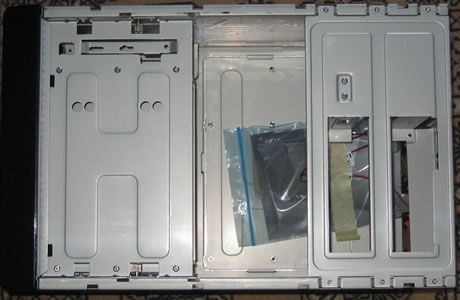
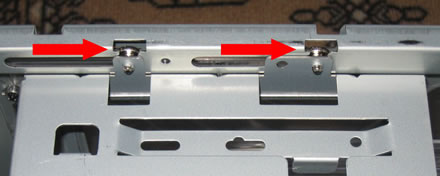
At left, we see the storage bay that has an interesting feature, it's movable on rails (shown by arrows). This makes removal and installation very easy! Neat feature...
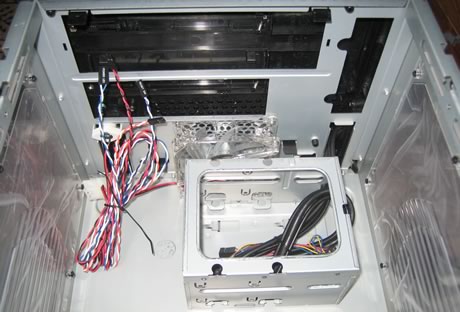
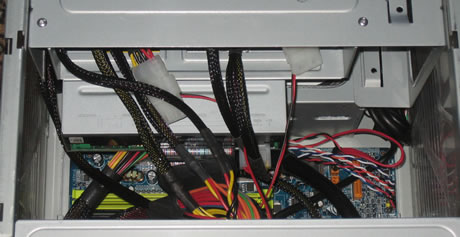
Removing the storage bay, we have better access to the internal space. We see the HDD case (holds two HDD) and the front panel where an 80mm rotating fan draws in fresh air. Note that the HDD case doesn't implement any kind of vibration absorbing mechanism, which means any HDD vibrations will be passed on to the case. This is a "problem", since our WD Raptor HDD drive makes a lot of noise...
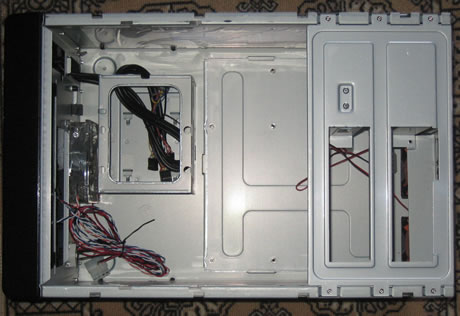
On the right we see that the motherboard bay is easily retractable from the back, so it can be removed entirely to install the mini ATX motherboard of your choice.
Let's now push the motherboard tray to the right and remove it entirely.
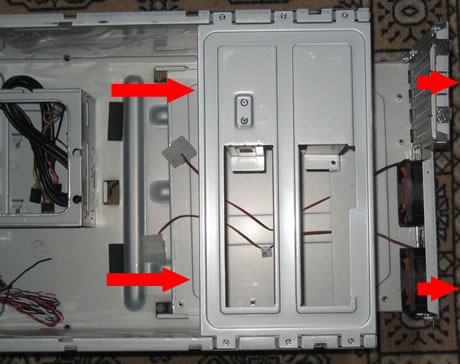
Yep, everything has been removed, the motherboard bay can be installed again very easily by placing it on the tracks as shown in the following image.
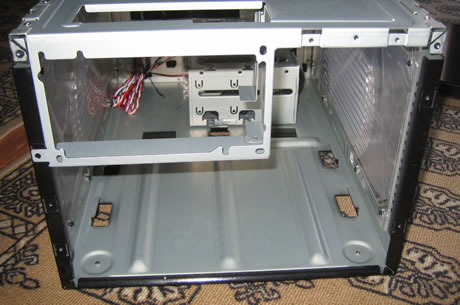
Finally, we start to build our system. First, let's install a Thermaltake 480W power supply. No problems at all. The Lanbox Lite can hold any standard size PSU.
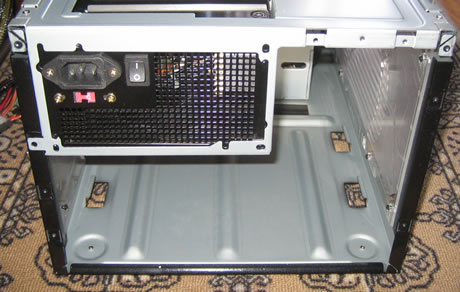
The motherboard tray in all its glory... We have removed the back cover plate and will install the corresponding one for our motherboard (Biostar TA690GAM2).
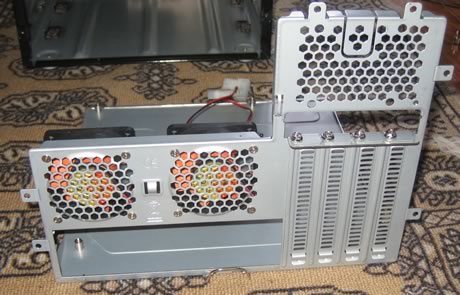
Here it is...
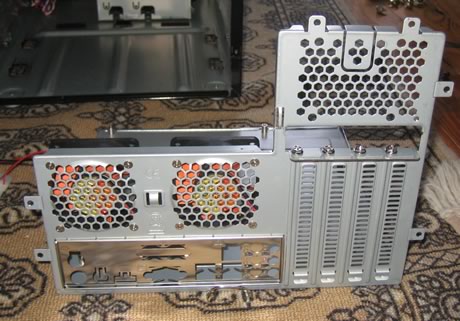
And a top view of the motherboard bay, everything installed:
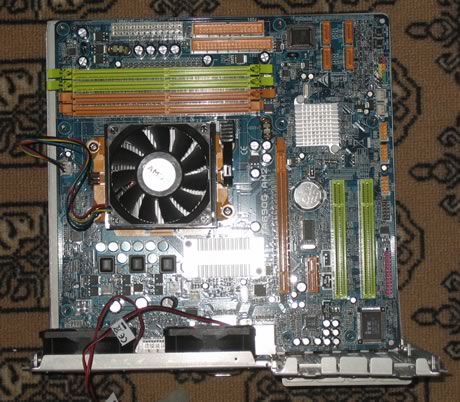
Then, you apply almost no force to re-install the motherboard tray. Start putting the thumb screws back on the case:

A top view of the entire case. We still need to install the HDD, memory and optical storage drive. Probably, its best to use a modular PSU that will save some space with unwanted cables:
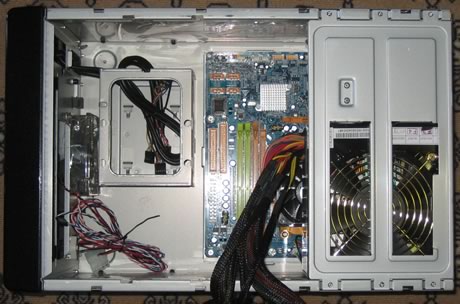
There are three cables that can be connected to the motherboard: for 1394 (firewire), USB and front Audio output:

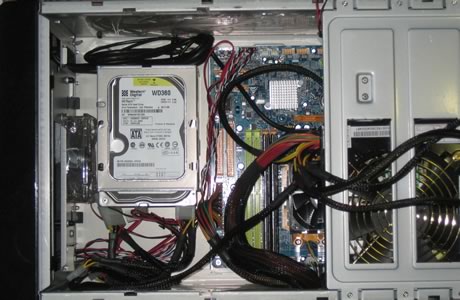
Yes, those cables are installed, as well as the power and reset switches.

HDD is also in place.
And finally, the storage bay with an LG Blu-Ray recorder.
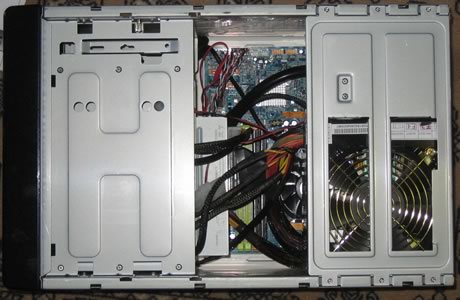
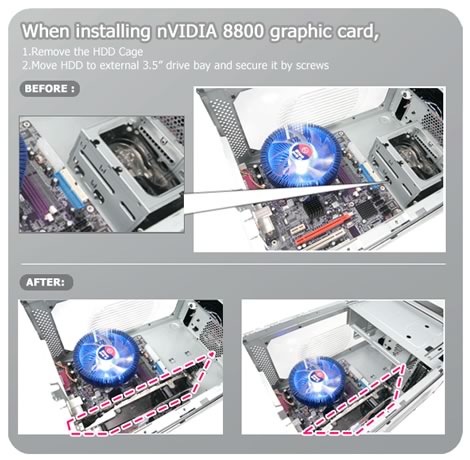
If you intend installing something like an Nvidia 8800GTX graphics card, several adjustments need to be made.
 

Review Pages

1. Introduction
2. The Package
3. Installation
4. Conclusion


Pages

  • « first
  • ‹ previous
  • 1
  • 2
  • 3
  • 4
  • next ›
  • last »

SFF

Thermaltake

Tags: SFF Thermaltake
Previous Post
Tom Tom One
Next Post
Sony Ericsson K810i

Related Posts

  • Thermaltake Launches AW360/420 AIO Liquid Cooler and WAir CPU Cooler for Workstations

  • Begin the Racing Journey with the Thermaltake GR300 Racing Simulator Cockpit

  • Thermaltake Unveils the Massive EXTREME with Cross-flow Fan

  • Thermaltake Releases the Toughpower TF3 1300W with Support for RTX50 Series GPUs

  • Thermaltake Unveils G6 Direct Drive Racing Wheel Bundle and GM5 3DOF Motion System

  • Thermaltake Launches the TT150 LED Bag in Different Sizes and New Colors

  • Thermaltake New TH V2 Ultra EX ARGB Sync AIO – Snow Edition is Now Available Worldwide

  • Thermaltake Coolers Support New-Gen Intel and AMD CPUs

Latest Reviews

Noctua NP-DM3 desk mat
Gaming

Noctua NP-DM3 desk mat

Crucial P510 2TB NMVE
PC components

Crucial P510 2TB NMVE

The Quiet Technology Behind the Spin
Enterprise & IT

The Quiet Technology Behind the Spin

Crucial DDR5 Pro 6400 CL32
PC components

Crucial DDR5 Pro 6400 CL32

SOUNDPEATS Clip1
Consumer Electronics

SOUNDPEATS Clip1

Popular News

COLORFUL Introduces CVN B850I GAMING FROZEN Motherboard

COLORFUL Introduces CVN B850I GAMING FROZEN Motherboard

COLORFUL Presents CVN X870 ARK FROZEN Motherboard for AMD Ryzen 9000 CPUs

COLORFUL Presents CVN X870 ARK FROZEN Motherboard for AMD Ryzen 9000 CPUs

COLORFUL Presents the B860 Series Motherboards

COLORFUL Presents the B860 Series Motherboards

Intel-AMD new motherboards announced

Intel-AMD new motherboards announced

TEAMGROUP Launches EXPERT P34F Find My External SSD

TEAMGROUP Launches EXPERT P34F Find My External SSD

ASRock AM5 Motherboards Now Fully Support AMD Ryzen 9 9950X3D & 9900X3D Processors

ASRock AM5 Motherboards Now Fully Support AMD Ryzen 9 9950X3D & 9900X3D Processors

Samsung announces Galaxy Tab S11 and Galaxy S25 FE series

Samsung announces Galaxy Tab S11 and Galaxy S25 FE series

Viltrox Showcases Upcoming Lens Lineup and New TTL Flash at IBC 2025

Viltrox Showcases Upcoming Lens Lineup and New TTL Flash at IBC 2025

Main menu

  • Home
  • News
  • Reviews
  • Essays
  • Forum
  • Legacy
  • About
    • Submit News

    • Contact Us
    • Privacy

    • Promotion
    • Advertise

    • RSS Feed
    • Site Map
  • About
  • Privacy
  • Contact Us
  • Promotional Opportunities @ CdrInfo.com
  • Advertise on out site
  • Submit your News to our site
  • RSS Feed