Breaking News

Apple introduces AirPods Max 2 COLORFUL Launches the iGame GeForce RTX 50 Ultra Series Creative Launches Sound Blaster Audigy FX Pro Toshiba to Showcase High-Performance AI and Petabyte-Scale Storage Solutions at Cloudfest 2026 The SAMA V62 brings panoramic design to modern PC builds

logo

  • Share Us
    • Facebook
    • Twitter
  • Home
  • Home
  • News
  • Reviews
  • Essays
  • Forum
  • Legacy
  • About
    • Submit News

    • Contact Us
    • Privacy

    • Promotion
    • Advertise

    • RSS Feed
    • Site Map

Search form

Bad Copy Pro

Mar 10,2004 0

5. Hard Disk Recovery Test


Review Pages

1. Introduction
2. CD-R Recovery Test - page 1
3. CD-R Recovery Test - page 2
4. CD-RW Recovery Test
5. Hard Disk Recovery Test
6. Floppy Recovery Test - page 1
7. Floppy Recovery Test - page 2
8. Floppy Recovery Test - page 3
9. Conlusion


Bad Copy Pro - Page 5

HARD DISK

Starting the Hard Disk test, we choose from recovery source board on the left,

Other Media or Storage.

Notice that we delete our image file from the hard drive C.


The first step asks to define the drive.

After that we must see our lost file. In our case is inside the folder "HD Test BAD COPY". Thus, we double click on it.
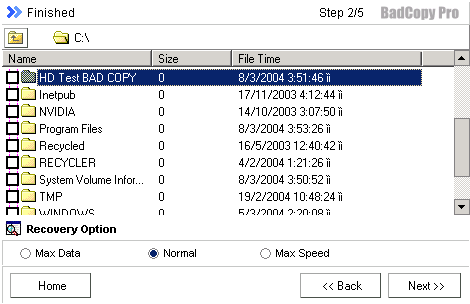
Unfortunately we can`t see our file in there, thus we can`t have selection for recovery.

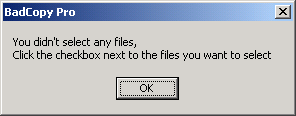
Pressing only the next button, the message below appears, asking to define a file, which we could not find.
 

Review Pages

1. Introduction
2. CD-R Recovery Test - page 1
3. CD-R Recovery Test - page 2
4. CD-RW Recovery Test
5. Hard Disk Recovery Test
6. Floppy Recovery Test - page 1
7. Floppy Recovery Test - page 2
8. Floppy Recovery Test - page 3
9. Conlusion


Pages

  • « first
  • ‹ previous
  • 1
  • 2
  • 3
  • 4
  • 5
  • 6
  • 7
  • 8
  • 9
  • next ›
  • last »

Tags:
Previous Post
Memorex True-8x
Next Post
LiteOn SOHC-5232K combo

Related Posts

Latest Reviews

Why Streaming Live Casino Games Demands Smarter Tech
Enterprise & IT

Why Streaming Live Casino Games Demands Smarter Tech

Kioxia Exceria Plus G3 512GB microSD
Cameras

Kioxia Exceria Plus G3 512GB microSD

SoundPeats Cove Pro
Consumer Electronics

SoundPeats Cove Pro

Asustor AS5404T 4-Bay NAS System
Enterprise & IT

Asustor AS5404T 4-Bay NAS System

be quiet! Pure Power 13M 1200W
PC components

be quiet! Pure Power 13M 1200W

Popular News

COLORFUL Presents CVN X870 ARK FROZEN Motherboard for AMD Ryzen 9000 CPUs

COLORFUL Presents CVN X870 ARK FROZEN Motherboard for AMD Ryzen 9000 CPUs

TEAMGROUP Launches EXPERT P34F Find My External SSD

TEAMGROUP Launches EXPERT P34F Find My External SSD

Samsung announces Galaxy Tab S11 and Galaxy S25 FE series

Samsung announces Galaxy Tab S11 and Galaxy S25 FE series

Viltrox Showcases Upcoming Lens Lineup and New TTL Flash at IBC 2025

Viltrox Showcases Upcoming Lens Lineup and New TTL Flash at IBC 2025

CORSAIR announces Vanguard Pro 96 and Vanguard 96 Gaming Keyboards

CORSAIR announces Vanguard Pro 96 and Vanguard 96 Gaming Keyboards

Panasonic Introduces the First Ultra-Telephoto Zoom Lens in the LUMIX S Series

Panasonic Introduces the First Ultra-Telephoto Zoom Lens in the LUMIX S Series

MSI Launches DATAMAG 40Gbps Magnetic Portable SSD

MSI Launches DATAMAG 40Gbps Magnetic Portable SSD

MSI Launches FORGE GK600 TKL WIRELESS Special Edition Compact Mechanical Keyboard

MSI Launches FORGE GK600 TKL WIRELESS Special Edition Compact Mechanical Keyboard

Main menu

  • Home
  • News
  • Reviews
  • Essays
  • Forum
  • Legacy
  • About
    • Submit News

    • Contact Us
    • Privacy

    • Promotion
    • Advertise

    • RSS Feed
    • Site Map
  • About
  • Privacy
  • Contact Us
  • Promotional Opportunities @ CdrInfo.com
  • Advertise on out site
  • Submit your News to our site
  • RSS Feed