Bad Copy Pro
1. Introduction
Bad Copy Pro - Page 1
INTRODUCTION
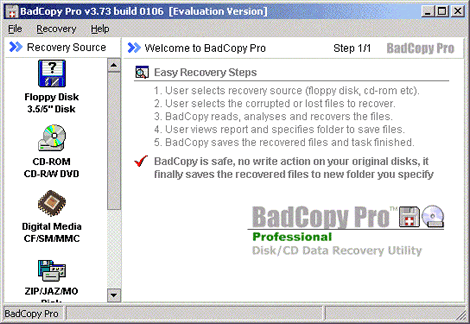
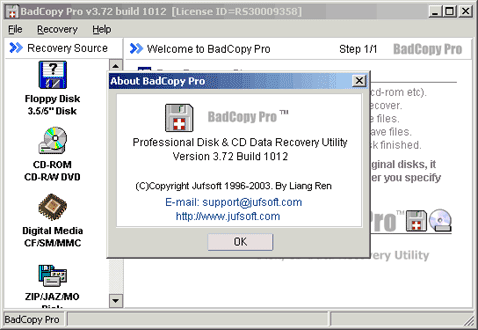
Bad Copy Pro, is a data recovery utility from Jufsoft. It helps user to rescue lost data from lapse erase command or damaged CDs, Floppy, memory cards, etc. From the picture below we can see that our tested version is 3.72 Build 1012. At this review we going to demonstrate and at the same time test the basics of the software.
Bad Copy Pro Features
1. Advanced and intelligent floppy recovery or CD recovery ability.
2. Fully automatic data recovery process without your manual work.
3. Supports recovering all types of files like documents, images, applications
etc.
4. Supports most kinds of media recovery like floppy disk, CDROM, CDR, CDRW
etc.
5. Supports floppy disk, CD-ROM/CD-R/CD-RW lost files rescue and recovery.
6. Recovered files post-process and smart data filling technology.
7. Supports digital media recovery like SmartMedia, CompactFlash (CF) card
and ZIP.
8. Supports UDF CD data recovery (includes most packet-writing burner program)
Usage
When the main window pop-ups, user can read the five steps that he has to follow, in order to recover the files.
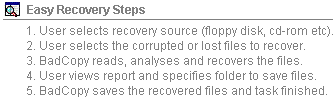
There is also a note under recovery steps, warning the user that the whole process will not affect source disk.

Bad Copy Pro, claims to supports almost every storage device. It looks easy to use, windows interfaced and has three available rescue modes.
1. Rescue Corrupted Files Mode.
User has to use this mode, if he can see the files under Windows environment, but they do not work. Also underneath rescue corrupted files mode, there is three recovery options
a) Max Data: This option is recommended for small and important data files, because takes long time to recover data, but has better results. It makes more attempts to the lost data and with this option the program try to rescue the max data.
b) Normal (default): This option is the default for any recovery.
c) Max Speed: This option is recommended for large data files. Making only one attempt to recover data, is faster even from the normal mode.
2. Rescue Lost Files Mode #1 (only available for floppy or CD recovery).
User has to use this mode, if he can not see the files under Windows environment or Windows prompts him to format the media or the files was deleted.
3. Rescue Lost Files Mode #2 (only available for floppy or CD recovery).
User has to use this mode, if he do not get the desired results from Mode
#1, which suggested to use first.
Mode #2 use different recovery and restoration methods to maximize access to
the lost files.
About Test
This test was based to the thought, that the most common lost data problems happens to damaged CDs, floppies or lapse delete command.
Thus made some damaged media for this test:
a) One CDR, which has two random lines (0,5 cm) with felt-tipped pen across it and is full of images (Data error - cyclic redundancy check)
b) One CDRW full of images (for quick erase recovery test)
c) One damaged floppy disk with a dip line, made from pen across it and about the middle of the magnetic area having length 0.5cm (Data error - cyclic redundancy check)
Our original photo we used for our tests is the following :