Aopen MVP player
1. Introduction - Retail Package
Review Pages
AOpen MVP Player - Page 1
 End
users are attracted to devices that can play almost any video format. Many
manufacturers are making DivX certified players, almost all stand-alone DVD
Players can now handle mp3 files, and photo discs are now compatible with consumers
players. All these devices use CD or DVD discs to read the required data. AOpen
has come up with a different way to play multimedia files.
End
users are attracted to devices that can play almost any video format. Many
manufacturers are making DivX certified players, almost all stand-alone DVD
Players can now handle mp3 files, and photo discs are now compatible with consumers
players. All these devices use CD or DVD discs to read the required data. AOpen
has come up with a different way to play multimedia files.
The MVP Player is the latest universal player introduced by AOpen. It can play all popular video formats, along with audio and image formats. The main difference from all the other multimedia players is that AOpen's device uses a 2.5" or 1.8" hard disk drive to play all supported formats. It can also be used as a Multimedia Card projector to view pictures on any TV or PC monitor.
- Features
 The
MVP player can handle VideoCD / MPEG-1 files and DVD video / MPEG-2 files.
Special DVD Video functions like Multi-angle selection are not supported.
DivX video playback is also supported.
The
MVP player can handle VideoCD / MPEG-1 files and DVD video / MPEG-2 files.
Special DVD Video functions like Multi-angle selection are not supported.
DivX video playback is also supported.
It is compatible with both PAL and NTSC TV screen standards. It can be connected to any TV using composite or S-Video output, and it can also be connected to a PC monitor using normal VGA output. The VGA resolution reaches 1024 X 768.
AOpen's player can playback the popular mp3 file format, along with the well known Microsoft Windows Media WMA file format. It uses a simple stereo audio output. Users will enjoy the equalizer functionality this device has to offer. You can choose between several audio equalizer presets to further enhance your listening pleasure.
- Specifications
AOpen MVP Player |
||
Supported Format |
||
Video |
MPEG-1 |
|
MPEG-2 |
||
MPEG-4 |
||
Motion JPEG |
||
Music |
MP3 |
|
WMA |
||
Photo |
JPEG |
|
Supported Devices |
||
Storage Media |
2.5" or 1.8" HDD |
|
CFI / CFII |
||
MD |
||
MMC |
||
MS |
||
SD |
||
SM |
||
Display Output |
TV (PAL, NTSC) |
|
Composite |
||
S-Video |
||
YUV (optional) |
||
Audio Output |
Stereo Audio |
|
OSD |
English |
|
Power Adaptor |
Input: |
~100-240V, 50-60Hz |
Output: |
DC +5V, Max 1.4A |
|
Dimension (mm) |
Device Dimension |
162 X 114 X 29 |
162 X 114 X 133 (HDD Enclosure Plug-in) |
||
Packing Dimension |
315 X 260 X 50 |
|
Weight (g) |
Net Weight |
200 |
250 (include HDD Enclosure) |
||
Cross Weight |
1000 |
|
The hard disk drive only the enclosure is included in the package.
- Retail Package
 The
retail package includes the MVP player, a HDD enclosure with a stylish cover,
the device's remote control, an AC adapter, and a multi-language user's manual
along with an 8mm compact disc containing all required drivers for the
HDD.
The
retail package includes the MVP player, a HDD enclosure with a stylish cover,
the device's remote control, an AC adapter, and a multi-language user's manual
along with an 8mm compact disc containing all required drivers for the
HDD.
The package also includes all needed cables to connect the player to any TV or PC monitor. Unfortunately, these cables are standard low quality cables that more advanced users might need to replace with high grade cables to minimize signal "noise". However, most end users will not have any problems using these cables.

You may notice that there is no AC adapter for the HDD enclosure. The enclosure uses 2 USB2.0 ports to connect to a PC, getting all the power supply it needs from these USB ports. So, there is no need for a power adapter. The small pen that appears at the bottom of the image above, is in fact a screwdriver that can be used to install the 2.5" hard disk in the enclosure.

On the front panel of the device, we can see the Multimedia Card slots. The device supports all popular Multimedia Cards. On the left side, you can see the remote receiver.

The back panel is far more interesting. Here you can see all the video and audio outputs available on the device, including the NTSC/PAL and On/Off switches.
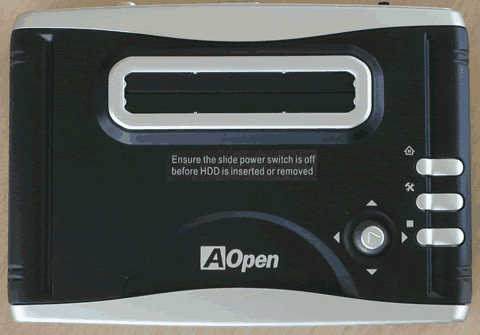
On the top of the device, you can see the HDD slot that you can use to insert the HDD enclosure. Simple device functions can also be controlled from the top panel while more advanced functions can only be controlled with the remote control provided.

It should be noted that the device cannot connect with a PC. So, it can not be used as a normal card reader. Another drawback is that no files can be transferred from the hard disk to the multimedia cards or vice-versa. You can use the hard disk with a multimedia card at the same time, but only one card can be inserted. We tried to insert more than one multimedia card, and the device freezes when it tries to initialize the cards.
Review Pages