Microsoft Adds Office Style Ribbon To Windows 8's Explorer
Microsoft will improve the file management capabilities of Windows Explorer by adding an Office style ribbon to its UI, in the upcoming Windows 8 operating system.
After evaluating several different UI command affordances including expanded versions of the Vista/Windows 7 command bar, Windows 95/Windows XP style toolbars and menus, as well as several entirely new UI approaches, and the Office style ribbon, Microsoft concluded that the the ribbon approach offered more benefits.
Alex Simons, a program manager at Microsoft's Windows 8 team, says that the ribbon approach provides the ability to put the most important commands in prominent, front and center locations. It will
make it easy to find commands predictably and reliably, while it exposes a large set of commands (~200) in one consistent experience, by organizing commands into scenario-focused groups without the use of nested menus, popups, dialogs, and right-click menus. In addition, it takes a similar approach to Office, Microsoft Paint, and Windows Live Essentials, which means that many of users will be familiar with the model and not have a lot to learn.
The new ribbon
The Home tab is focused on the core file management tasks, and Microsoft put all the major file management commands there in prominent locations: Copy, Paste, Delete, Rename, Cut, and Properties. Microsoft has also also given new prominence to two popular heritage features, Move to and Copy to, along with exposing a hidden gem, Copy path, which is really useful when you need to paste a file path into a file dialog, or when you want to email someone a link to a file on a server.
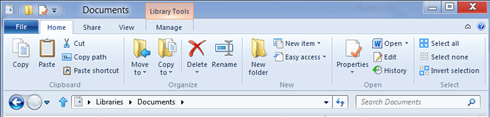
The new Home tab
The Share tab is for sharing files by typical methods like zipping them up and emailing them to a friend, or burning them to optical media. Or you can quickly share files with other people in your home group or your network domain. It also provides one-click access to the ACLs for the currently highlighted file.
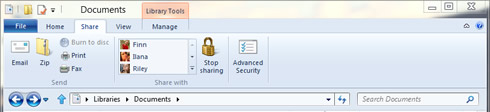
The new Share tab
The View tab provides access to options for view customization. Microsoft enabled one-click access for turning on/off the Navigation pane, Preview pane, and Details pane, a live preview gallery for the different icon display sizes, quick access to sorting and grouping by column, the ability to quickly add columns, plus easy access to three hidden features: show file name extensions, show hidden items, and hide selected items.
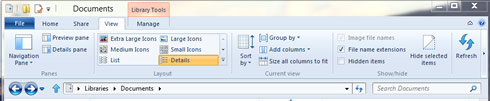
The View tab
The customization options for the Navigation pane are also much easier to access ? in the drop-down menu, you get one-click access to them, including a new option to show or hide favorites.
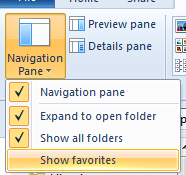
Navigation pane options
The file menu and other tools
The file menu lets you quickly open new Explorer windows, access your shortcuts, and change folder and search options. It also includes a hidden feature that we love, Open command prompt, and a really useful new command, Open command prompt as administrator, both of which launch a command prompt with the path set to the currently selected folder.
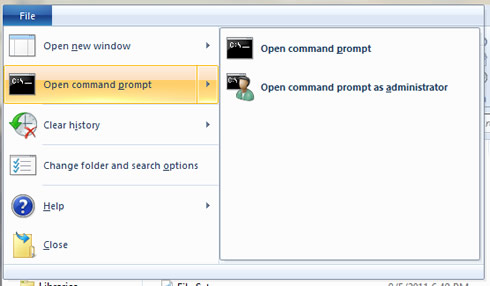
File menu
Microsoft has provided a variety of contextual tabs that activate in the context of specific files and folders, and for tasks like searching, managing libraries, viewing pictures, and playing music. One of the best examples is the new Search Tools contextual tab which launches when you click in the search box.
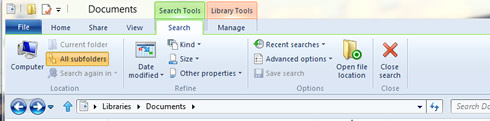
Search tab
The Search tab surfaces a bunch of hidden gems that most people are not aware of, but that could solve some common problems for them. You can quickly adjust the scope of any search, filter by common date ranges, file type, file size, and other properties like the author or name. Then you can save these searches for future use.
Here are examples of some of the other Explorer context tabs:
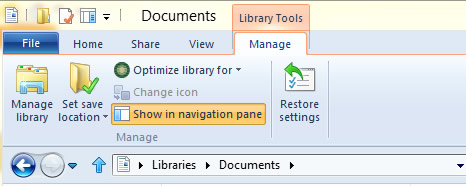
Library Tools
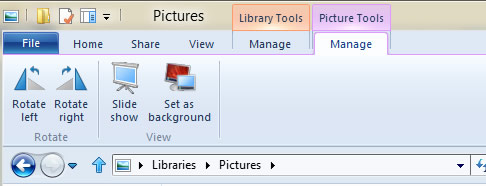
Picture Tools
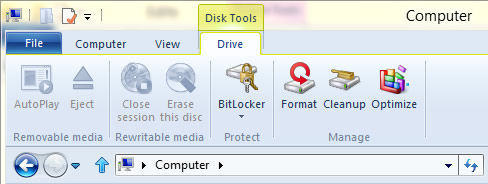
Disk Tools
Microsoft investigated a number of options for using widescreen formats more effectively with the goal that the total vertical space available for content was the same after we added the ribbon as it had been in Windows 7. The company removed the header at the top of the main view and moved the Details pane to the right side (and also did a visual revamp of the pane) while keeping a one-line status bar at the bottom of the window.
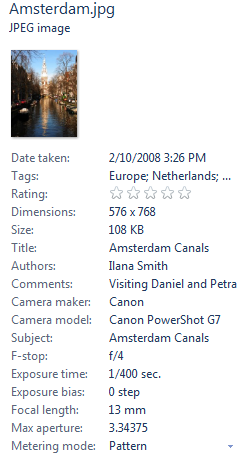
Details pane for images
This approach gives you a new Details pane that is much easier to read, makes better use of widescreen formats, and preserves screen real estate for the main file/folder pane. The exact number of lines might vary a bit from PC to PC depending on what add-ins you have, but for the out-of-the-box configuration running full screen at 1366 X 768, you can actually fit two more lines on the screen than you could in Windows 7.
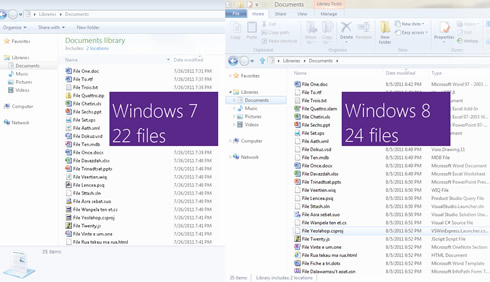
And this comparison assumes you have the ribbon open. If you collapse the ribbon (double-click the tab, or click the Minimize arrow on the right side of the ribbon), you get even more vertical real estate with our new approach.
All of the existing Windows Explorer shortcuts work in this version of Explorer, but with Microsoft's new approach, all of the approximately 200 commands in the ribbon now have keyboard shortcuts as well.
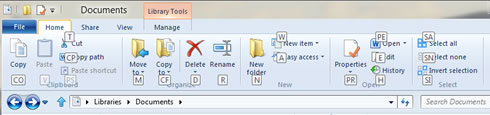
Keyboard shortcuts
The new Quick Access Toolbar (QAT) in Explorer also provides a lot of customization opportunities. Similar to Office, by right-clicking any button in the ribbon, you can add it to the QAT. Additionally, you can choose to have the QAT display above or below the ribbon, and to display the ribbon in an open or minimized state.
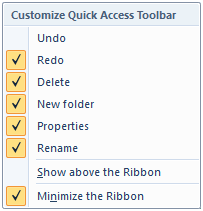
QAT customization options
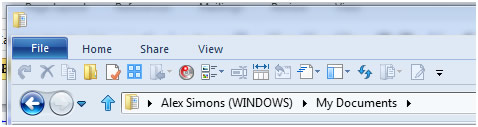
A customized QAT with a minimized ribbon
Finally, as you may have noticed in several of the screen shots, Microsoft just had to bring back the ?Up" button.
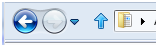
The return of the ?Up" button!